VMware Workstation Setup
In this section, I will guide you through the setup process for VMware Workstation.
This will be used to host the virtual machines within our on-prem environment.
Download
You can download VMware Workstation Pro from here.
Scroll down on the page and click Download Now. 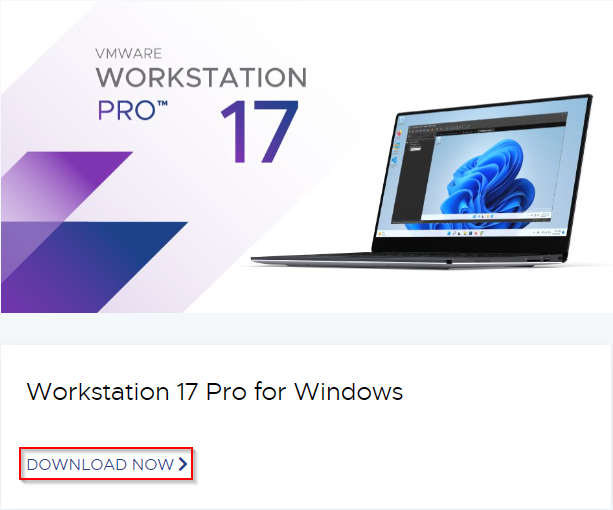
Installation Process
Run the installer and follow along with the guide below.
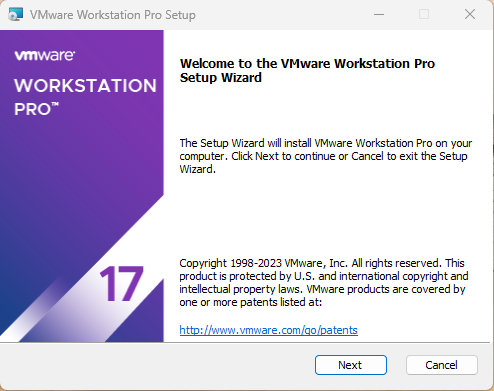
On the first panel of the wizard, simply click Next.
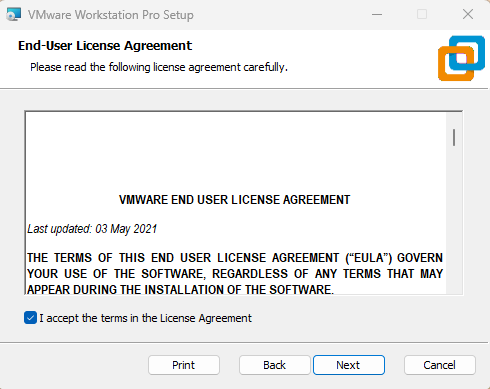
Accept the terms if you so choose, and click Next.
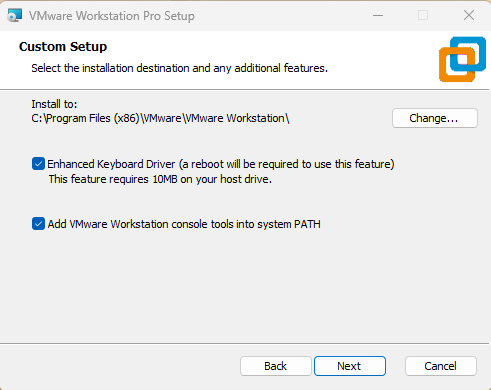
Ensure that both boxes on this screen are selected and click Next.
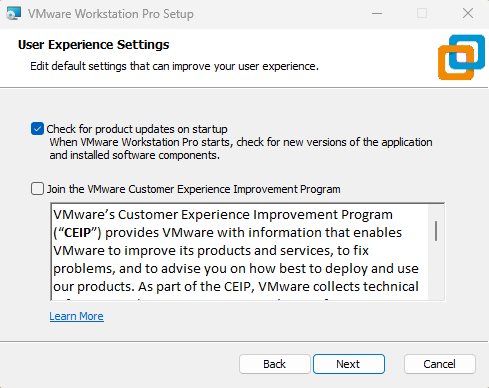
Choose your preferences for the User Experience Settings panel and click Next.
Choose your preferences for the Shortcuts panel and click Next. 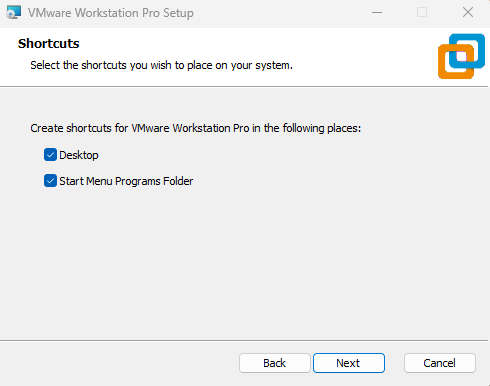
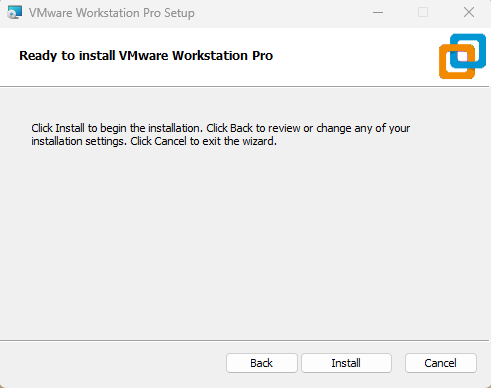
Click Install.
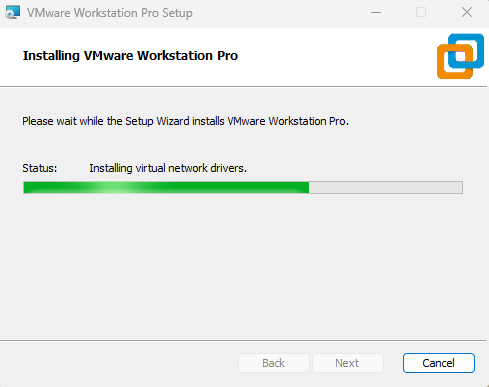
You’ll see the installer proceed with the installation process. Wait for it to finish.
If you’d like to enter a license, click the License button, if not click Finish.
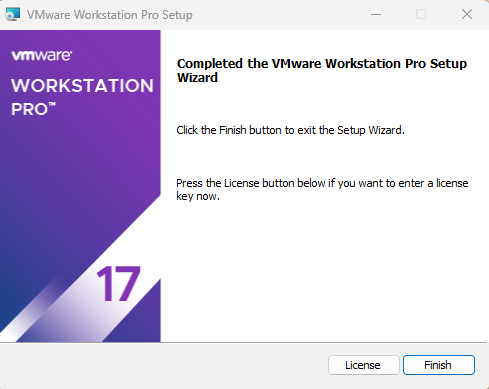
Licensing (optional)
If you have chosen to enter a license, do so on this page.
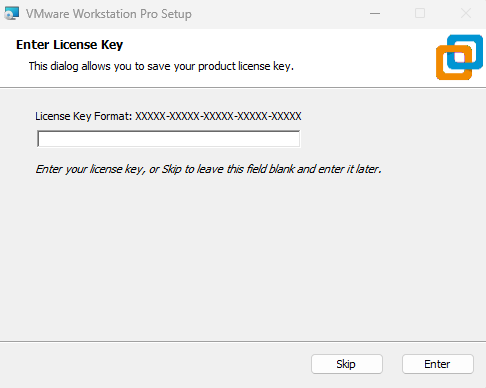
Once you’ve entered the license, click Enter.
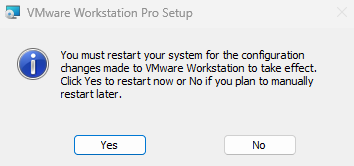
Initial Setup
On the initial launch of VMware Workstation Pro, we’ll have to either enter a licensing key or continue without one by accepting the trial option. Click Continue.
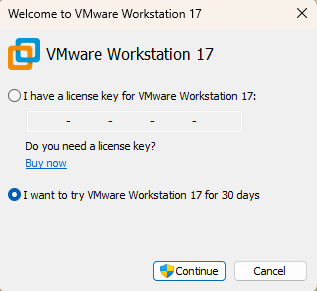
Click Finish.
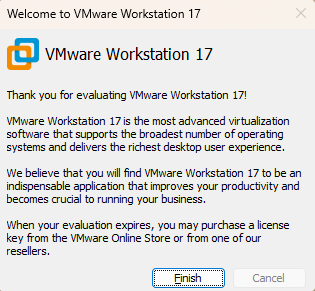
Virtual Network Editor Config
Before we continue with creating anything within VMware Workstation, we need to perform the initial setup of our Virtual Network.
Click on Edit on the ribbon menu, then click Virtual Network Editor.
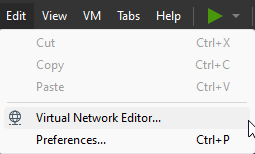
Within the Virtual Network Editor, select 
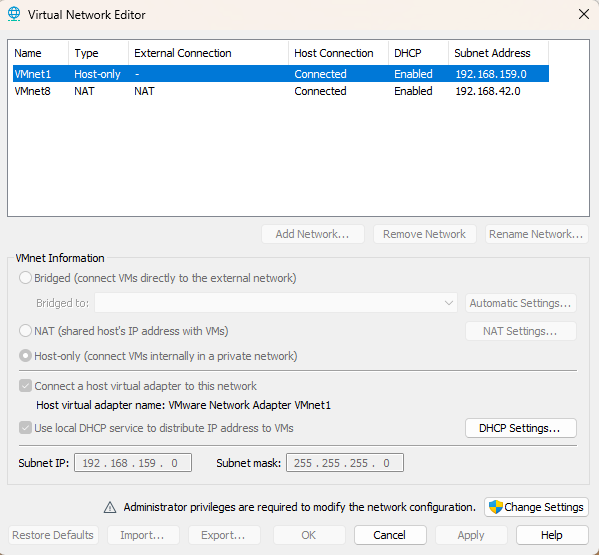
For VMnet1 & VMnet8, select the entry in the table and click 

Select VMnet0 and click the drop-down menu. Select the primary interface you’re using on your machine. This will force all connections on this virtual interface to utilize the physical connection you’ve chosen, which will be used later to provide internet services to an OPNsense firewall.

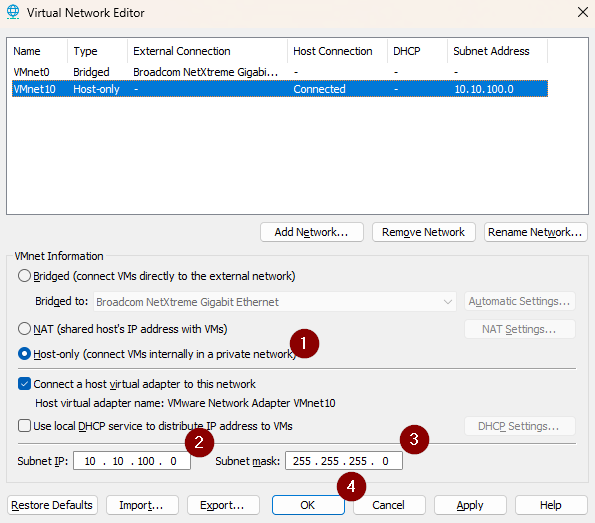
Now let’s add a new interface and assign it to VMnet10.
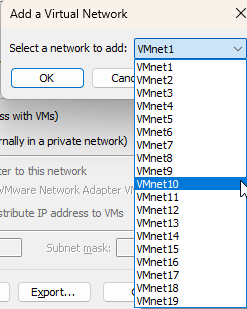
Now, select Host-only under the VMnet Information section, this will force this network to ONLY be available on the newly created virtual interface.
Enter the Subnet IP information you’d like to use for this virtual network and click OK.
On a roll!
We’ve successfully installed VMware Workstation Pro and configured the Virtual Network.
Please make your way to the next section, where we’ll be creating our M365 environment!