We’ll be using the Roles MMC Profile for this section.
Creating a DHCP Scope
Expand the DHCP tree until you can see the items within IPv4.
Right-click the IPv4 object and choose New Scope.
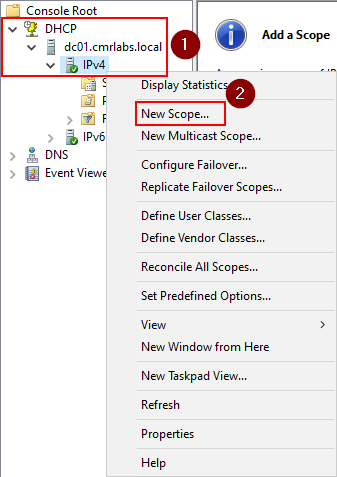
Follow the New Scope Wizard prompts as guided below.
Click Next >
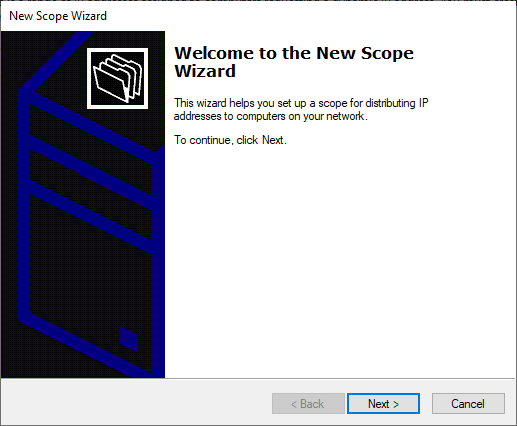
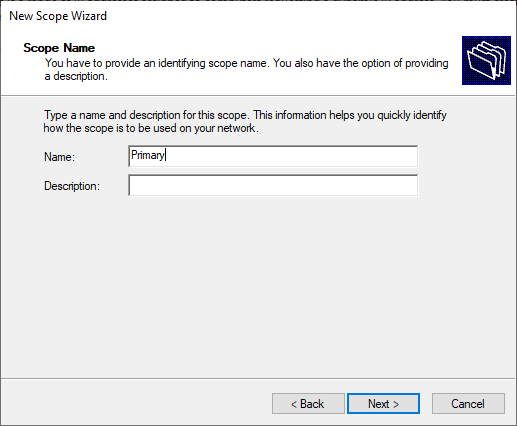
Enter a name for your new scope and click Next >.
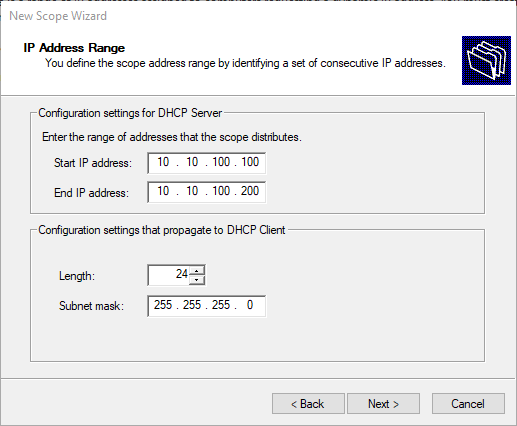
Enter the range of IP addresses you’d like to distribute on your network.
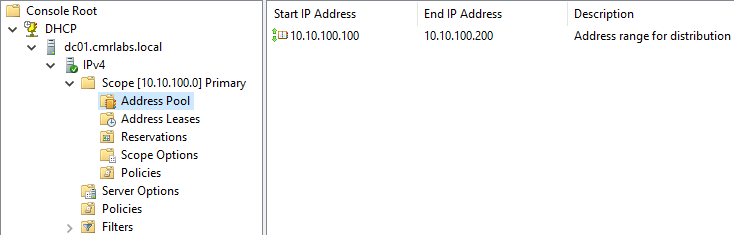
I chose 10.10.100-200 which falls within our primary subnet 10.10.100.0/24 for this domain environment.
Verify the subnet mask is configured with a /24 subnet.
Pro Tip!
/24is the CIDR notation for255.255.255.0!
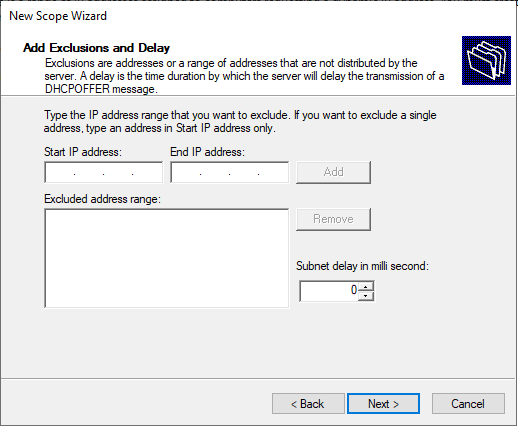
Click Next >
Click Next >
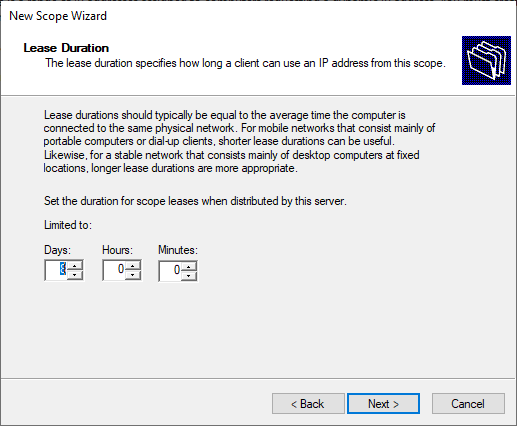
Accept the default lease time of 8 Days and click Next >.
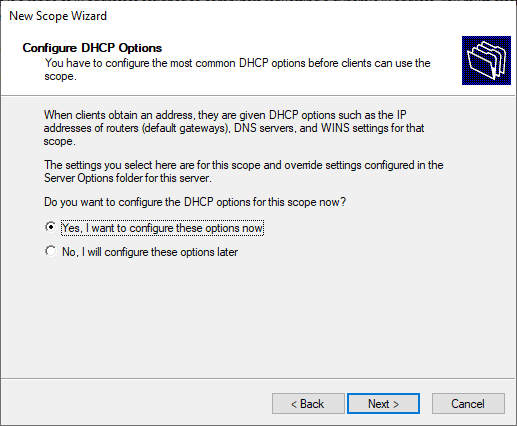
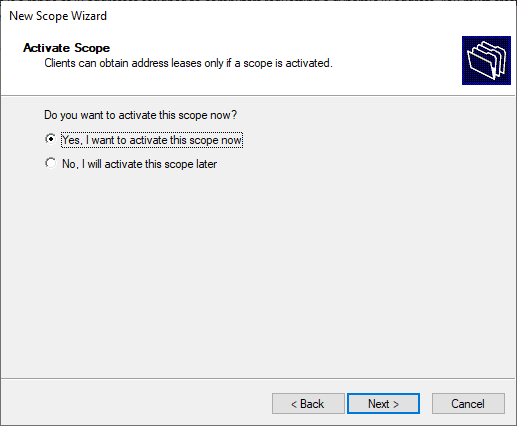
Accept the default radio button selection so we can configure DHCP options next.
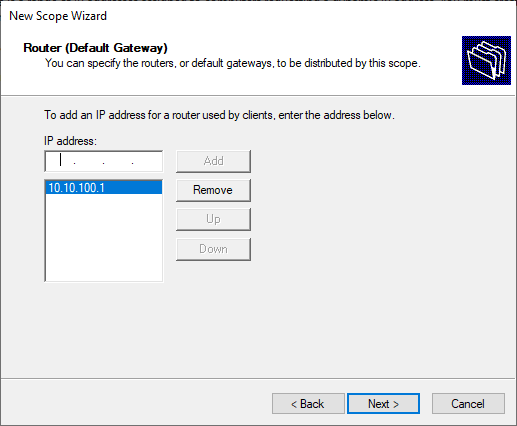
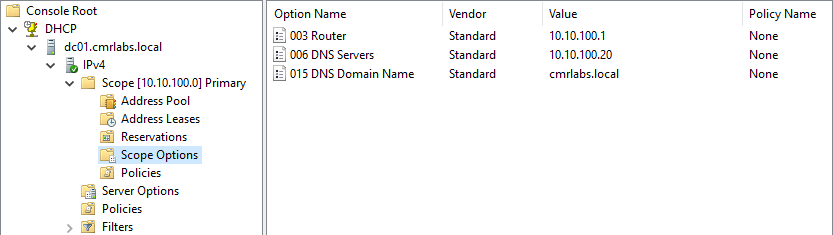
Enter the IP Address of the Router (Default Gateway)
Which in this scenario is the PFSense LAN Interface IP (10.10.100.1).
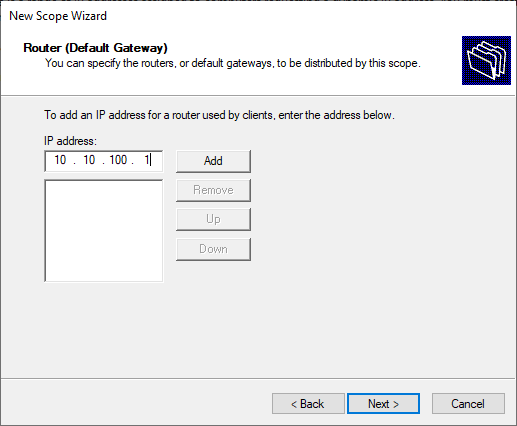
Click Add and the entry will populate within the list.
Click Next >
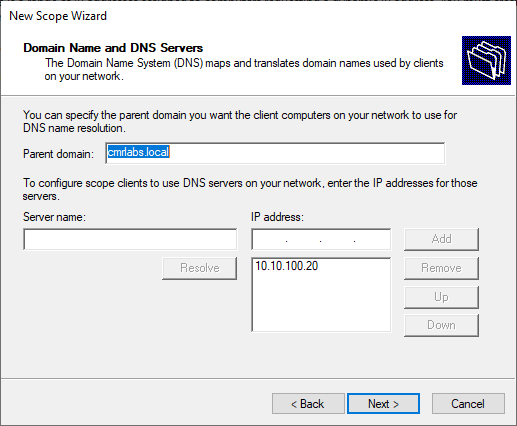
This page will auto-populate with the required information.
If you have any other DNS servers you’d like to add, enter them now and click Add.
Click Next >
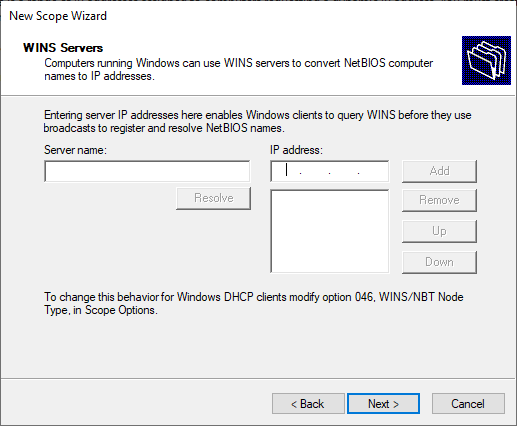
Click Next >
Click Next >
DHCP Overview
Expand the newly created scope and click the child objects to review them.
Address Pool
Overview of created address pools defined within the scope.
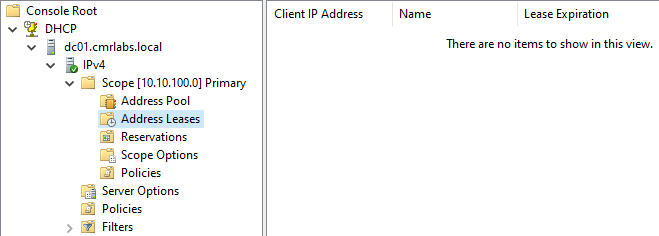
Address Leases
List of active address leases within the scope.
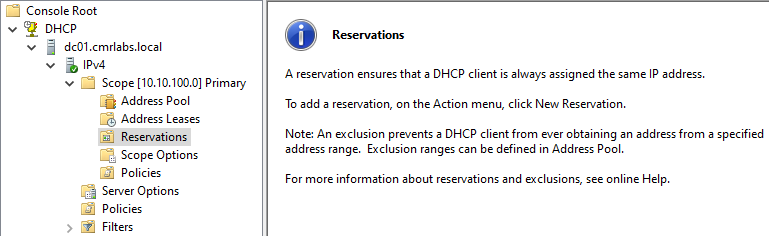
Reservations
List of active reservations within the scope.
Scope Options
Overview of scope options defined within the scope.
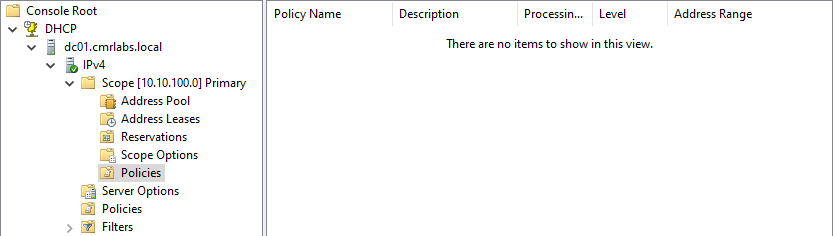
Policies
Overview of policies defined within the scope.
DHCP Initialized!
We’ve successfully initialized the DHCP Server!
Please make your way to the next section, where we’ll be configuring the DNS Server!