We’ll be using the AD DS MMC Profile for this section.
Mapping a Network Drive via GPO
Expand the Group Policy Management tree until you can see the items within mydomain.local.
Expand then right-click Group Policy Objects.
Select New

Name the GPO U_NetworkDrives.

Right-click the newly created GPO and click Edit…

Navigate through the User Configuration tree.
Preferences > Windows Settings and select Drive Maps.
Right-click the open space and select New > Mapped Drive

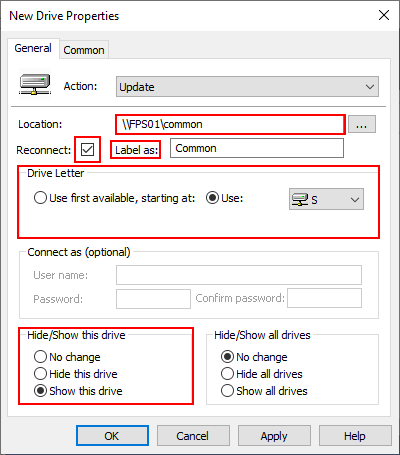
The New Drive Properties pane will appear.
Enter the Location as the UNC Path to your created share.
Configure the remaining options to mirror the config below.
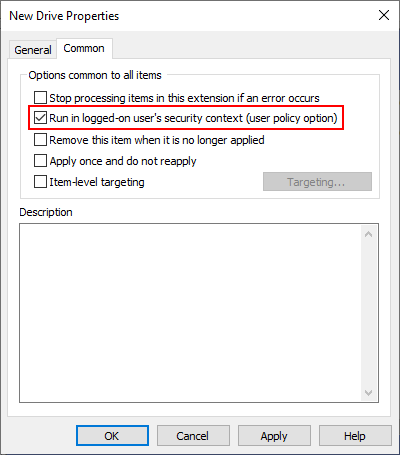
Select the Common tab and mirror the configuration below.
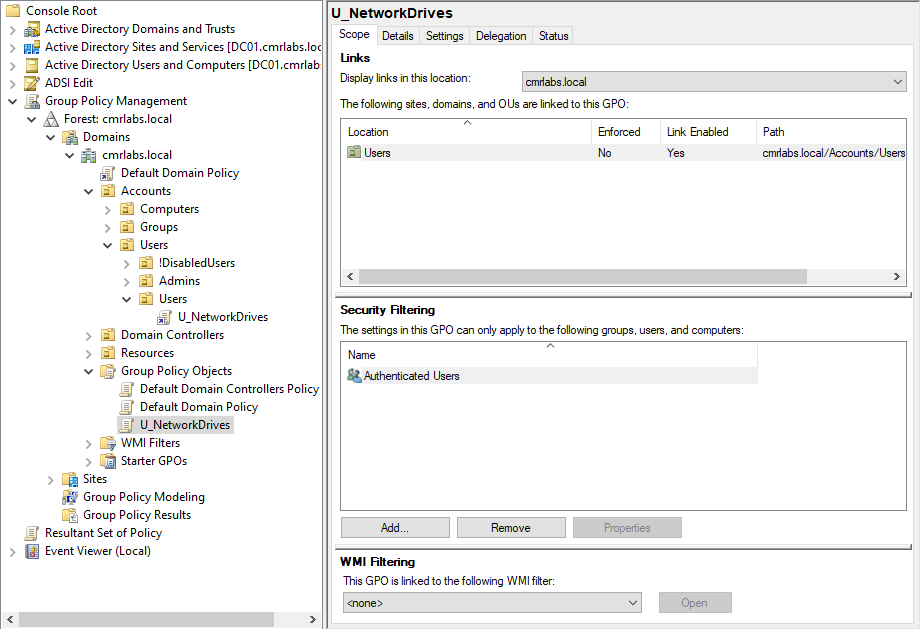
Associating the GPO with an OU
Expand Accounts > Users
Within the Users OU, right-click the Users/Users OU and select Link and existing GPO.
Double-click the newly created GPO U_NetworkDrives.
THE END
Congratulations, you’ve reached the end for now!
Thanks for reading through the documentation!
— 02 FEB 2024