OPNSsense - Access
In this section, I will explain how to properly enable access to the OPNsense Management Dashboard via the WAN Interface.
OPNsense Getting to the Dashboard
Before proceeding with the following directions, we will need to disable the firewall rules by performing a command within the shell.
Enter option 8.
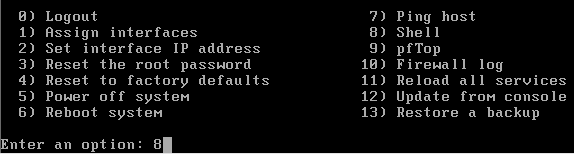
Within the shell interface, enter pfctl -d to disable the firewall rules.

Navigate to the assigned WAN IP, which you can find on the main page.

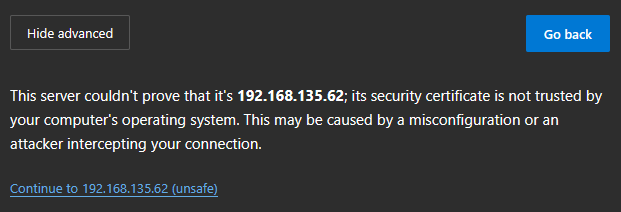
If you get this popup, click Advanced.

Then click Continue.
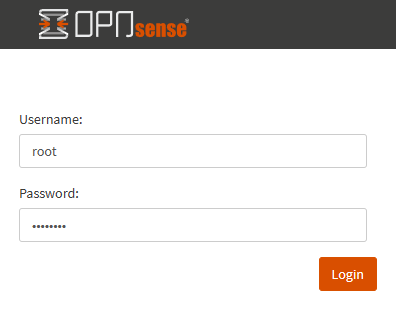
Login to the OPNsense dashboard by using the same root user account from earlier.
Enabling WAN Access for OPNsense
If at any point you get disconnected, or think it’s working, close your browser completely to terminate the session.
If you’re locked out, go back to the shell and enter pfctl -d to disable the firewall rules again.
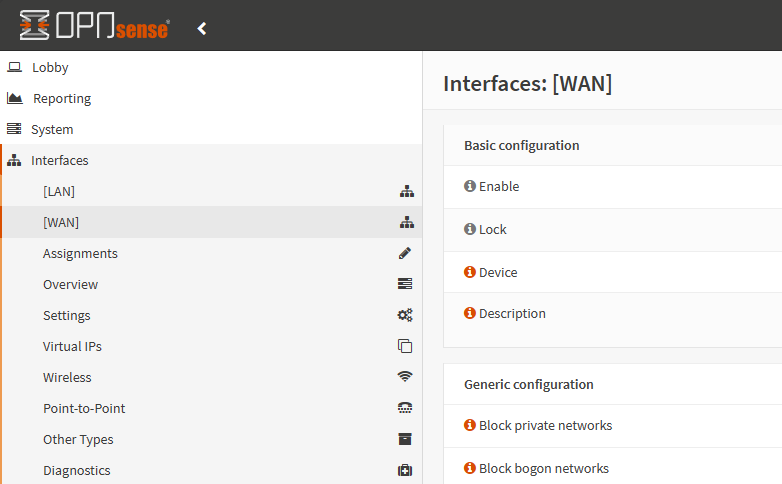
On the main dashboard, select Interfaces then WAN.
Uncheck the Block private networks.
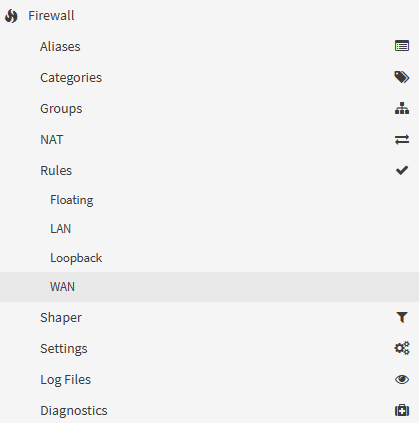
Select the Firewall section and choose Rules then WAN.
On the banner above the rule section, click the  button.
Within the firewall rule, configure the options in this section as displayed.

Within the firewall rule, configure the options in this section as displayed.
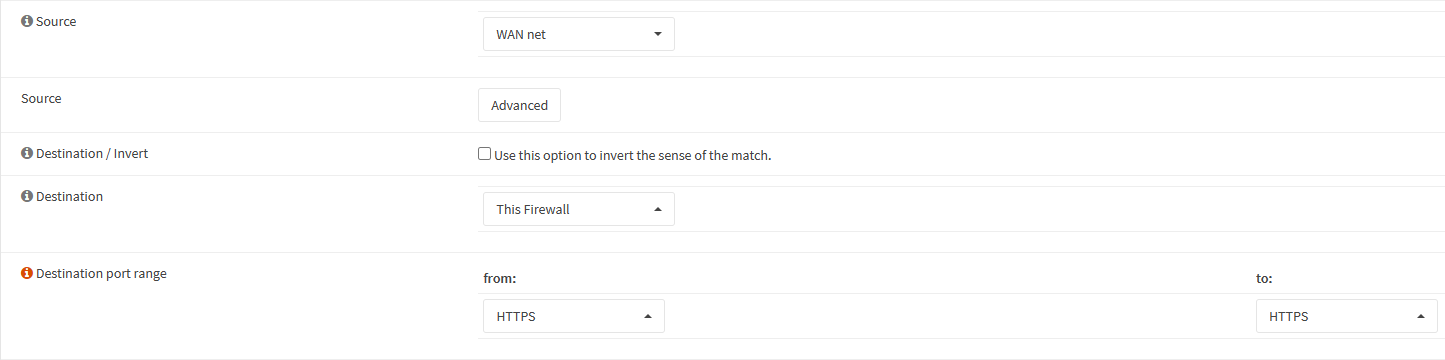
Within the firewall rule, configure the options in this section as displayed.

Once complete, click  at the bottom of the page.
Back on the WAN Rules page, we’ll see a banner at the top of the page.

Click  to apply the newly created rule. This will restart the firewall services.
Within the shell again, verify the firewall rules are running again by entering pfctl -e.

Close your browser completely and verify connectivity via the WAN interface.
On to bigger things!
We’ve successfully setup and configured our OPNsense Firewall! Please make your way to the next section, where we’ll be setting up our first Windows Server, DC01!