OPNsense - Preparation
In this section, I will overview the preparation of the OPNsense Virtual Machine to be used within the on-prem environment. We will be configuring it in later sections.
Downloading the ISO
Navigate to the download page here and download the ISO for OPNsense by selecting the options displayed below. Choose whatever Mirror Location that best suits you.

You will need to extract the ISO using a program that can handle zipped files, as Windows’ Built-In file extractor can’t properly interact with the ISO archive file.
OPNsense VM Creation
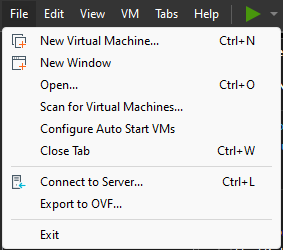
Select File in the ribbon menu and then choose New Virtual Machine.
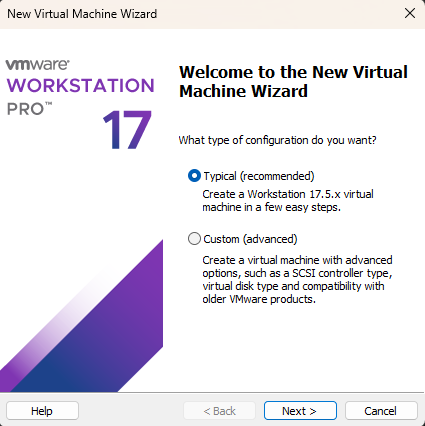
Accept the default of Typical and click Next >.
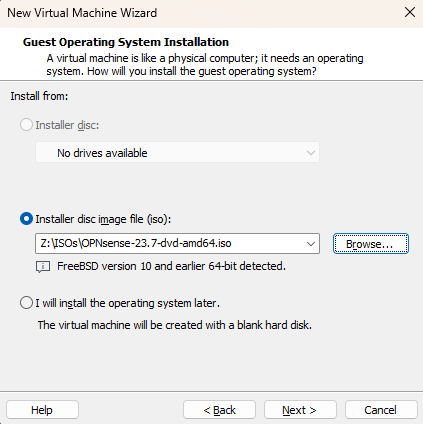
Click Browse… and select the ISO file from earlier.
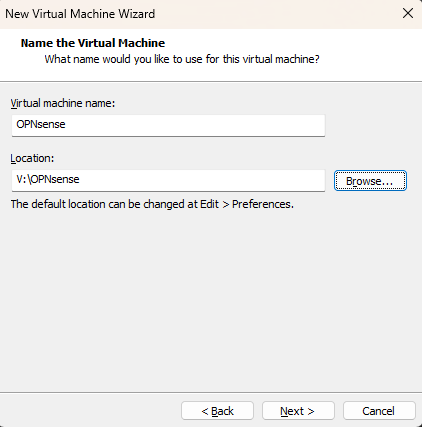
Name the virtual machine whatever you want, I went with “OPNsense” to keep things simple. Now choose the storage location for where you want to store the Virtual Machine. Click Next.
When choosing a location, be sure to organize the VMs there into separate folders, as VMware Workstation Pro will drop all associated files into the folder you specify without creating an organizational folder for you.
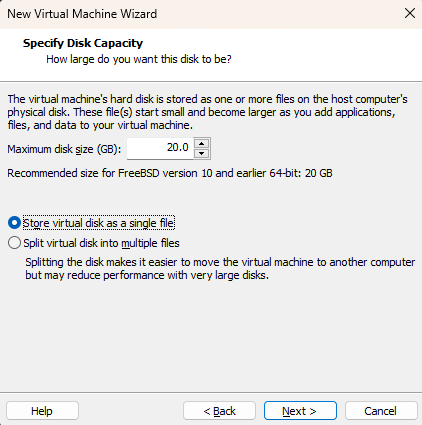
Select Store virtual disk as a single file and click Next.
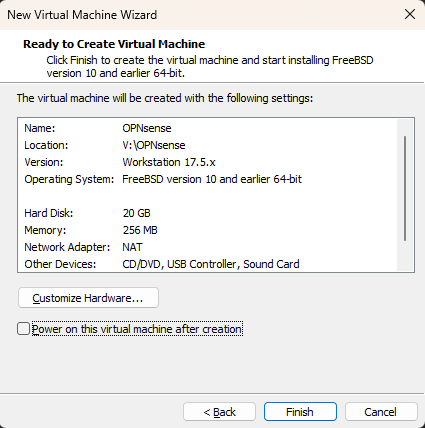
Uncheck the Power on this virtual machine after creation option, as we will be performing more configuration after this.
OPNsense VM Advanced Configuration
Select the virtual machine and on its home page click Edit virtual machine settings.
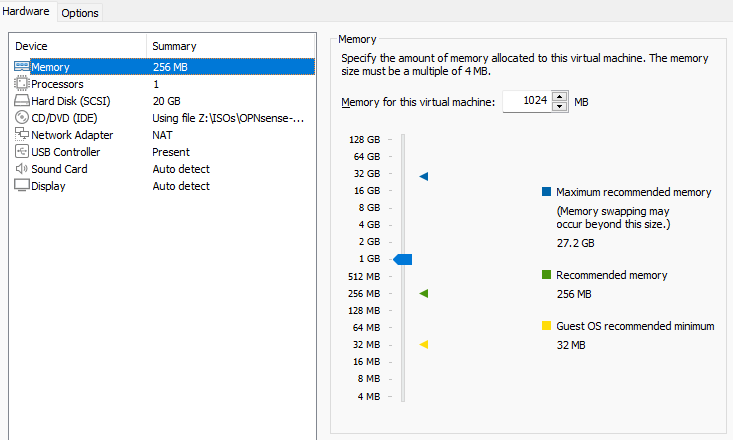
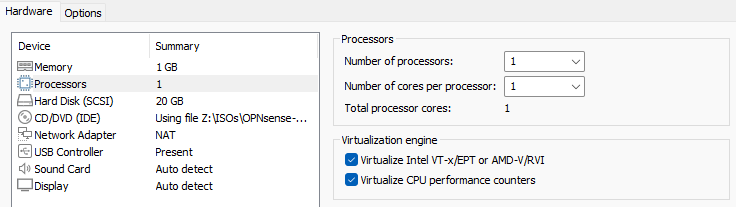
Adjust the Memory for this virtual machine setting to 1024 MB.
On the Processors panel, verify that both options under the Virtualization engine are checked.
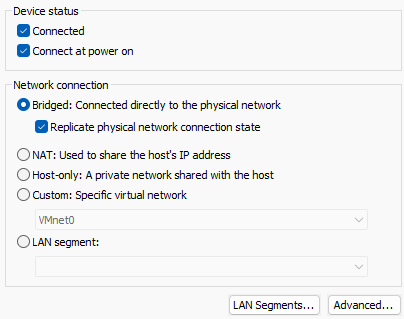
On the Network Adapter panel, match the settings below.
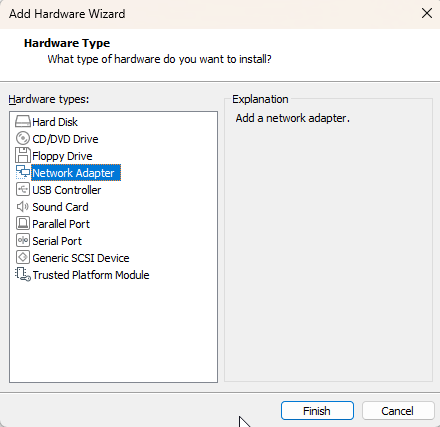
Click the  button underneath the panel options.
Select Network Adapter in the Hardware types menu, then click Finish.
Select the newly added Network Adapter 2 panel entry, then configure it as below.
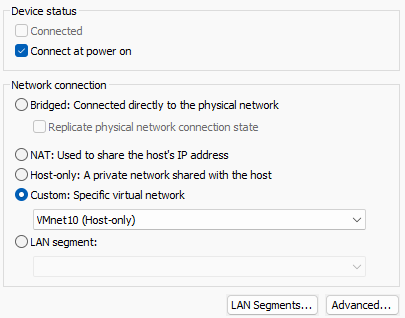
Click OK at the bottom, then go back into the settings once again. You should now see both Network Adapters reflecting the correct attributes.

Preparation Finished!
We’ve successfully prepared the VM for OPNsense! Please make your way to the next section, where we’ll be initializing our OPNsense Firewall!