Downloading Azure AD Connect
You can visit the site below to get the latest installer.
Azure AD Connect V2
Getting Started with Azure AD Connect
Launch the installer to get started.
Review the welcome page, read what you desire, and accept the agreement if you so choose.
Click Continue 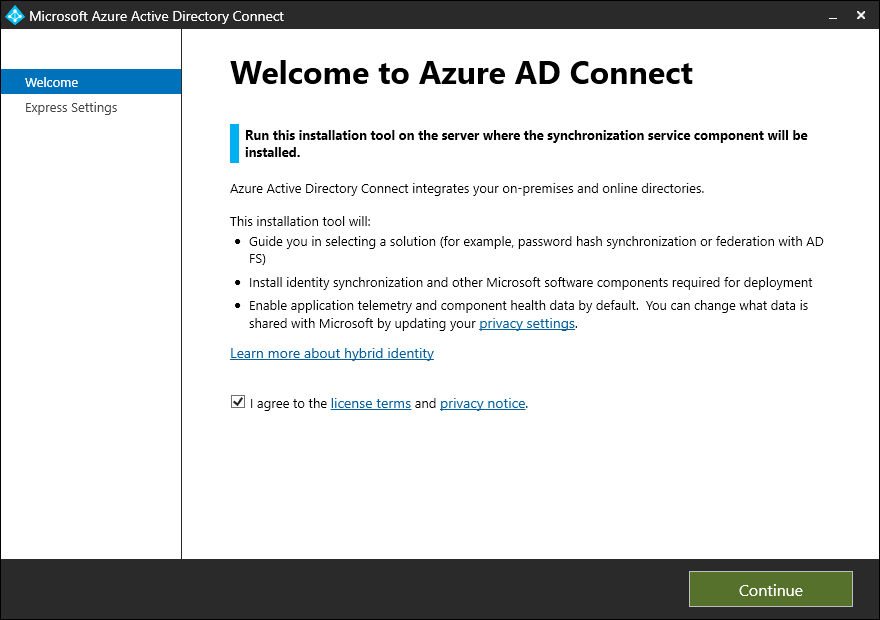
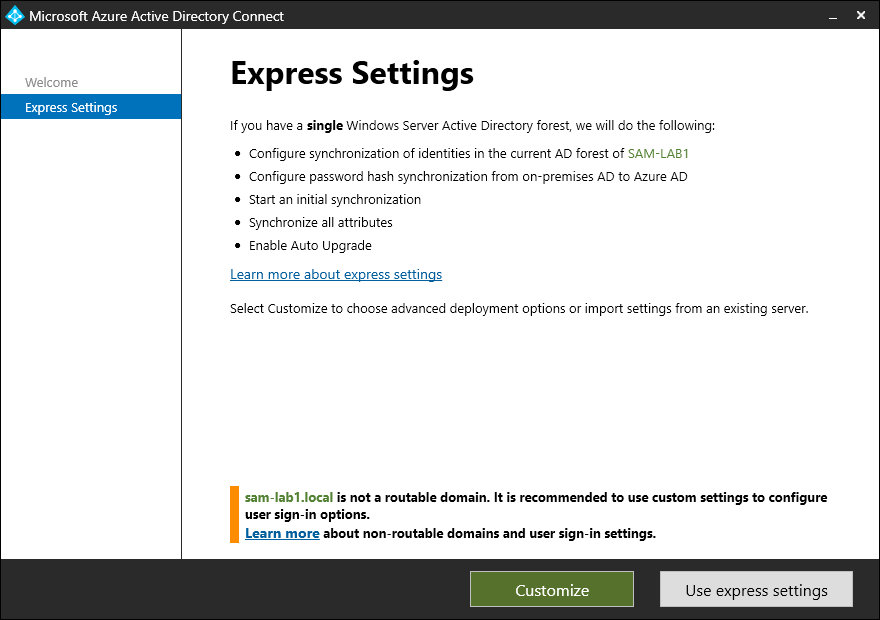
Notice the warning at the bottom of this page. This is because when the domain was created, it was done so with a non-routable domain “.local”.
We’ll choose Customize so we can perform advanced configuration.
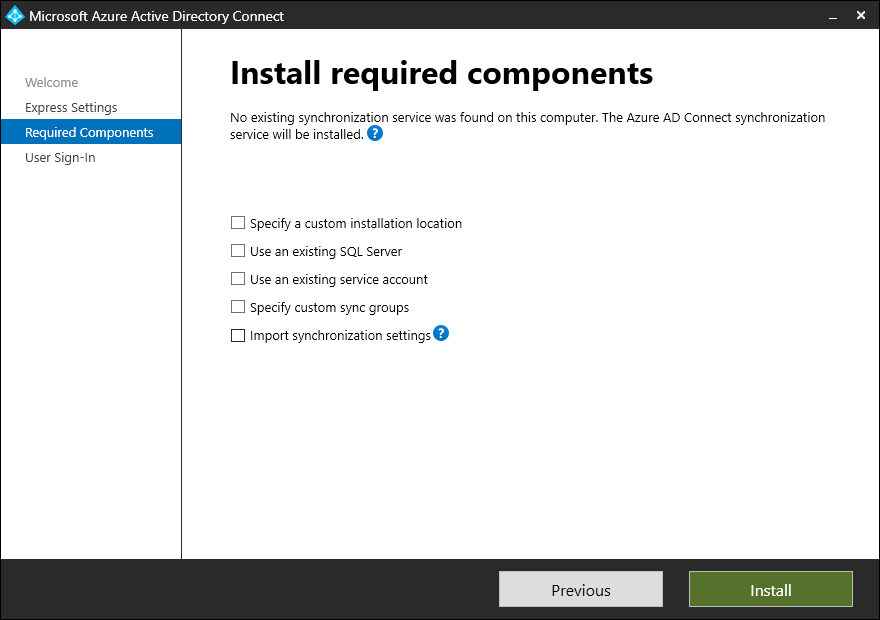
Accept the defaults and click Install.
Configuring Azure AD Connect
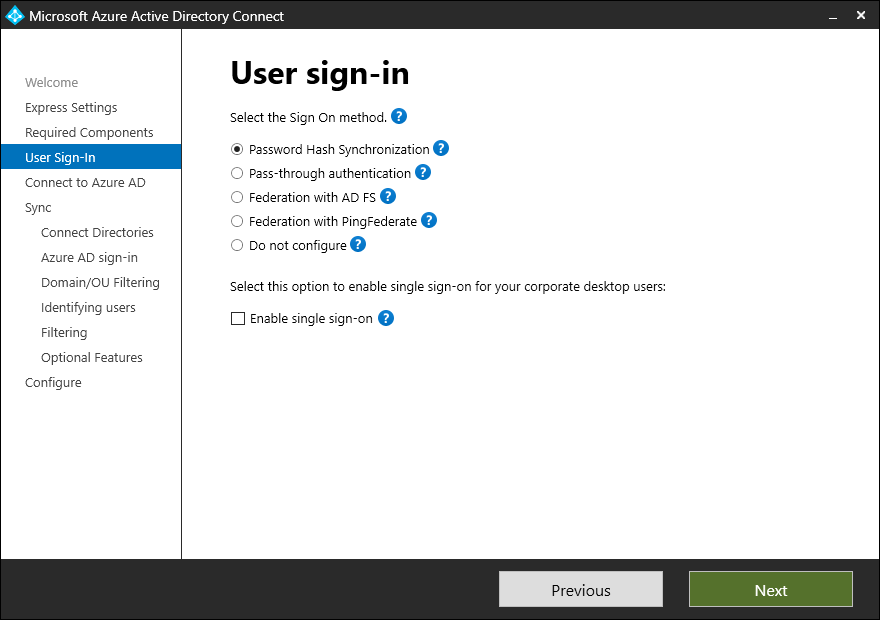
Accept the defaults and click Next.
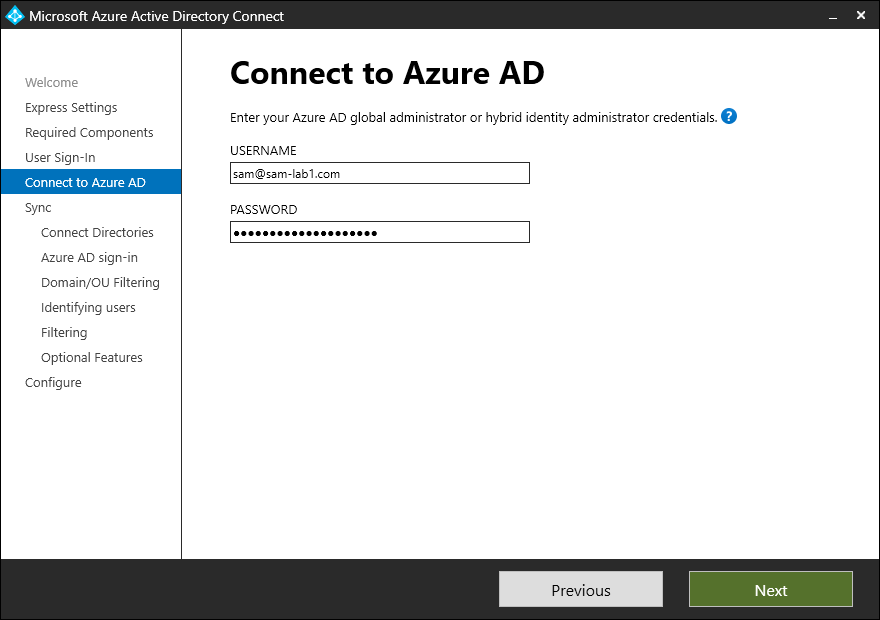
Enter the credentials to connect to your M365 Tenant’s Azure AD/Entra ID.
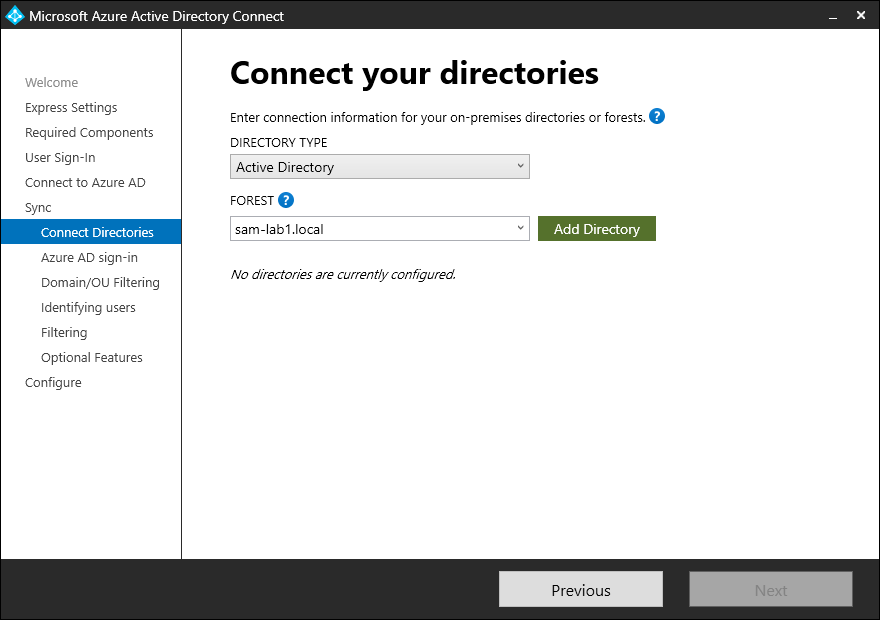
On this page, we’re simply adding the directory we’d like to connect with Azure AD/Entra ID.
Click Add Directory.
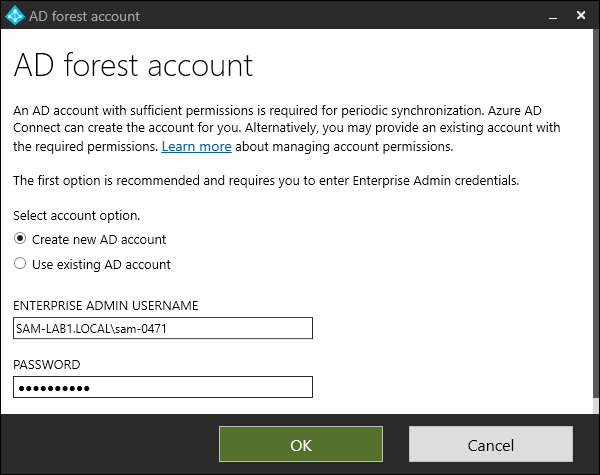
Enter your domain admin credentials to authorize the wizard to generate a new user for the Sync process.
Click OK
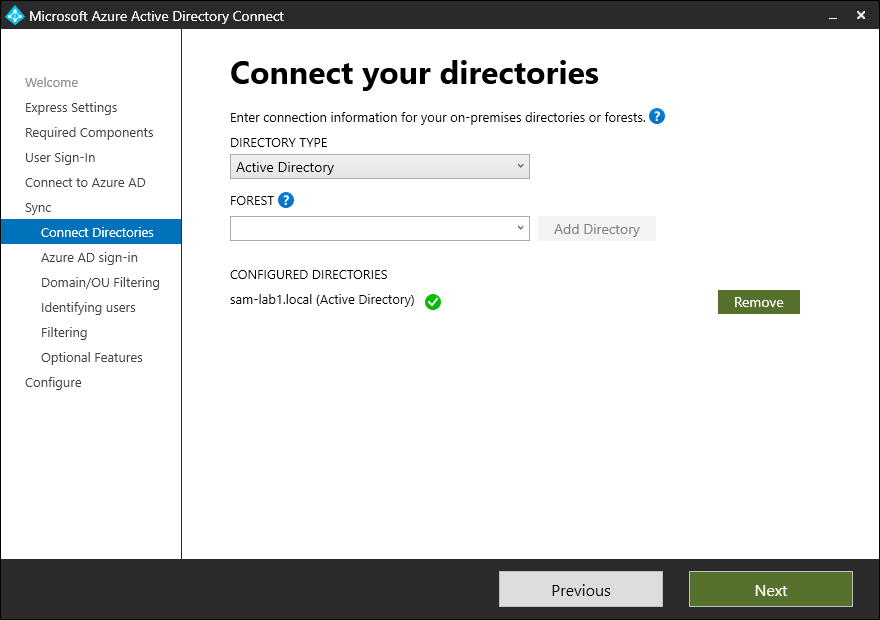
The authorized forest has now been added and can be seen as verified under Configured Directories.
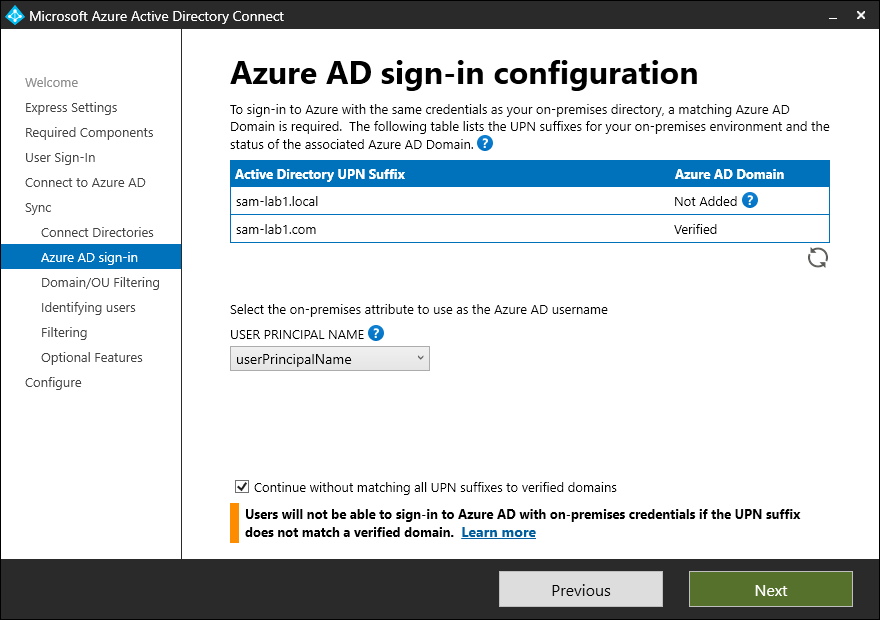
The original domain suffix shows as Not Added because it’s a non-routable domain.
The newly added UPN for the on-premise AD environment is populating and shows a verified status.
Accept the default attribute matching selection of userPrincipalName.
Check the box and click Next.
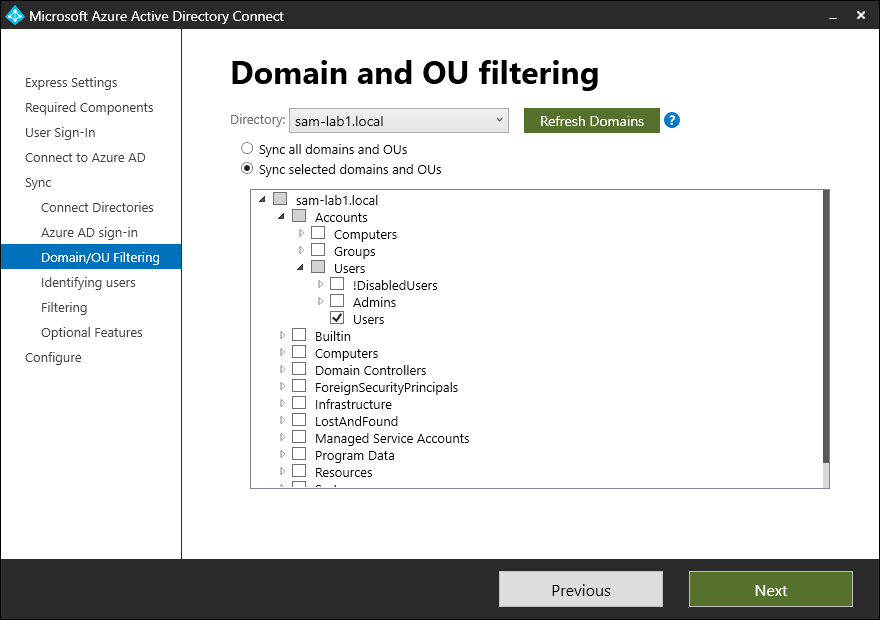
Select the Sync selected domains and OUs radio button.
Navigate through the OU tree as shown below and choose the Users OU.
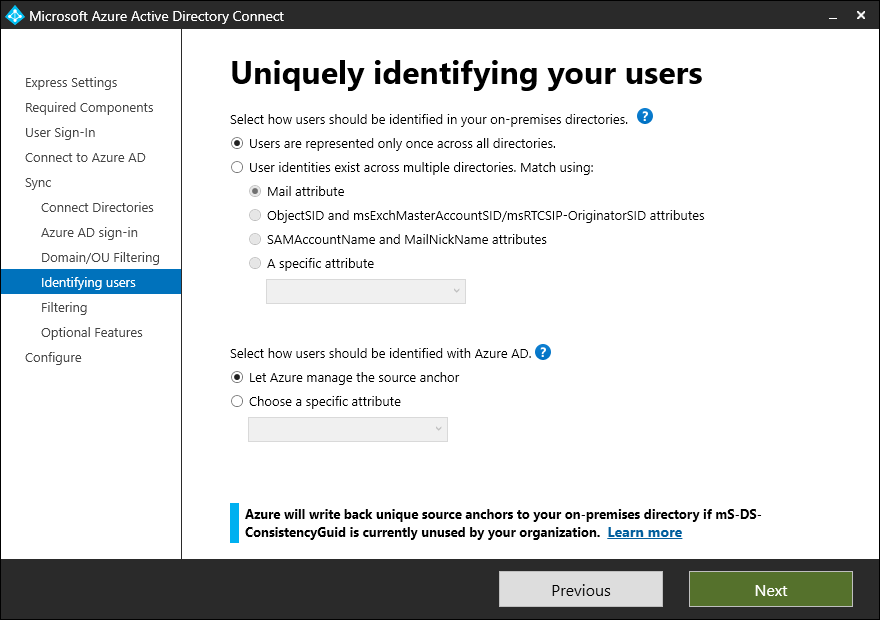
Accept the defaults and click Next.
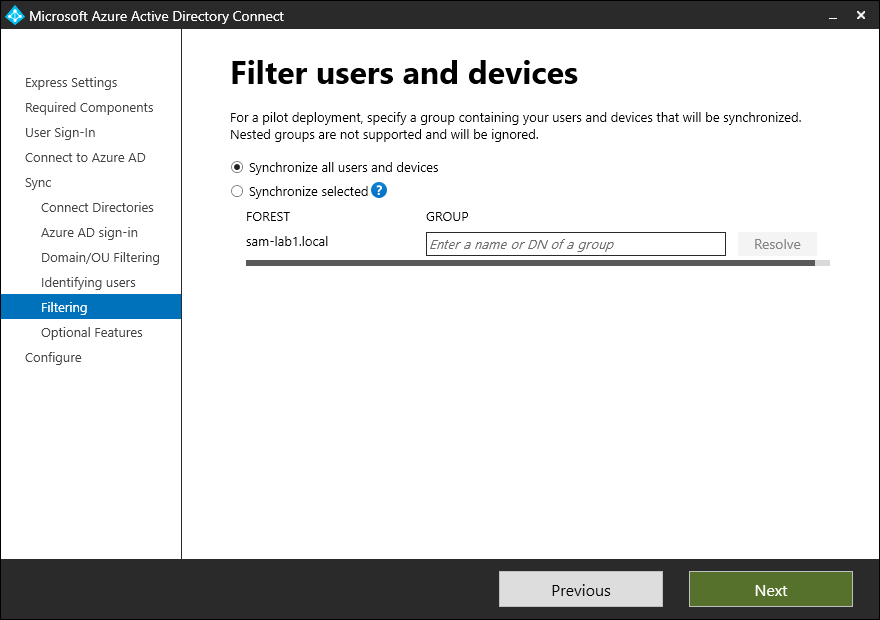
If you wanted to use a Security Group instead, this is the page where you’d enter the Security Group you’d like to sync. You’d simply select Sync all domains and OUs back on the Domain/OU Filtering page.
This could be better for larger environments where you’d like to approach this in rolling stages.
For this lab environment, we’ll stick with syncing our original selection.
Click Next
Accept the defaults as shown and click Next.
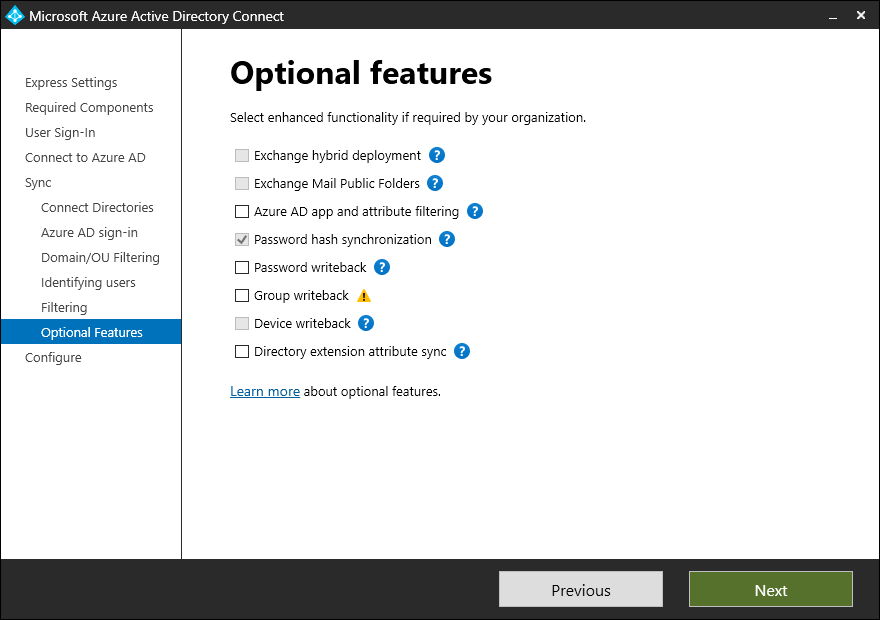
Accept the defaults and click Install.
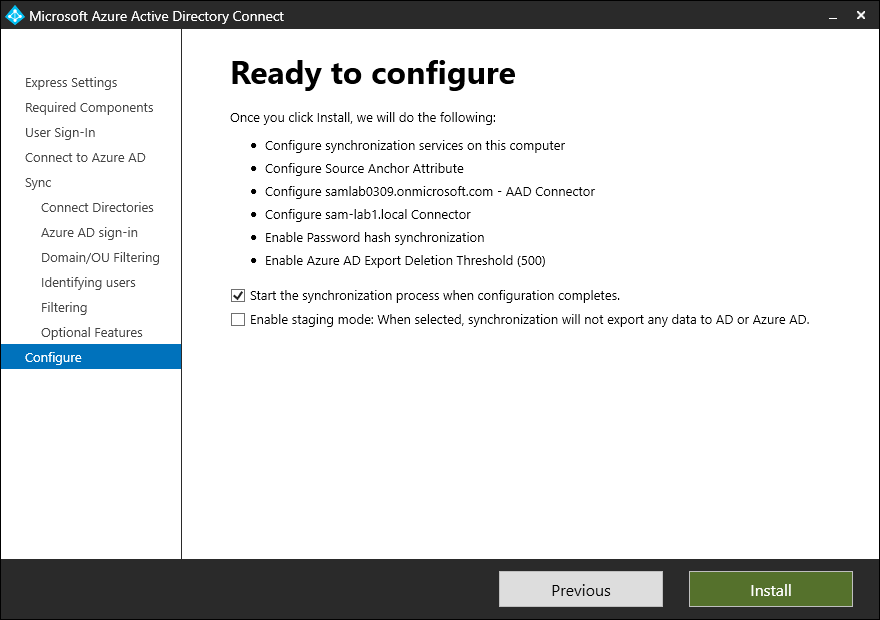
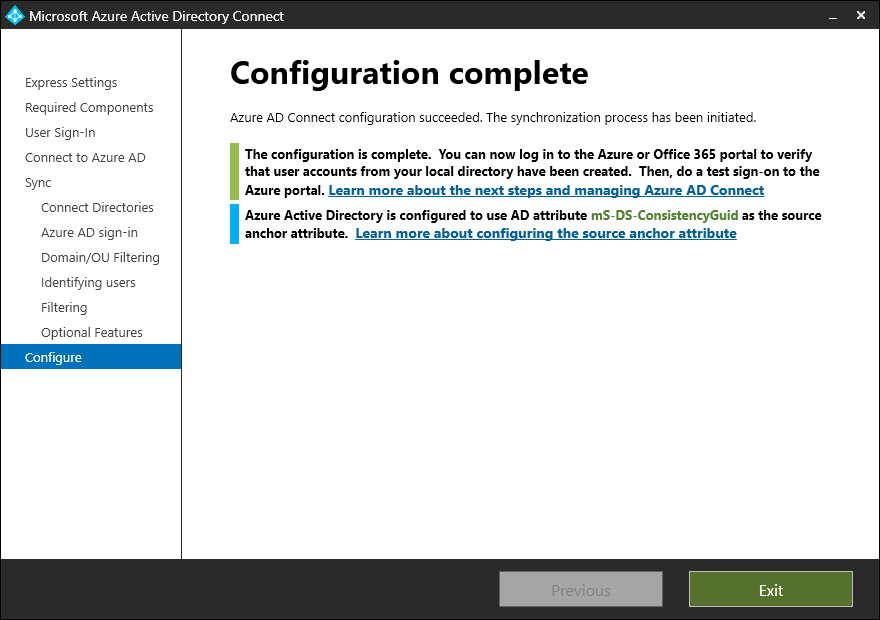
Installation and configuration are complete!
Click Exit
Checking the Sync Status
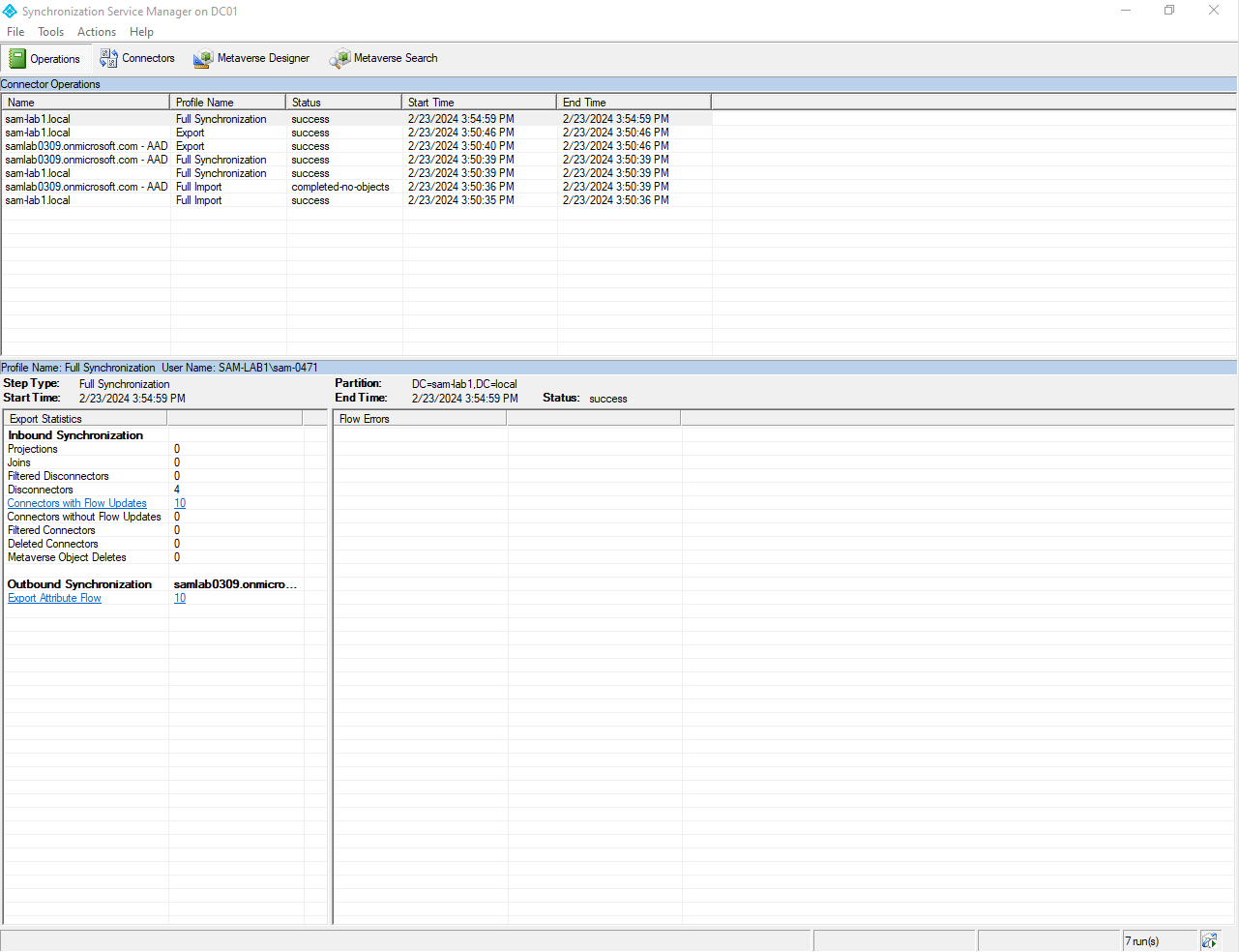
Open the Synchronization Service Manager as an administrator.
On the default page, we can see the sync progress of our environments.
I would suggest waiting 15-30 minutes for the initial synchronization to finalize.
Navigate to the Entra ID portal by clicking below.
Microsoft - Entra Identity
On the left-hand sidebar, expand the Users section and click All users.
When the sync has completed, you’ll see that a new column has appeared and you can see their on-premise sync status.

Select Alex Adams or whatever account you’d like.
On the primary Overview pane, click the Properties tab within the middle-set banner tabs.
This will open the User’s Properties pane.
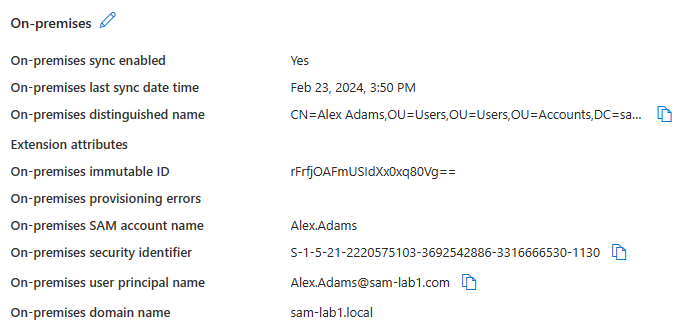
On the bottom right of this page, there’s a section called On-premises where you can see all data that are being synced between Entra ID and your on-premise environment.
Configuration Complete!
We’ve successfully configured our environment!
Please make your way to the next section, where we’ll be reviewing the project overall!