Obtaining a Domain Overview
For this project, I’ll be purchasing a domain through Cloudflare.
You can check out the Getting Started page over at the Cloudflare Registrar page for more information
You can also follow along with the screenshots and guide below.
Once you’ve registered an account, please return here.
Finding a Domain
First things first, we need to find an available domain.
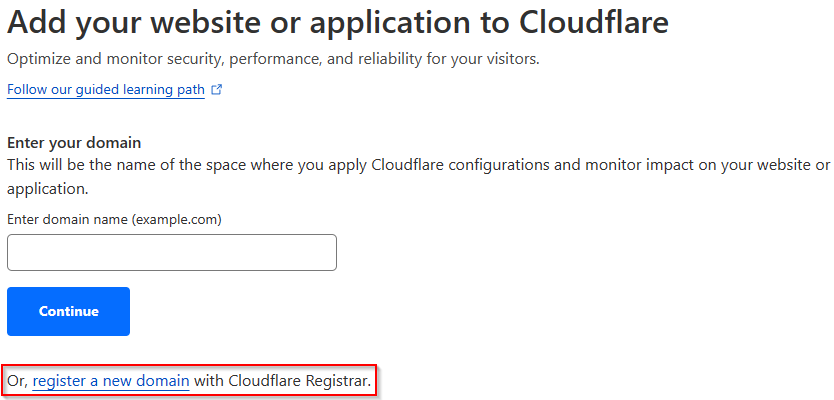
On your home page, click the +Add Site Button.

Next, click the hyperlink to register a new domain.
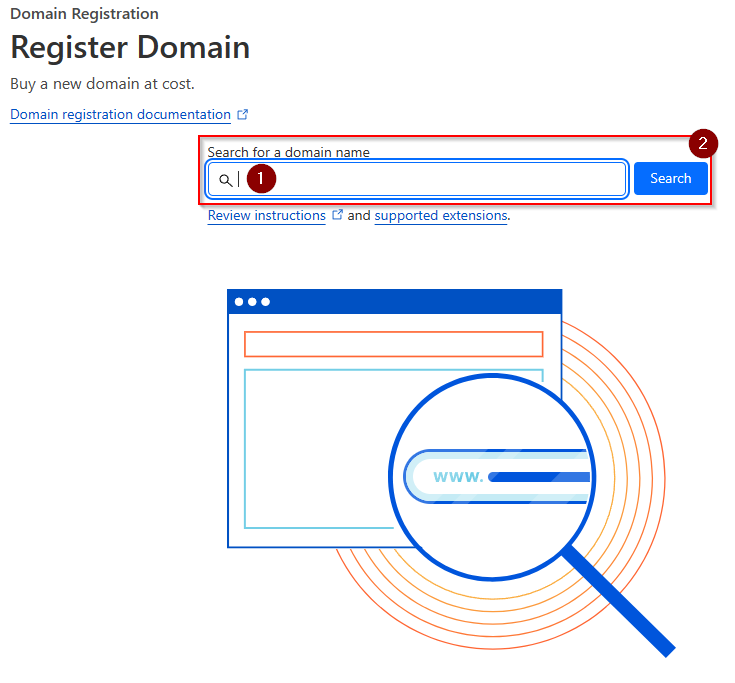
Once you’ve got those creative juices flowing, try searching for an available domain by clicking in the search bar, typing your perfect domain in and pressing the Search button.
Purchasing the Domain
Find the domain you most desire, then click the purchase button beside it.
On the next page, you’ll find some fields that you’ll need to fill out with your relevant information. Be sure to pay attention to the directions and fill out the required information.
Domain/DNS Overview
Once you’ve completed your purchase, go back to the Websites section by clicking its entry in the sidebar. Once there, select your website so we can check out some specifics related to it.

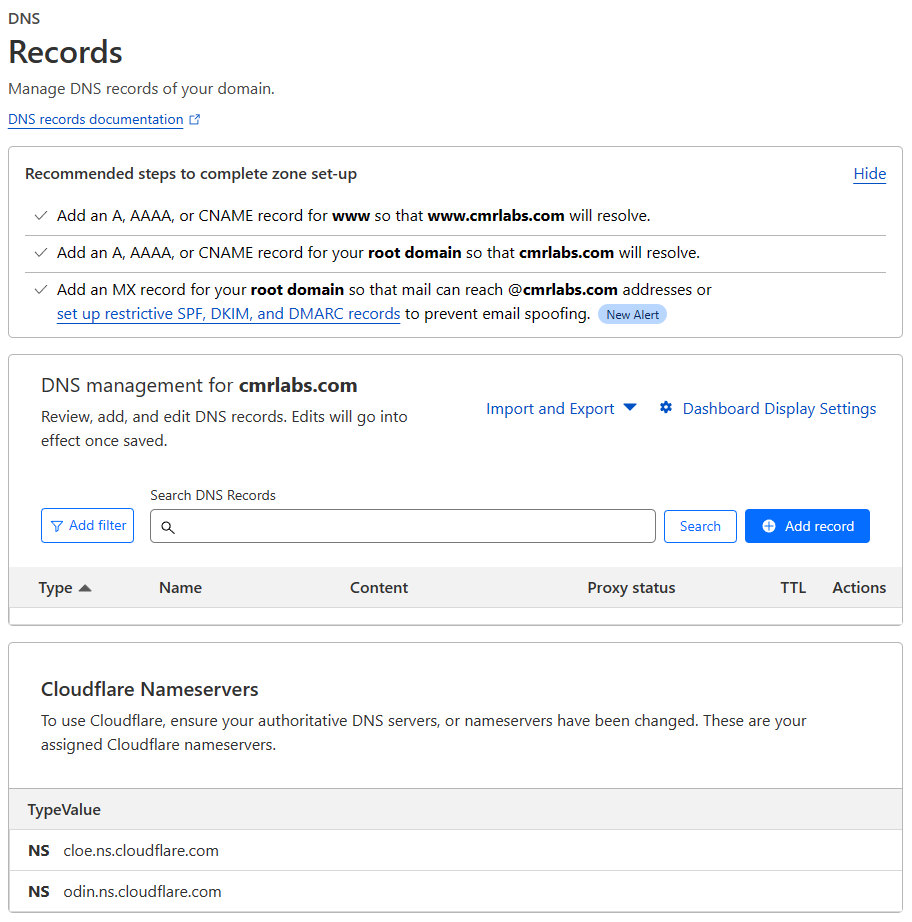
Within the website you’ve selected, you’ll now see the Overview page. Select the DNS sidebar item so we can take a look at the initial configuration of the page.

There isn’t much here, except some simple instructions to guide you along with creating records and helpful info regarding your assigned Cloudflare Nameservers.
Domain Registered!
We’ve successfully registered a domain for our project! Please make your way to the next section, where we’ll be setting up VMware Workstation!