What is MMC?
Microsoft Management Console provides a centralized location to interact with Windows Administrative Tools.
Creating Initial MMC Profiles
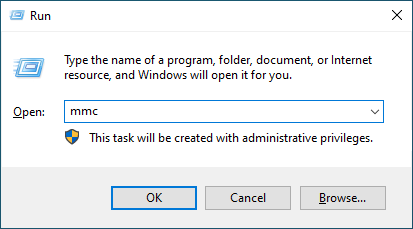
To launch MMC, open Run by pressing WIN + R together, type in mmc and press Enter.
At the first launch, we will see an empty console.
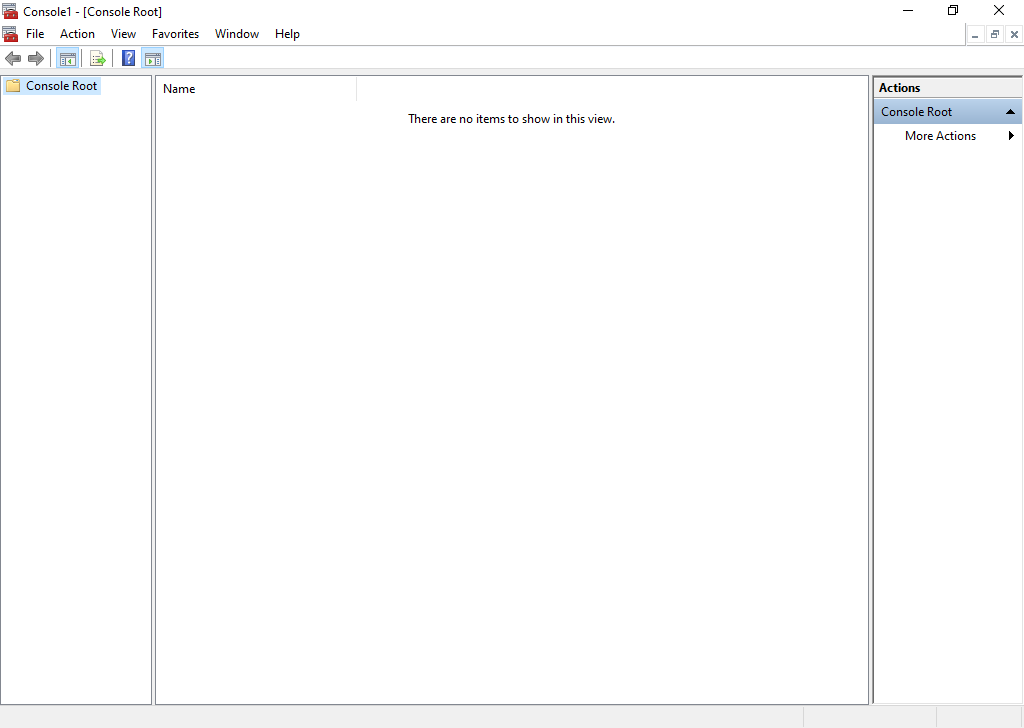
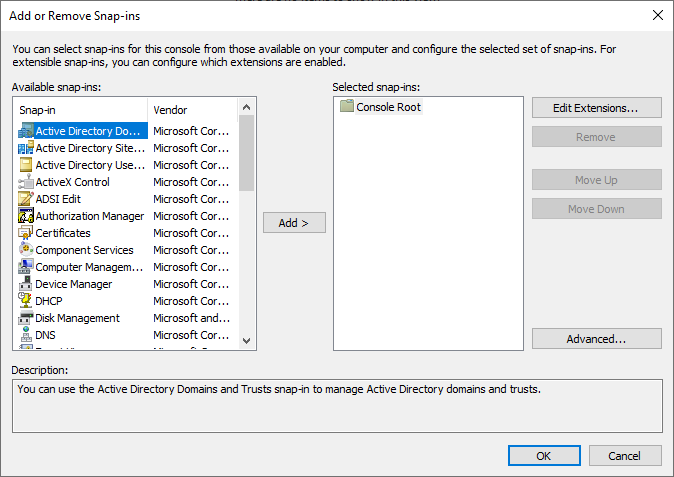
Click File > Add/Remove Snap-in… to open the Add or Remove Snap-ins wizard.

There are dozens of Available snap-ins on the left and an empty Selected snap-ins tree on the right.
AD DS Profile
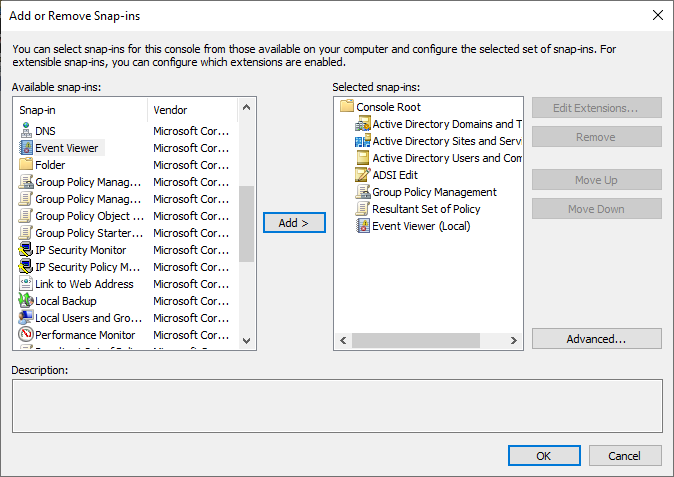
Let’s start with creating a profile to manage all of our basic AD DS snap-ins.
Click OK once satisfied with your selections.
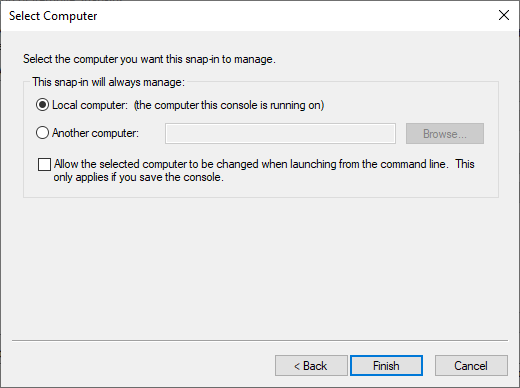
When adding the Event Viewer snap-in, you will get a Select computer popup.
Click OK to accept the default of Local Computer.
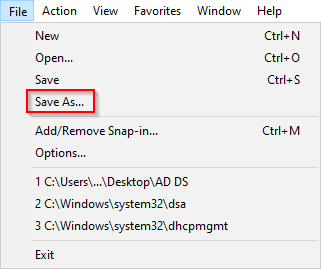
Click File > Save As… to save the profile.
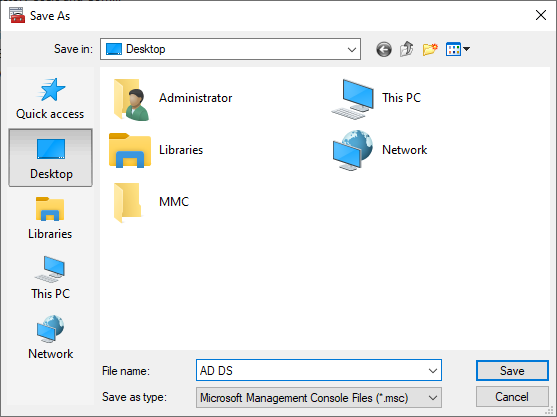
Once the Save As window appears, choose the Desktop folder, enter the name of the profile AD DS and hit Enter or click Save.
Local Profile
This profile will allow us to manage some basic local resources on the server.
Read before continuing!
When selecting some snap-ins, they require you to to select a source.
For the following MMC Console, we will be managing the Local Computer!Example for Certificates Snap-In.
Example for Computer Management Snap-In.

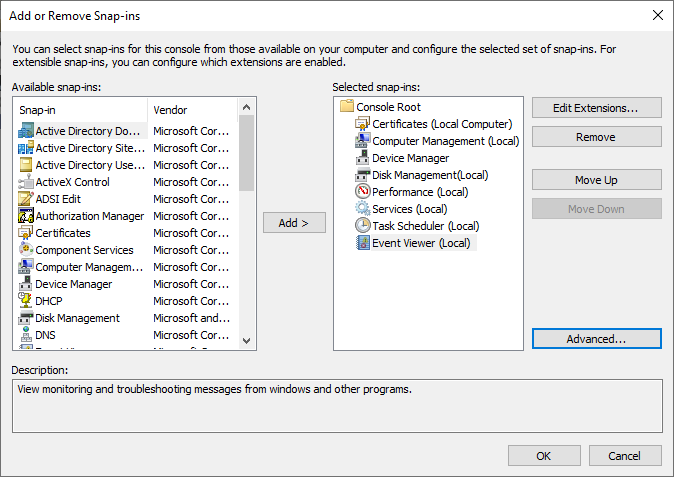
Add the snap-ins you’d like to have for this profile, then select OK and save the profile.
Role Profile
This profile will allow us to manage the installed roles on the server.
Add the snap-ins related to the installed roles, then select OK and save the profile.
Quick Review
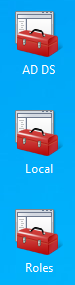
Once all profiles are set up and saved, they should all be available for you to quickly launch them from your desktop!
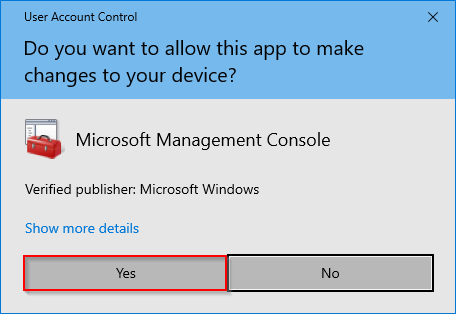
You will receive a popup when accessing MMC consoles through non-built-in administrator accounts, as MMC requires elevation.
Efficiency Acheived!
We’ve successfully configured some MMC profiles to more effectively manage resources across the environment!
Please make your way to the next section, where we’ll be enabling the AD DS - Recycle Bin!