DC01 - Roles
Time to start the basic roles for DC01!
Adding Roles and Features
Let’s start by adding our basic roles and features for the domain environment.
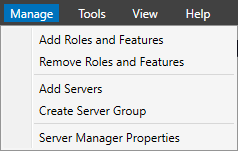
In the top right of the ribbon menu in Server Manager, select Manage, then Add Roles and Features.
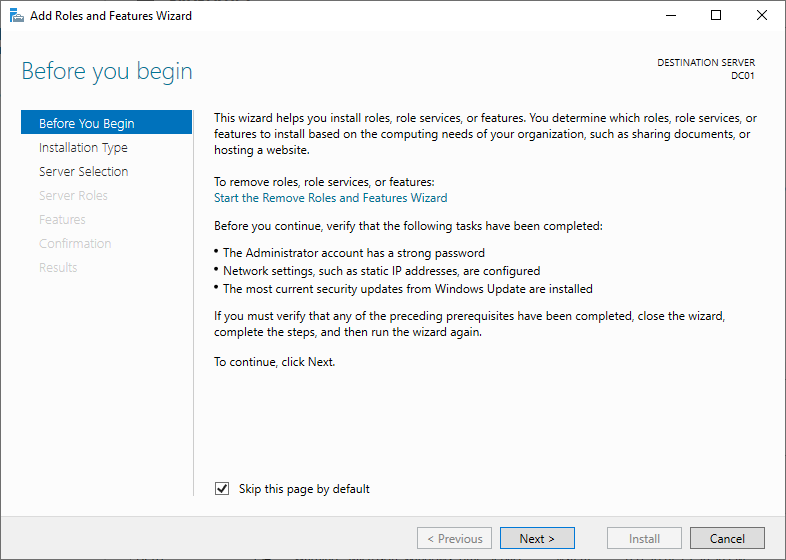
Review the Before you begin screen.
If you never want to see it again, simply check the Skip this page by default checkbox at the bottom.
Click Next >.
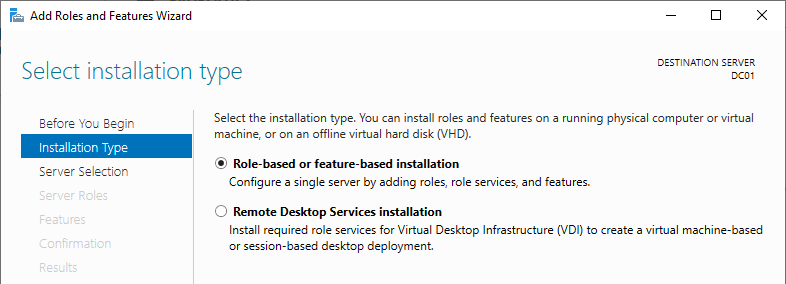
Accept the default selection of the Role-based or feature-based installation radio button and click Next >.
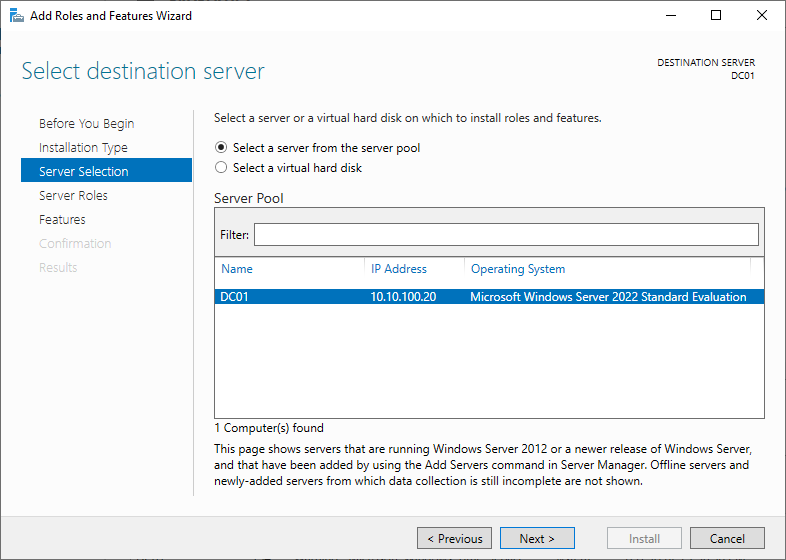
Accept the default selection of the current server and click Next >.
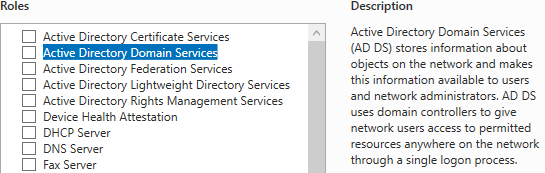
On the Server Roles page, click the checkbox for Active Directory Domain Services.
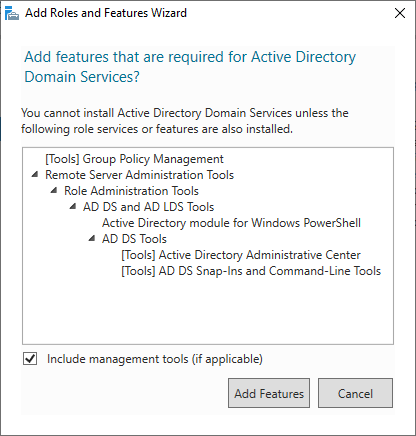
In the popup, accept the screen by clicking Add Features.
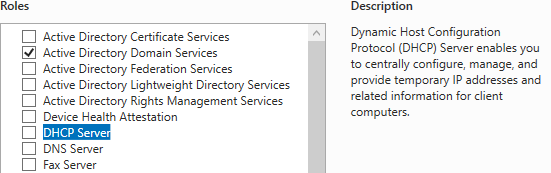
On the Server Roles page, click the checkbox for DHCP Server.
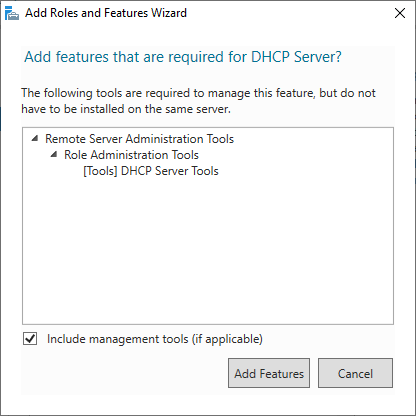
In the popup, accept the screen by clicking Add Features.
On the Server Roles page, click the checkbox for DNS Server.
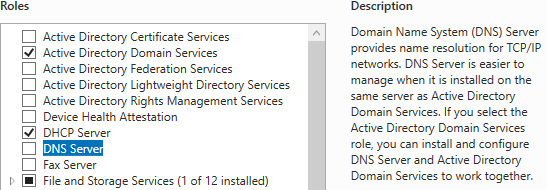
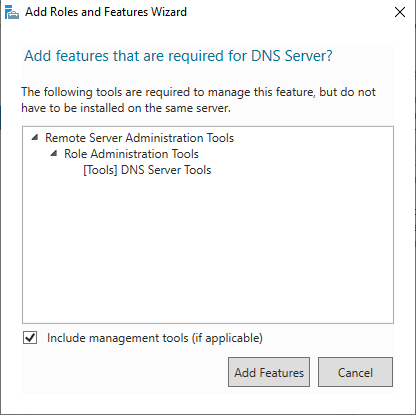
In the popup, accept the screen by clicking Add Features.
We’re done adding roles. Click Next >.
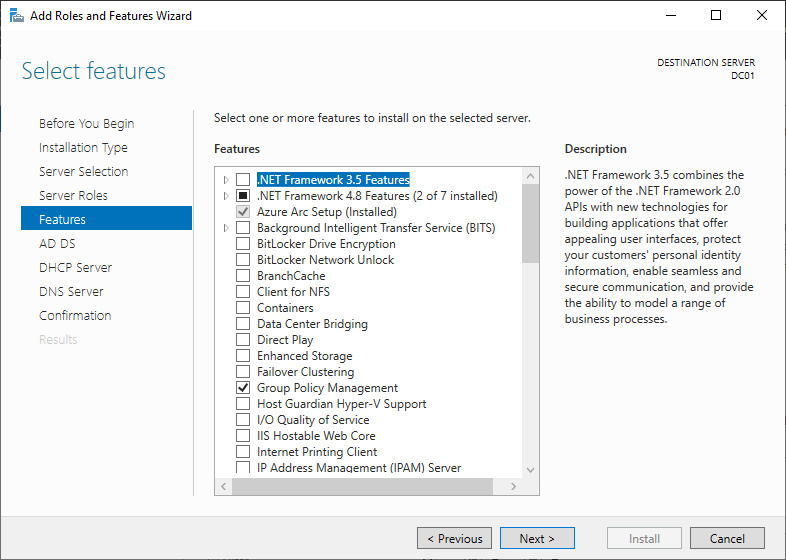
On the Features page, click Next >.
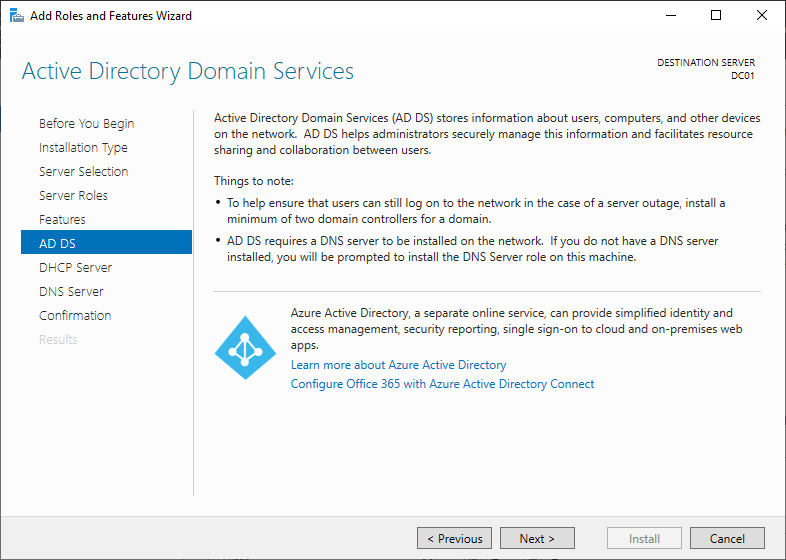
On the AD DS page, click Next >.
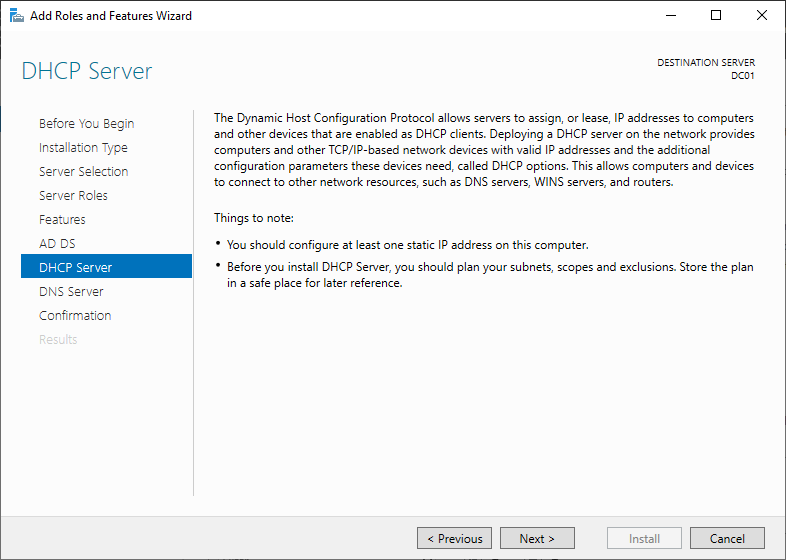
On the DHCP Server page, click Next >.
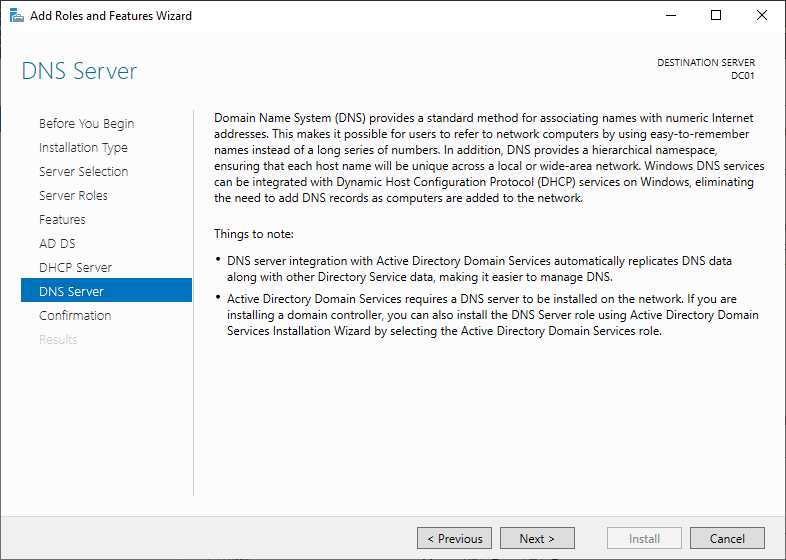
On the DNS Server page, click Next >.
On the Confirmation page, click  to initiate installation.
Promoting to Domain Controller
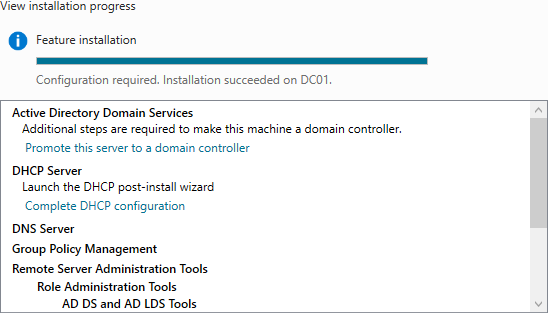
Once the installation process is complete, we can continue our setup.
Click Promote this server to a domain controller.
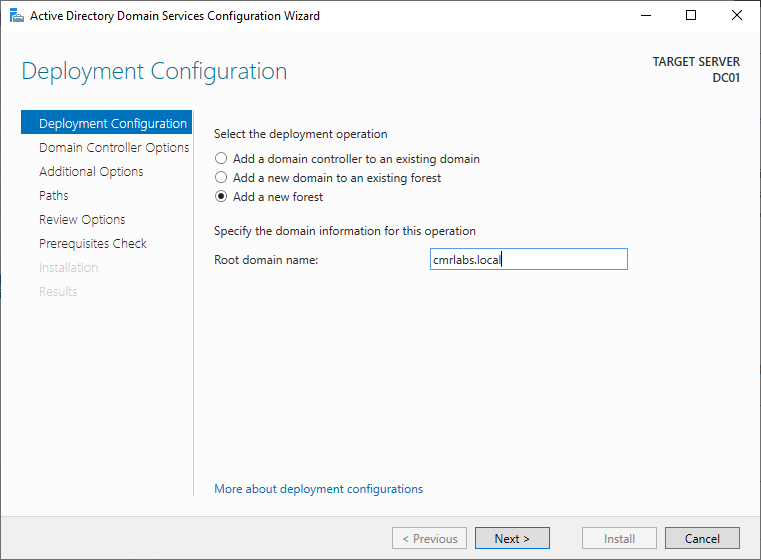
Select the Add a new forest radio button and enter the domain you’ve previously purchased and configured, followed by .local in the Root domain name field.
I’ve entered cmrlabs.local as an example.
Click Next >.
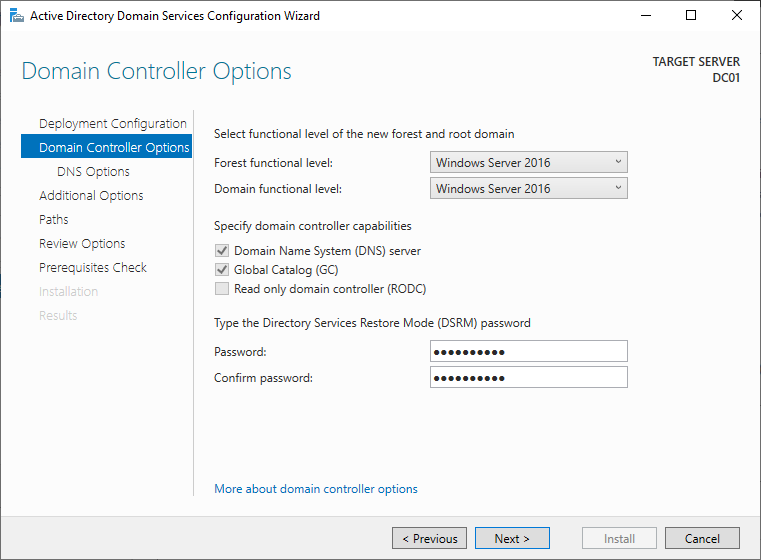
Accept the defaults for the Domain & Forest functional levels.
Enter a different and secure password for the Directory Services Restore Mode (DSRM) password field.
It’s HIGHLY SUGGESTED to store this password somewhere secure and available.
Click Next >.
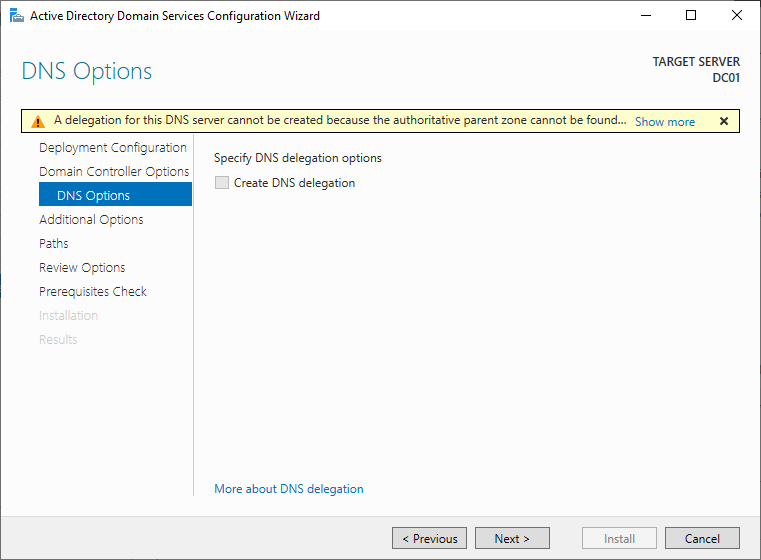
On the DNS Options page, click Next >.
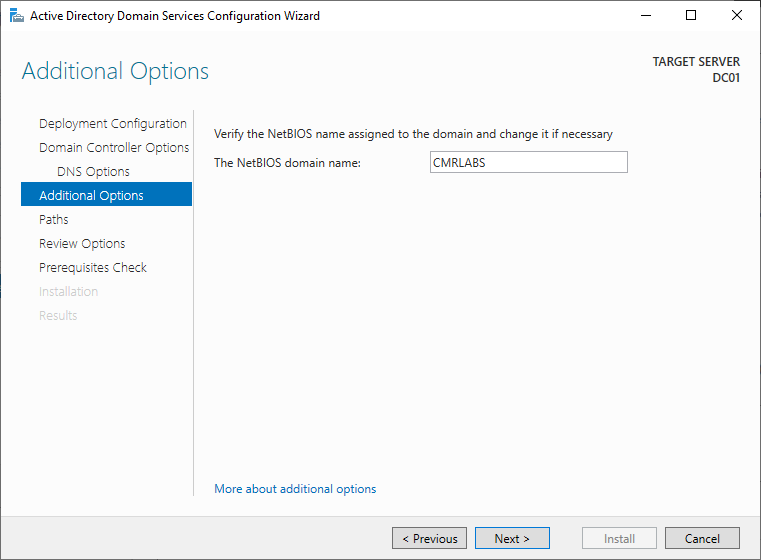
On the Additional Options page, wait for the NetBIOS domain to configure itself.
It should just be the domain without .local in all caps.
Click Next >.
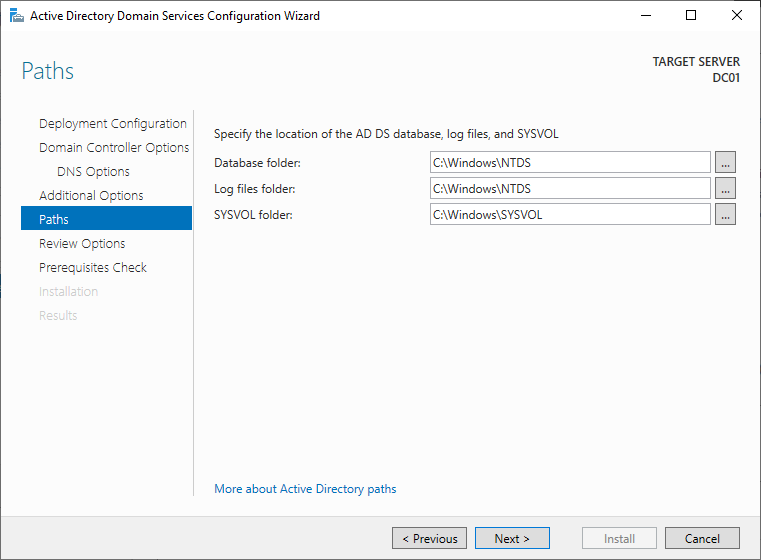
On the Paths page, accept the default folder paths by clicking Next >.
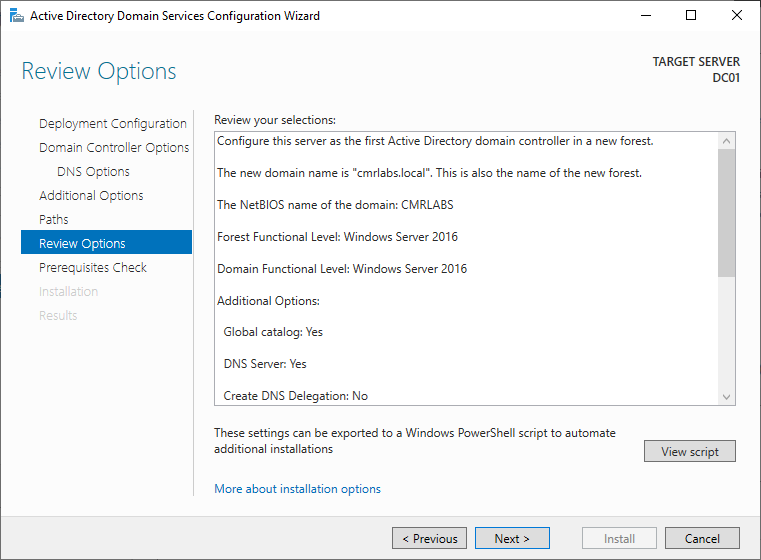
Scroll through the Review Options page to review the configuration for any errors.
Click Next >.
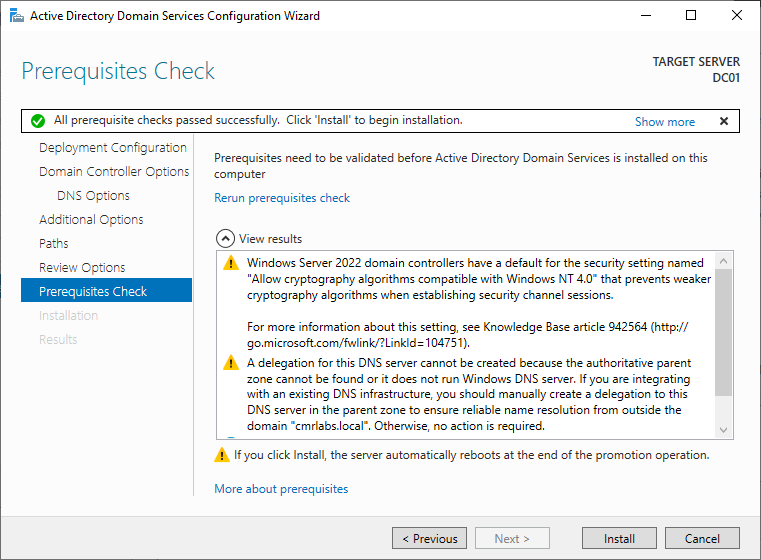
On the Prerequisites Check page Windows will automatically perform a check against to verify the proper conditions are met for promoting itself to a Domain Controller.
If it finds any issues it will let you know.
All warnings received below are expected and informative only.
Click Install.
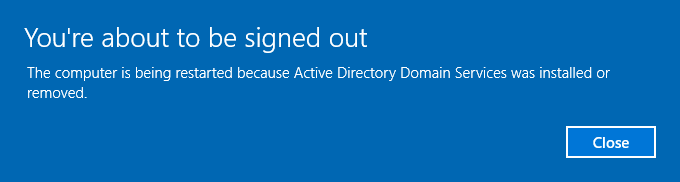
After the installation process completes, you will see a popup stating You’re about to be signed out, which is a nice way of telling you the server will be rebooting in one minute.
You can simply wait and let Windows do its thing.
Once the machine reboots, you may see the below message. Just wait patiently.
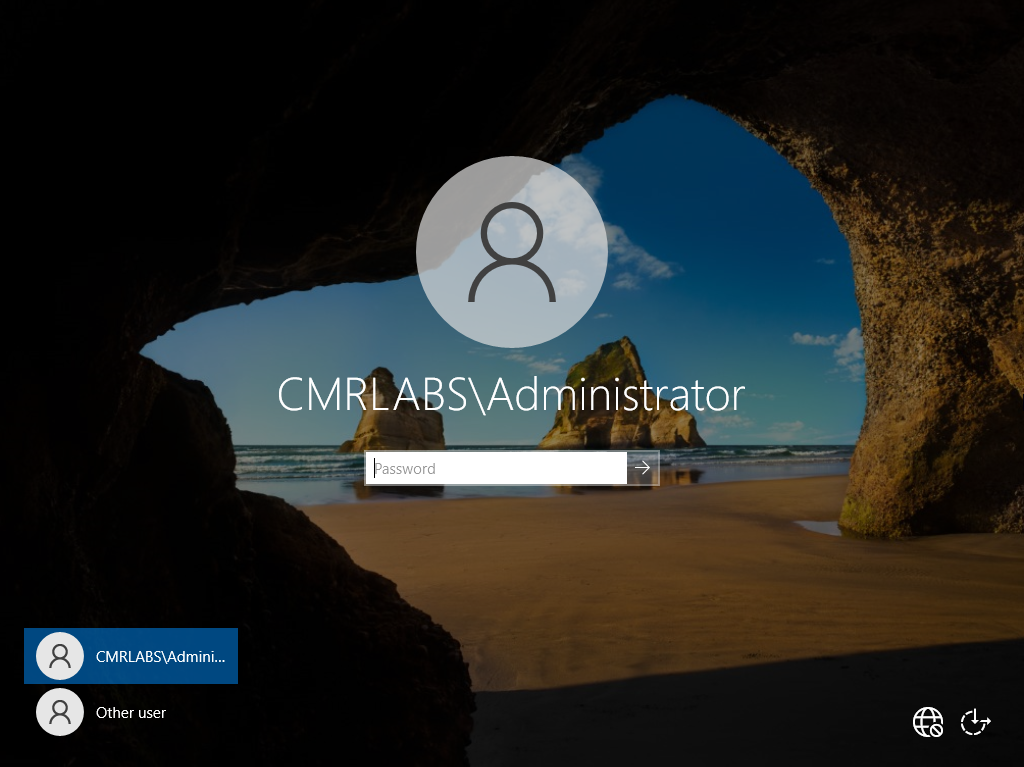
Once the machine is done finalizing changes, you’ll be brought back to the login screen.
Immediately, things look a bit different!
We now have the domain prefix before our Administrator account, and we can even select Other user as a login option!
For now, just log in with the now DOMAIN\Administrator account!
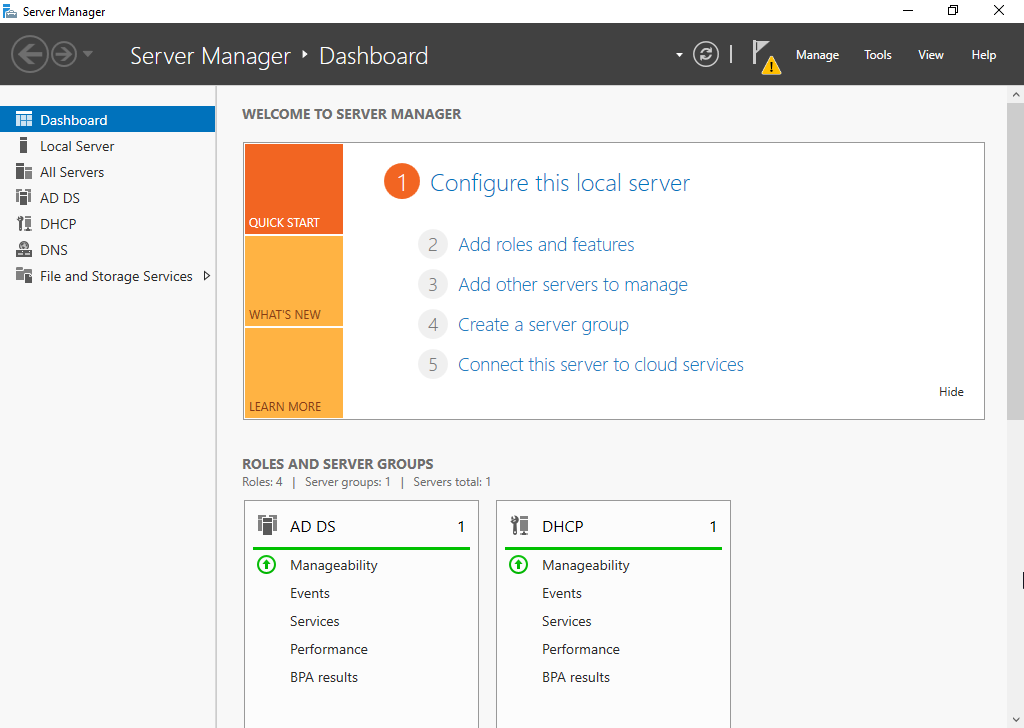
Back on the Server Manager page, we see a caution symbol next to the flag icon in the top right ribbon menu. Click on the flag icon.
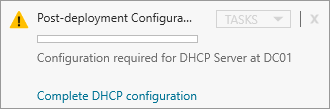
We’re presented with a Post-deployment Configuration Task stating there is Configuration required for DHCP Server at DC01.
Click Complete DHCP configuration to get started.
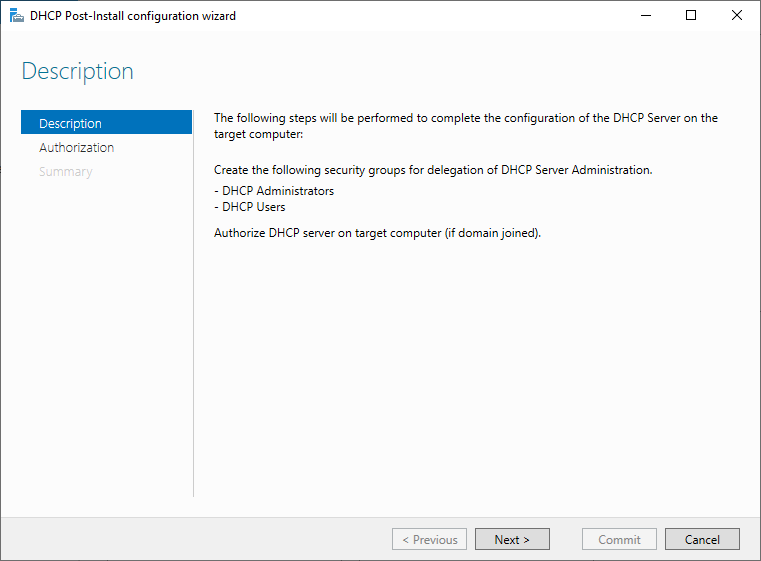
Read the Description page as it explains to you what this wizard does.
Click Next >.
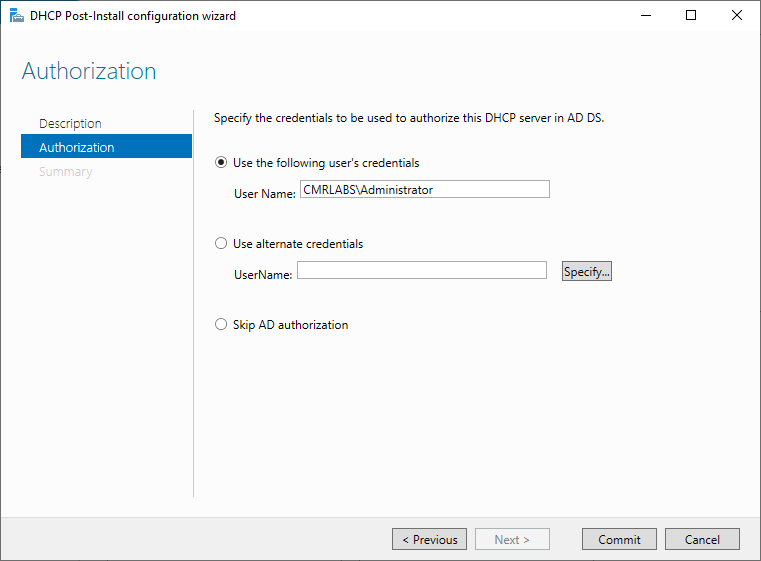
Accept the default radio button Use the following user’s credentials and click Commit.
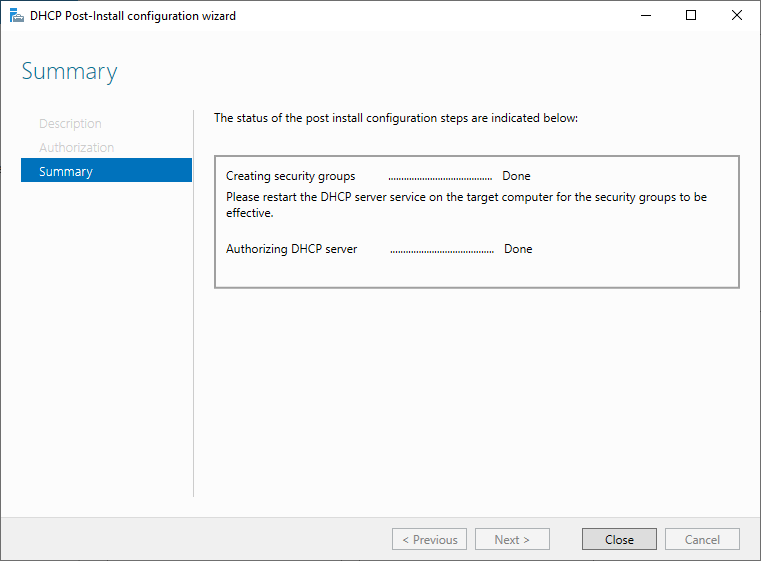
Review the summary page if you’d like and hit Close.
Certificate Authority
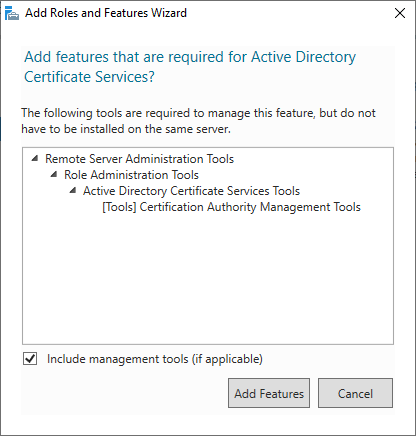
Back in Add Roles & Features Wizard, add the AD Certificate Authority Role by clicking the checkbox and accepting the default features options by clicking Add Features.
On the next screen, click Next >.
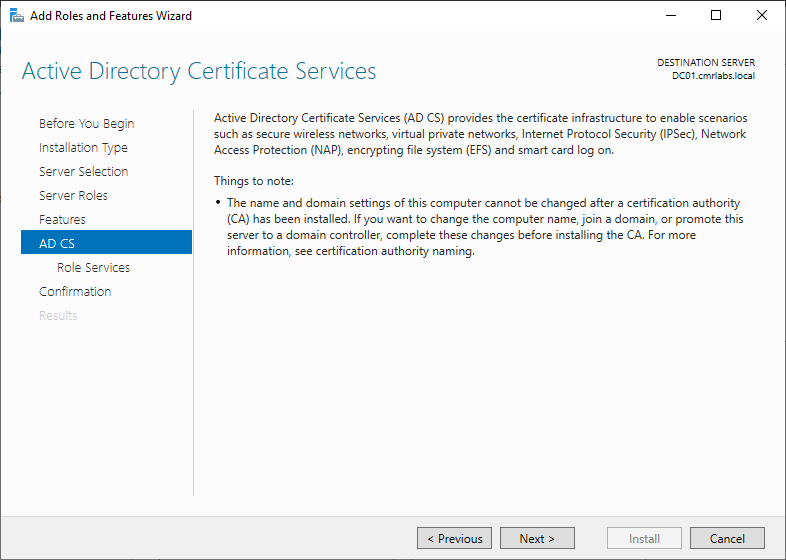
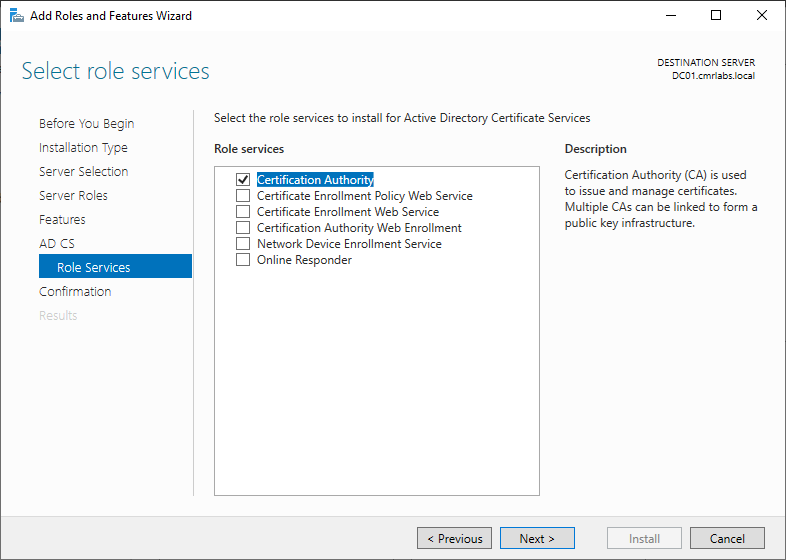
Select Certificate Authority and click Next >.
Once the feature is installed, click Close.
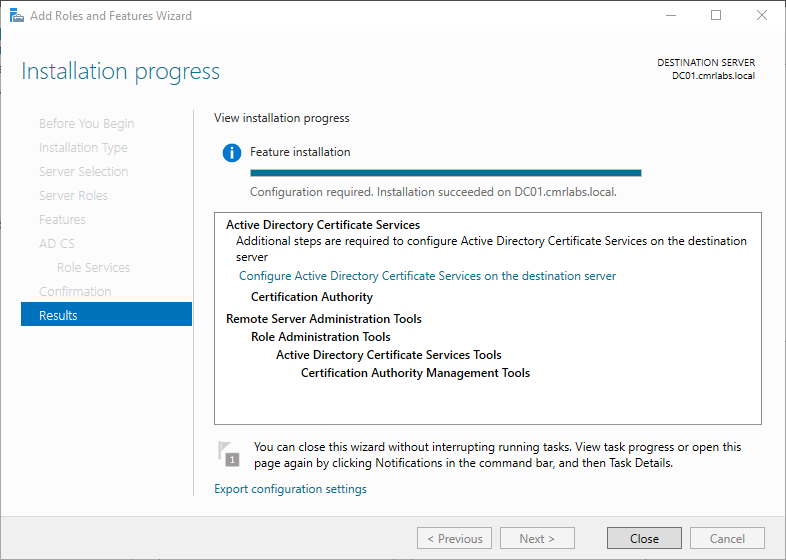
Configuration will be completed in the AD CS - Certificate Authority sub-section.
Well Done!
And just like that, we’ve laid the foundation for our on-premise domain environment!
On-Prem Created!
We’ve successfully created our On-Prem Environment! Please make your way to the next section, where we’ll be configuring all previously installed roles and more!