DC01 - Preparation
In this section, I will overview the preparation of the DC01 Virtual Machine to be used within the on-prem environment. We will be configuring it in later sections.
PRO TIP
‘DC’ means ‘Domain Controller’
Download Windows Server 2022 ISO
Navigate to the Microsoft Evaluation Center page for Windows Server 2022 and click the appropriate download link that meets your localization preferences.
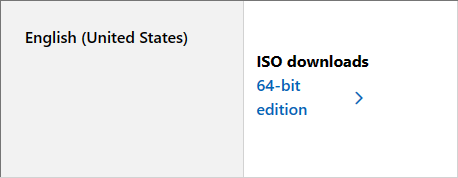
Remember where you’re saving this as we’ll be using it in the next step.
Virtual Machine Creation
Diving right in, let’s create the virtual machine for our first Windows Server, DC01!
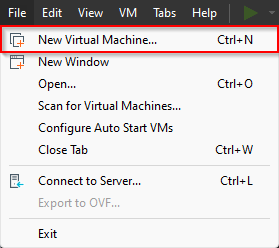
In the top left of VMware Workstation, click File > New Virtual Machine… to enter the wizard.
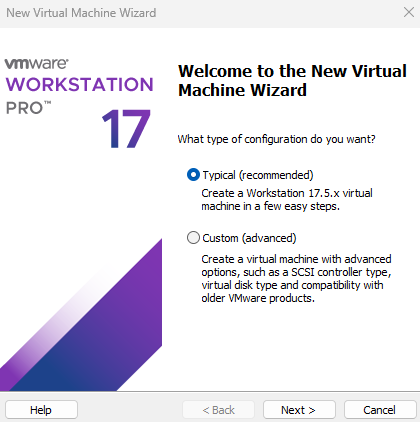
Accept the default configuration type of, Typical (recommended), and select Next >.
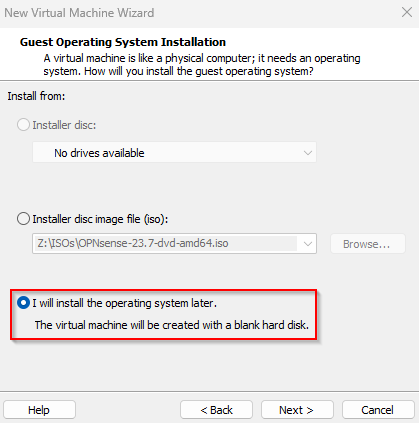
Next, choose I will install the operating system later. radio button and select Next >.
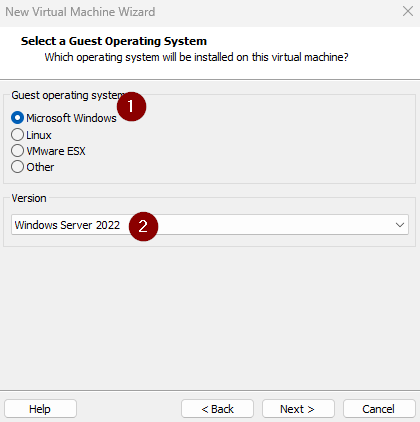
Now choose the Microsoft Windows radio button and select Windows Server 2022 in the drop-down menu.
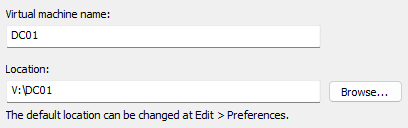
Let’s name our virtual machine and set the location.
When choosing a location, be sure to organize the VMs there into separate folders, as VMware Workstation Pro will drop all associated files into the folder you specify without creating an organizational folder for you.
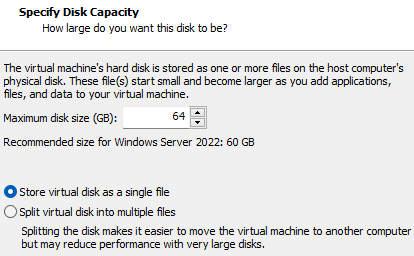
Specify the disk capacity to be 64GB and the Store virtual disk as a single file radio button.
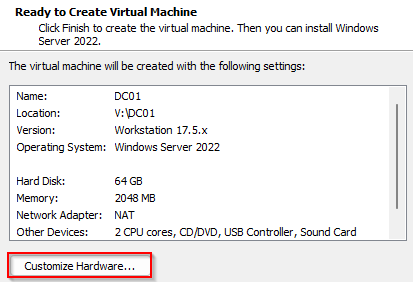
Now, let’s customize the hardware associated with our VM before creation.
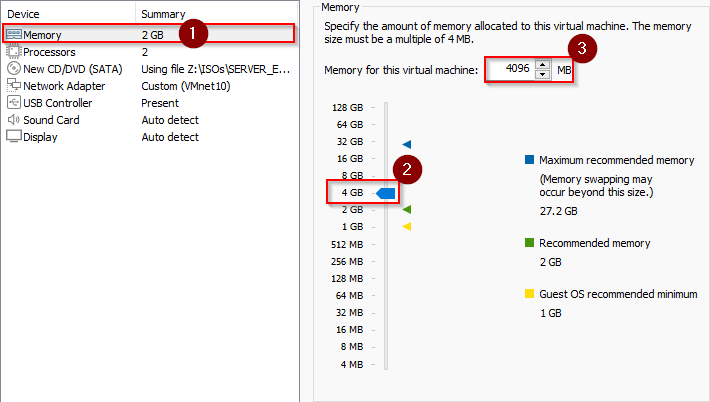
Set the memory to 4GB by selecting Memory, clicking 4GB on the selector and verifying it’s 4096 MB in the numerical assignment field.
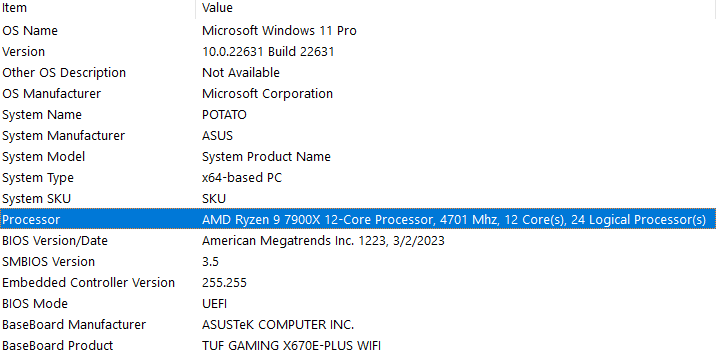
Set the processors to within reason as compared to the maximum logical processors for your PC.
PRO TIP
You can find this info by simply pressing
WIN+Rto open Run and typingmsinfo32and pressingEnter.
Look for the line that says Processor, at the end it states X Logical Processors.

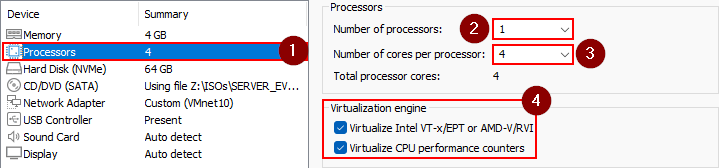
Select Processors, then select the number of physical CPU sockets for Number of processors you’d like to assign to DC01.
One is fine, but Windows Server 2022 can handle up to 64 sockets, so you can play around with this setting as you see fit.
Select the number of logical CPU cores you’d like to assign. I went with 4 for now.
Don’t assign all your resources to one VM! Leave resources for your host machine and other VMs!
Lastly, verify both boxes under the Virtualization engine section are selected.
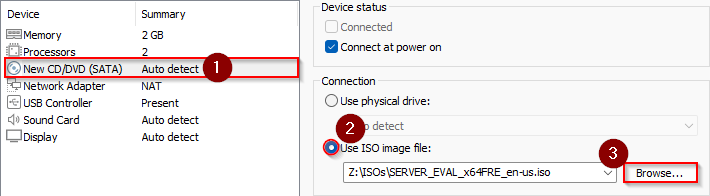
Up next, let’s add our installation disk. Select New CD/DVD (SATA) then click the Use ISO image file: radio button and browse to the previously downloaded Windows Server 2022 ISO from Microsoft.
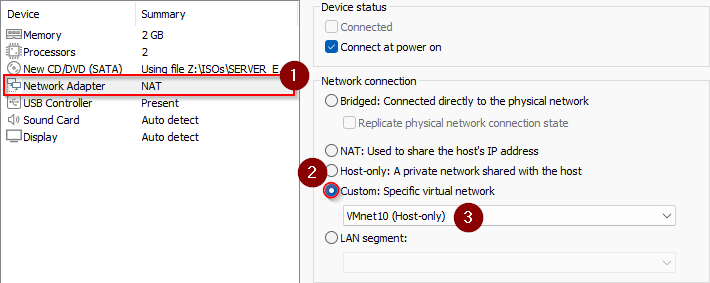
For the final step, assign VMnet10 to the Network Adapter. Select Network Adapter, choose the Custom: Specific virtual network radio button and lastly choose VMnet10 from the drop-down menu.
Installation of Windows Server 2022
Be ready to interact with the Virtual Machine after it boots!
Make sure you click into the VM after powering it on!
Alright, let’s start the installation of Windows Server! Simply power on the Virtual Machine and press any key to initiate the boot from the ISO we have attached. 
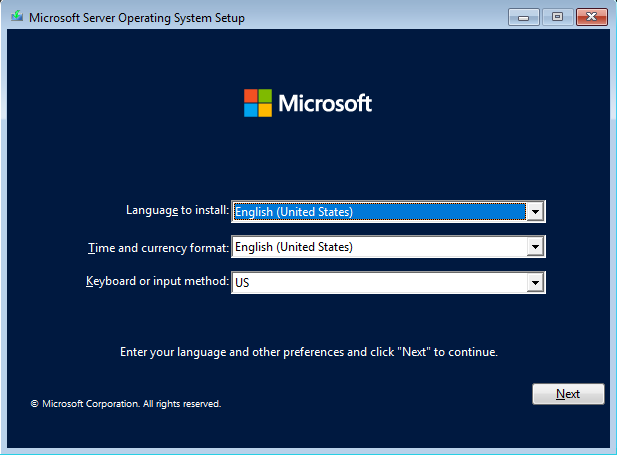
Once the ISO loads, we’re met with the localization page for the installer. Select whatever preferences you desire and click Next.
On the following page, simply click 
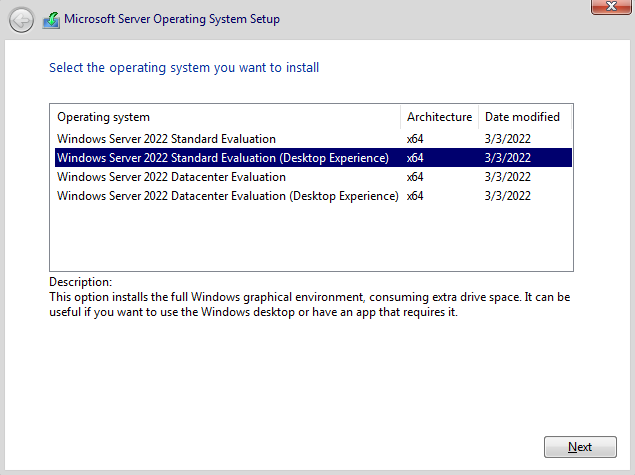
I’ll be choosing Standard Evaluation (Desktop Experience) as my OS version. Make your selection and click Next.
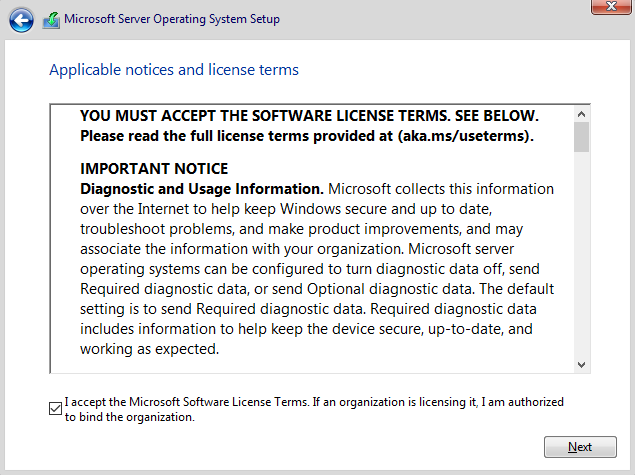
Review the Applicable notices and license terms page, check the box at the bottom if you decide to accept, and click Next.
Select Custom.
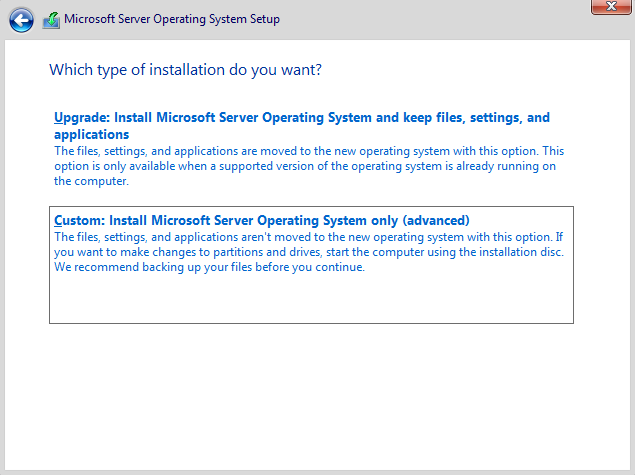
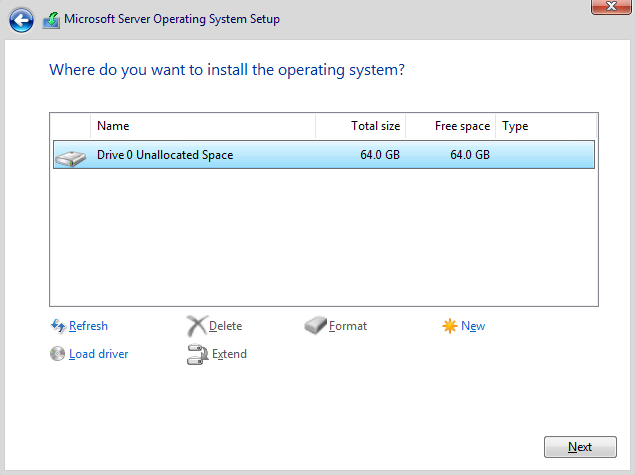
Since we don’t have more than one disk available for our Virtual Machine, select Drive 0 and click Next.
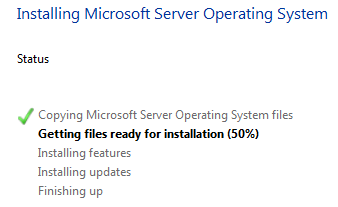
Patiently wait for the installation process to finish. The system will automatically reboot once complete.
Preparation Finished!
We’ve successfully prepared the VM for DC01! Please make your way to the next section, where we’ll be initializing DC01!