Creating the PowerShell Script
Open up Windows PowerShell ISE and copy/paste the script below into the editor.
If you don’t see the editor pane, press CTRL + R together to open it.
###Enter the distinguished name of the OU you want to mirror with your Shadow Group.
$OU="OU=Users,OU=Accounts,DC=mydomain,DC=local"

###Enter the distinguished name of the Security Group serving as the Shadow Group.
$ShadowGroup="CN=SG_GlobalPasswordPolicy,OU=Groups,OU=Resources,DC=mydomain,DC=local"

###Query membership of the Shadow Group, filter out objects that do not reside within the specified OU and remove them from the Shadow Group.
Get-ADGroupMember -Identity $ShadowGroup | Where-Object {$_.distinguishedName -NotMatch $OU} | ForEach-Object {Remove-ADPrincipalGroupMembership -Identity $_ -MemberOf $ShadowGroup -Confirm:$false; Write-Host "$_ was removed from SG_GlobalPasswordPolicy" -ForegroundColor Yellow}
Write-Host "All unmatched users have been synced." -ForegroundColor Cyan

###Query membership of the Shadow Group, filter out objects that do not reside within the specified OU and remove them from the Shadow Group.
Get-ADUser -SearchBase $OU -SearchScope Subtree -LDAPFilter "(!memberOf=$ShadowGroup)" | ForEach-Object {Add-ADPrincipalGroupMembership -Identity $_ -MemberOf $ShadowGroup; Write-Host "$_ was added to SG_GlobalPasswordPolicy" -ForegroundColor Green}
Write-Host "All matched users have been synced." -ForegroundColor Cyan
Edit the following variables as such:
| $OU | “DISTINGUISHED NAME OF YOUR TOP USERS OU (NOT THE USERS\USERS OU)” |
| $ShadowGroup | “DISTINGUISHED NAME OF YOUR SG_Global_PasswordPolicy” |
You can get the Distinguished Name of objects in AD DS by doing the following:
– Enabling the Advanced Attributes in the View menu.
– Open the object’s properties and select the Attribute Editor tab.
– Scroll down to distinguishedName OR press D to jump to the entries starting with “D”.
– Double-click it to copy the attribute and close without saving.
Click the green Run Script arrow/play button.
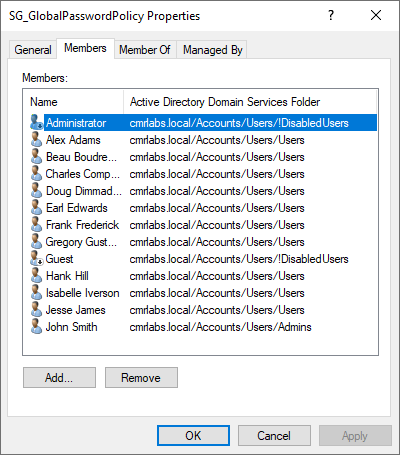
Verify the script ran properly by checking the contents of the SG_GlobalPasswordPolicy Security Group.
It should be full of all users from the !DisabledUsers, Admins & Users OUs.
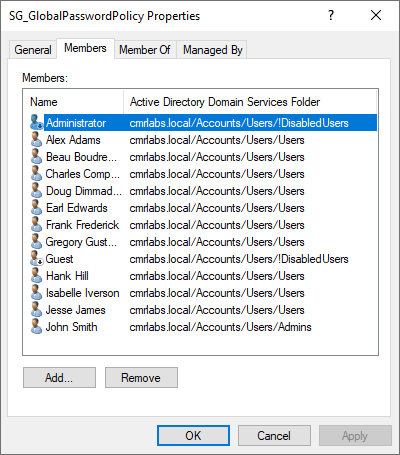
Before continuing, select all entries and click Remove.
We’ll be using the Local MMC Profile for this section.
Creating the Scheduled Task
Navigate to Task Scheduler > Task Scheduler Library.
On the right-hand sidebar, under actions, choose Create task.
On the General tab, fill in the information as per the example.
Be sure to check the boxes as shown below.
You don’t have to enter a detailed description, just something simple.
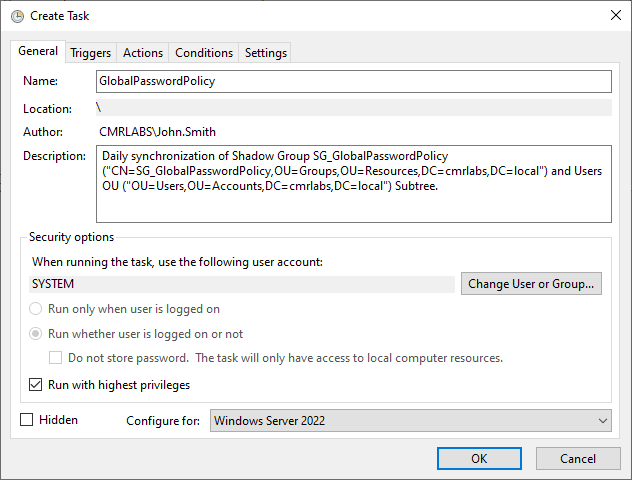
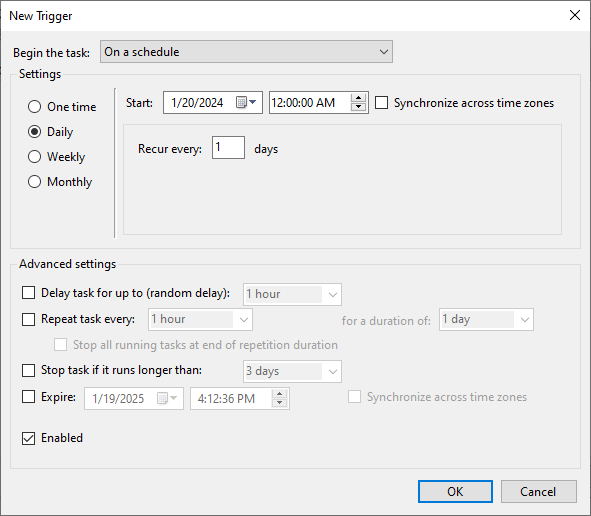
On the Triggers tab, click New and configure the trigger to match the example below.
Click OK once complete.
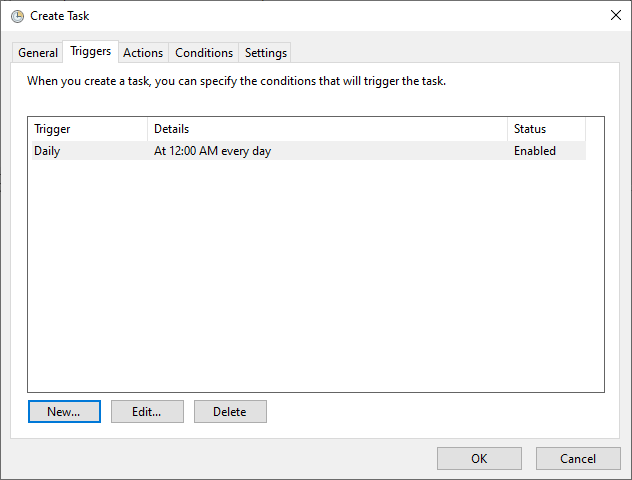
The trigger will now appear on the Triggers tab.
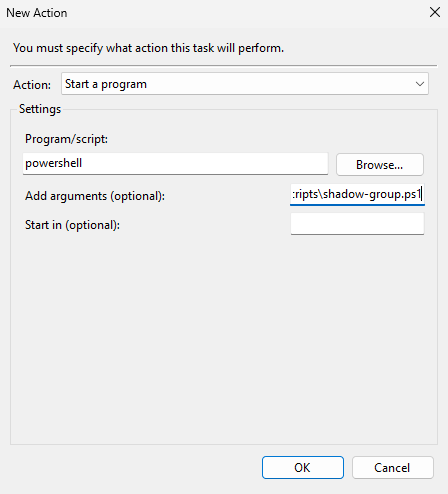
Within the Actions tab, click New and configure the action to match the example below.
Click OK once complete.
| Program/script | powershell |
| Add arguments (optional) | -File C:\Scripts\shadow-group.ps1 |
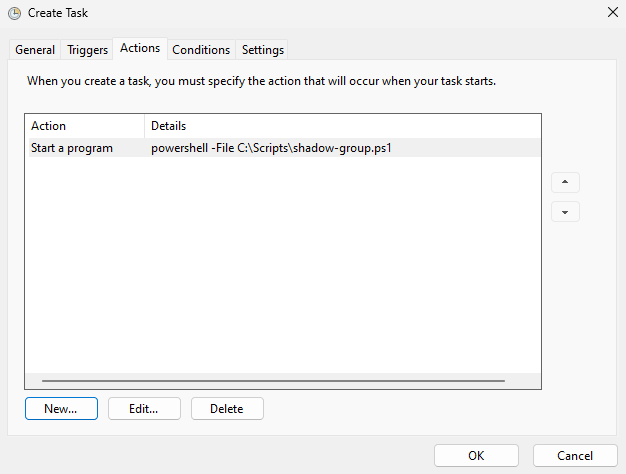
Back on the Actions tab, you can see the action is now created.
Within the Conditions tab, uncheck all boxes.

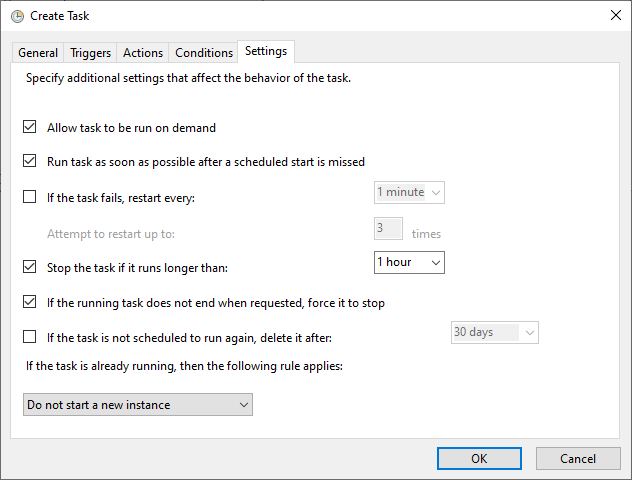
Within the Settings tab, verify your settings match below.
We’ll be using the Local MMC Profile for this section.
Testing the Scheduled Task
Navigate to Task Scheduler > Task Scheduler Library.
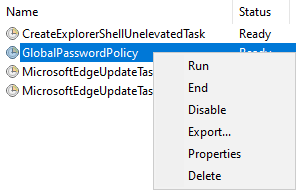
Right-click the GlobalPasswordPolicy task and click Run.
Verify the script ran properly by checking the contents of the SG_GlobalPasswordPolicy Security Group.
It should be full of all users from the !DisabledUsers, Admins & Users OUs.
Shadow One to Task Master, over…
We’ve successfully created a Shadow Group and tied it to a scheduled task!
Please make your way to the next section, where we’ll be configuring the DHCP Server!