We’ll be using the AD DS MMC Profile for this section.
User Accounts
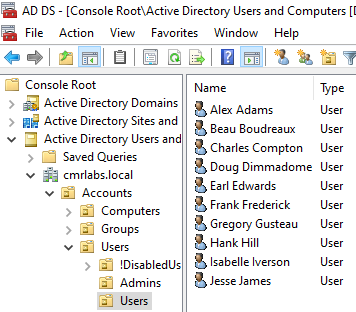
Open Active Directory Users and Groups and navigate through the Organizational Units.
mydomain.local > Accounts > Users > Users
In the blank space, right-click, hover over New > select User.
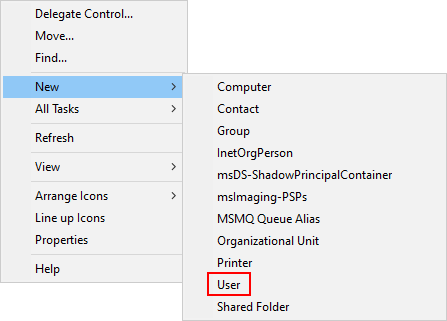
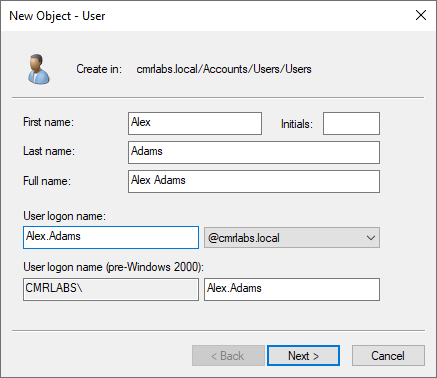
Fill in the fields to create a new user. You can be however creative you’d like.
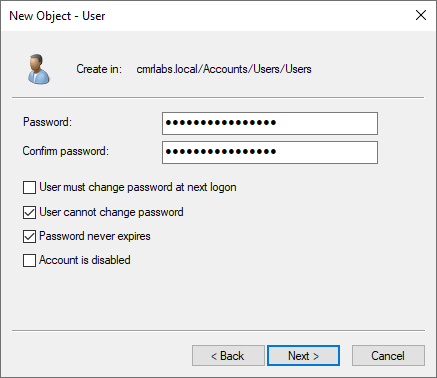
Generate a creative password and check the boxes as below.
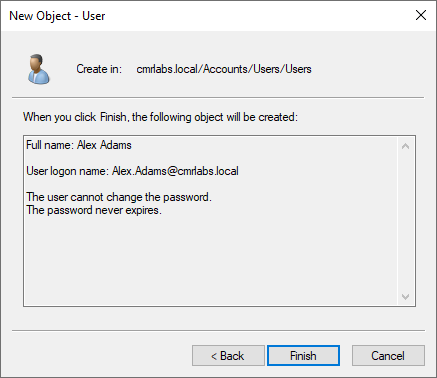
Review the details for the user that you’re creating and click Finish when satisfied.
Repeat the process until you have 10 users.
Adding Users via PowerShell
Shoutout to Ali Tajran!
Huge thanks to Ali Tajran for creating a clear guide and useful script!
Import AD users from CSV with PowerShell
Alternatively, you can add users utilizing PowerShell and a csv file!
You can utilize the guide above and scripts below to easily add bulk users to your environment!
Simply add whatever users you’d like following the example below, then run the script!
CSV FILE
firstname,lastname,username,password,ou
Alex,Adams,Alex.Adams,password,"OU=Users,OU=Users,OU=Accounts,DC=sam-lab1,DC=local"
Beau,Boudreaux,Beau.Boudreaux,password,"OU=Users,OU=Users,OU=Accounts,DC=sam-lab1,DC=local"
Charles,Compton,Charles.Compton,password,"OU=Users,OU=Users,OU=Accounts,DC=sam-lab1,DC=local"
Doug,Dimmadome,Doug.Dimmadome,password,"OU=Users,OU=Users,OU=Accounts,DC=sam-lab1,DC=local"
Earl,Edwards,Earl.Edwards,password,"OU=Users,OU=Users,OU=Accounts,DC=sam-lab1,DC=local"
Frank,Frederick,Frank.Frederick,password,"OU=Users,OU=Users,OU=Accounts,DC=sam-lab1,DC=local"
Gregory,Gusteau,Gregory.Gusteau,password,"OU=Users,OU=Users,OU=Accounts,DC=sam-lab1,DC=local"
Hank,Hill,Hank.Hill,password,"OU=Users,OU=Users,OU=Accounts,DC=sam-lab1,DC=local"
Isabelle,Iverson,Isabelle.Iverson,password,"OU=Users,OU=Users,OU=Accounts,DC=sam-lab1,DC=local"
Jesse,James,Jesse.James,password,"OU=Users,OU=Users,OU=Accounts,DC=sam-lab1,DC=local"
ADD USER POWERSHELL SCRIPT
Be sure to update the file path for the $ADUsers variable.
# Import active directory module for running AD cmdlets.
Import-Module ActiveDirectory

# Store the data from the CSV file in the $ADUsers variable.
$ADUsers = Import-Csv "C:\Users\sam-0471\Desktop\ad-user.csv"

# Define UPN
$UPN = "sam-lab1.local"

# Loop through each row containing user details in the CSV file.
foreach ($User in $ADUsers) {
    try {
        # Define the parameters using a hashtable.
        $UserParams = @{
            SamAccountName        = $User.username
            UserPrincipalName     = "$($User.username)@$UPN"
            Name                  = "$($User.firstname) $($User.lastname)"
            GivenName             = $User.firstname
            Surname               = $User.lastname
            Enabled               = $True
            DisplayName           = "$($User.firstname) $($User.lastname)"
            Path                  = $User.ou #This field refers to the OU the user account is to be created in.
            AccountPassword       = (ConvertTo-secureString $User.password -AsPlainText -Force)
            ChangePasswordAtLogon = $True
        }

        # Check to see if the user already exists in AD.
        if (Get-ADUser -Filter "SamAccountName -eq '$($User.username)'") {

            # Give a warning if user exists.
            Write-Host "A user with username $($User.username) already exists in Active Directory." -ForegroundColor Yellow
        }
        else {
            # User does not exist then proceed to create the new user account
            # Account will be created in the OU provided by the $User.ou variable read from the CSV file.
            New-ADUser @UserParams

            # If user is created, show message.
            Write-Host "The user $($User.username) is created." -ForegroundColor Green
        }
    }
    catch {
        # Handle any errors that occur during account creation.
        Write-Host "Failed to create user $($User.username) - $_" -ForegroundColor Red
    }
}
Database Populated!
We’ve successfully created our User Accounts!
Please make your way to the next section, where we’ll be configuring the Fine-Grained Password Policy!