Installing the File Server Role
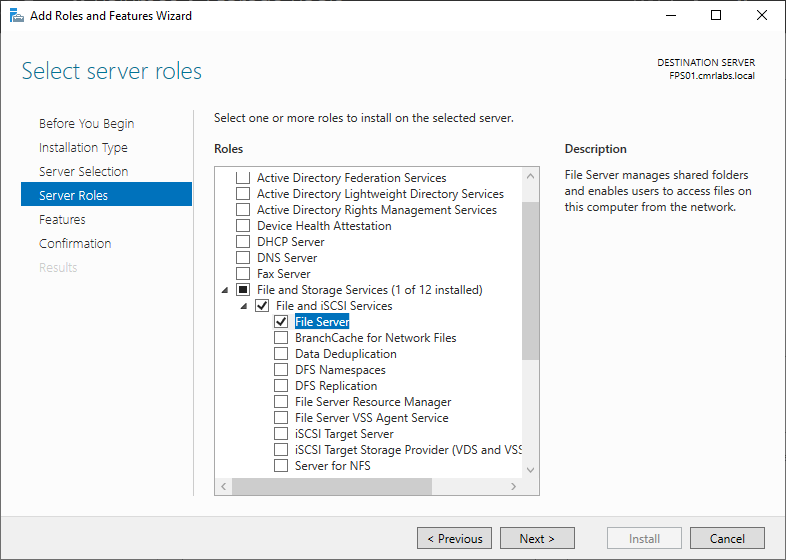
Open up Server Manager and expand the File and Storage Services drop-down.
Within File and iSCSI Services select File Server.
Continue through the remaining windows and accept all defaults.
Allow the feature to install and then close any menus/windows that popup.
Creating the Shared Folder
We’ll be operating out of Server Manager > File and Storage Services for the following section.
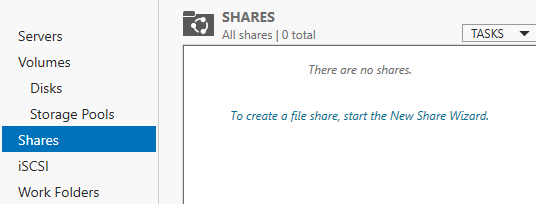
Click Shares on the left-hand sidebar.
Right-click the blank space and choose New Share.
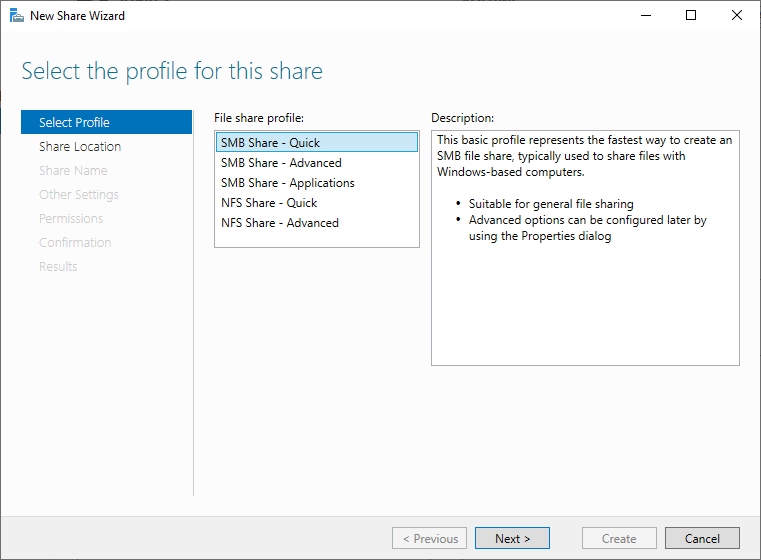
Accept the default SMB Share - Quick and select Next >.
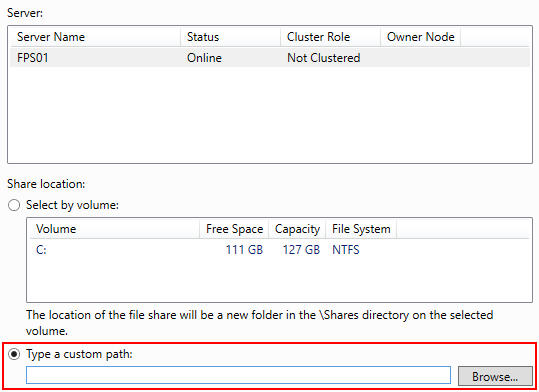
On the following page, select the Type a custom path radio button and click Browse…
Within the popup window, drill down into the folder location that you’d like to share.
In my example, I’ve created a folder tree of data > common.
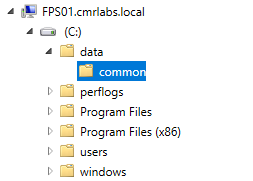
You’ll see the path update in the custom path field.
Verify this is correct and choose Next >

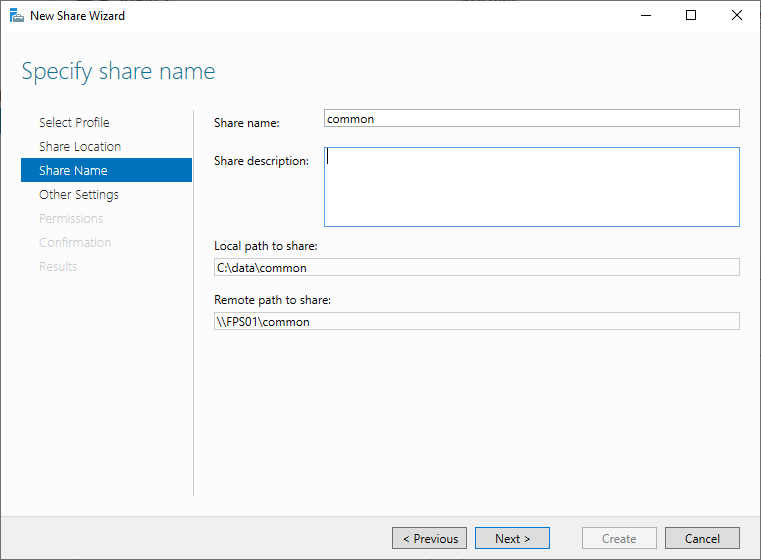
Verify the share name and other fields are correct and click Next >
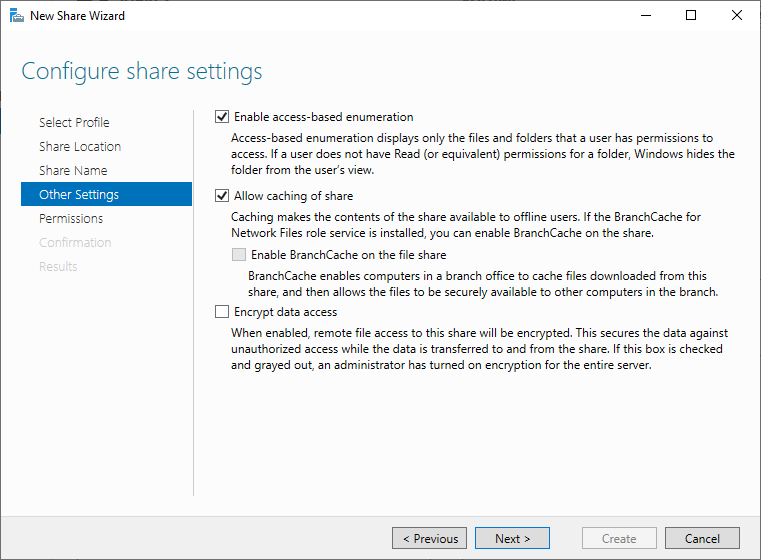
Verify the checkboxes match as below and click Next >
Advanced Permissions Configuration
On the permissions pane, click Customize Permissions.
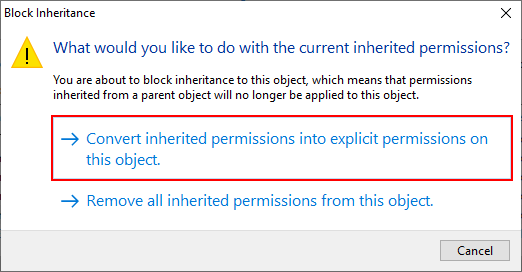
In the Advanced Security Security Settings pane, click the Disable inheritance button.
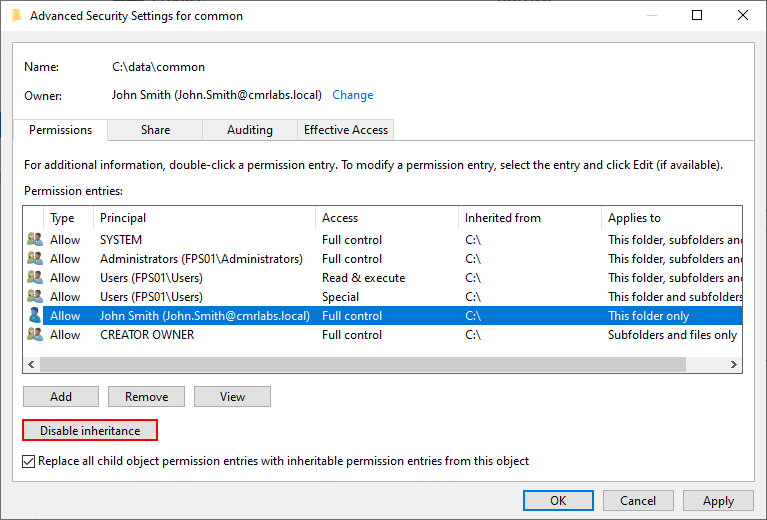
On the Block Inheritance popup, select Convert inherited permissions…
Click Add below the Permission entries
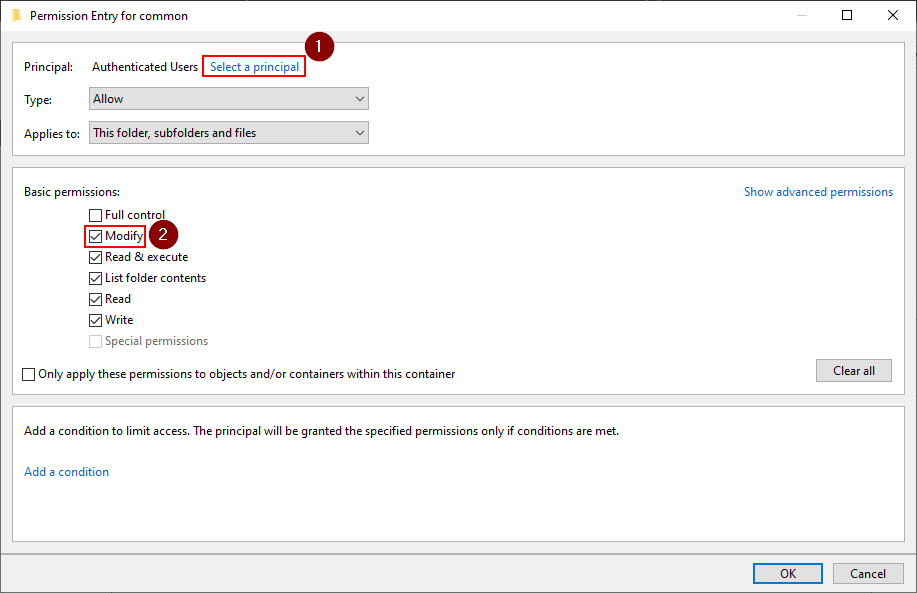
Click on Select a principal and in the selection screen, enter the Authenticated Users object then click Check Names and click OK.
Back on the Permission Entry screen, click the Modify checkbox under Basic permissions.
Click OK.
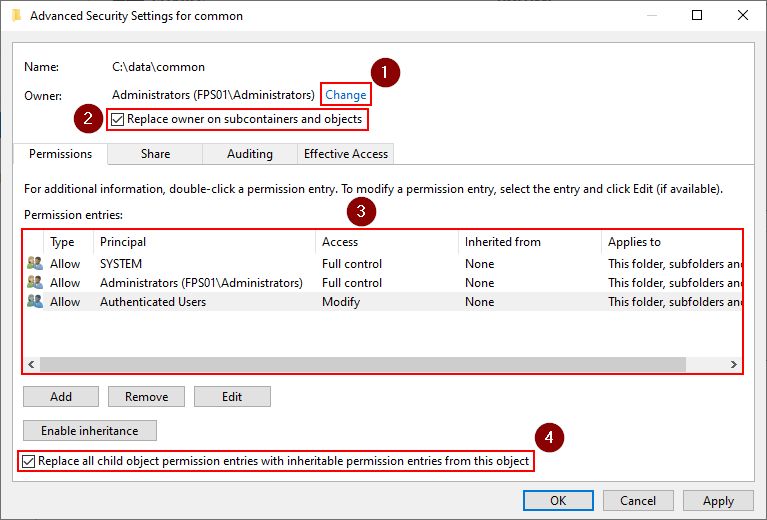
In the Advanced Security Security Settings pane, next to the Owner entry, click Change.
In the selection screen, enter the Administrators object then click Check Names and click OK.
Remove all other objects under Permission entries to match the below config.
Check the Replace all child object permissions entries… checkbox.
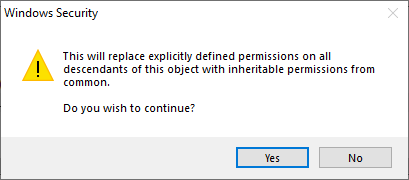
You’ll receive a Windows Security popup requesting confirmation of the changes.
Click Yes
You’ll receive another Windows Security popup informing you will need to reopen the object for the changes to take effect.
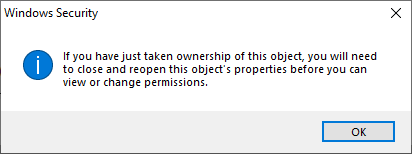
Click OK to close the Advanced Security Security Settings pane.
Click Next > 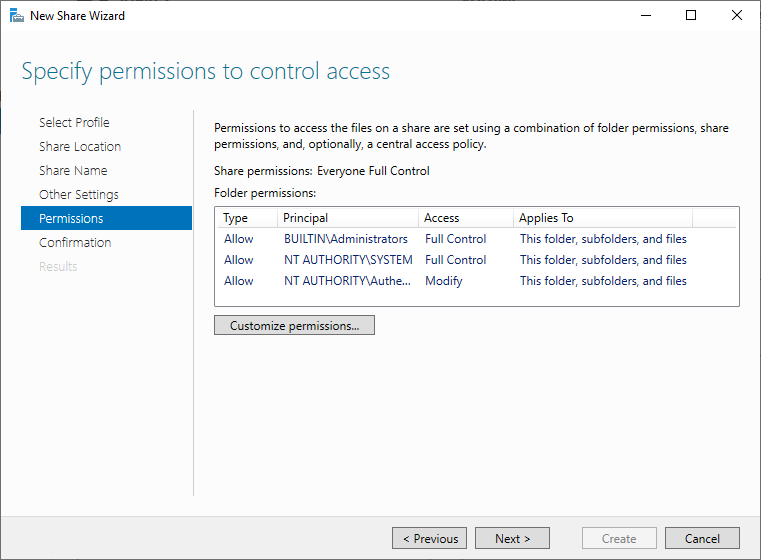
Finalizing Creation
Click Create 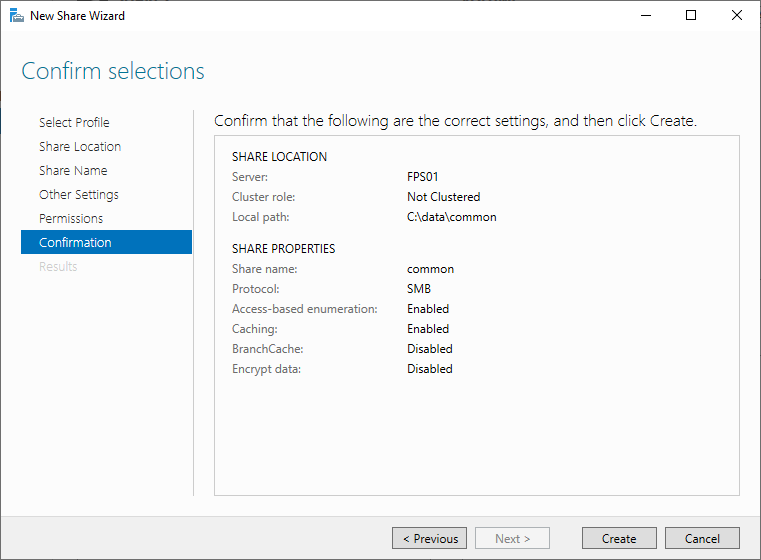
The share has been created.
Click Close to close the wizard.
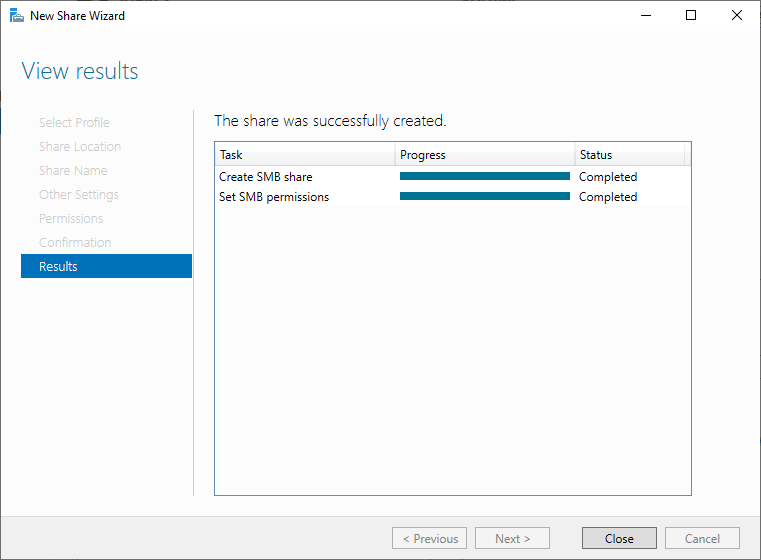
File Sharing Complete!
We’ve successfully created a File Share!
Please make your way to the next section, where we’ll be configuring Group Policy utilizing the new File Share!