We’ll be using the AD DS MMC Profile for this section.
Creating our Administrator Account
Expand Active Directory User and Groups > mydomain.local and select Users.
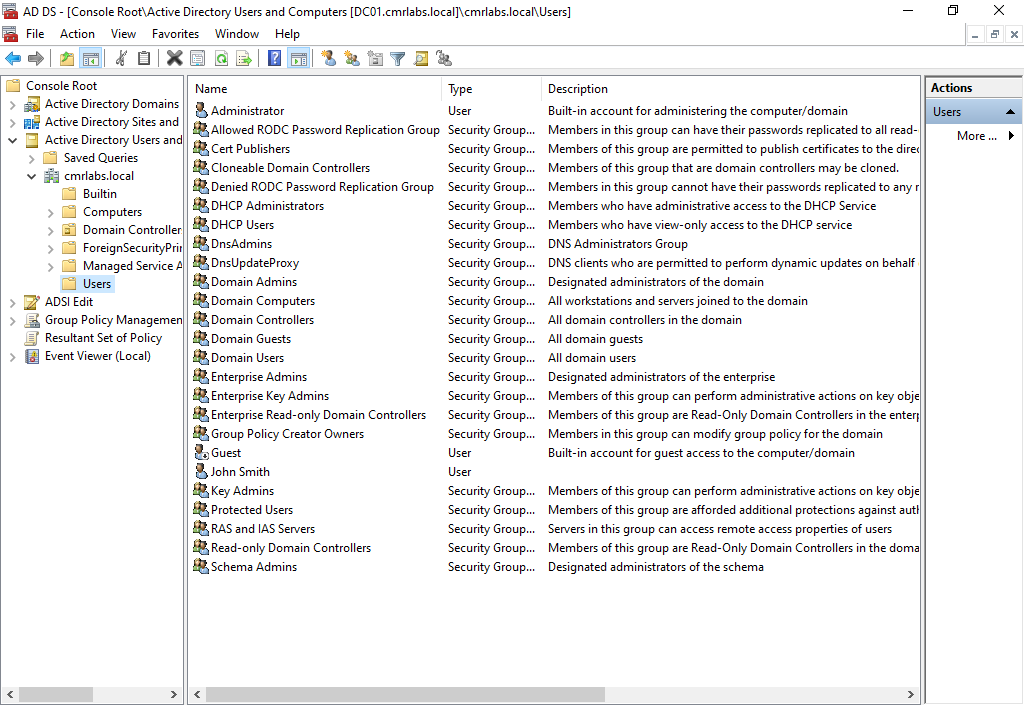
In the blank area, right-click to open the context menu.
Hover on New to expose the sub-menu and click User.
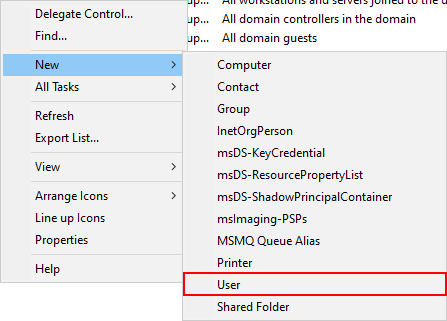
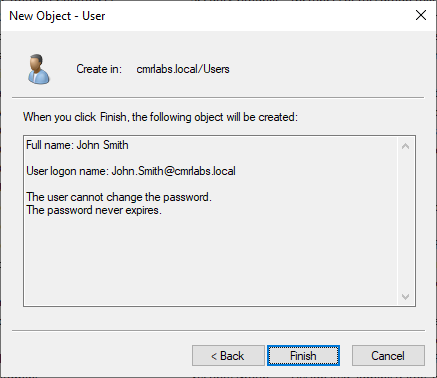
Fill out the fields as displayed below with whatever you’d like.
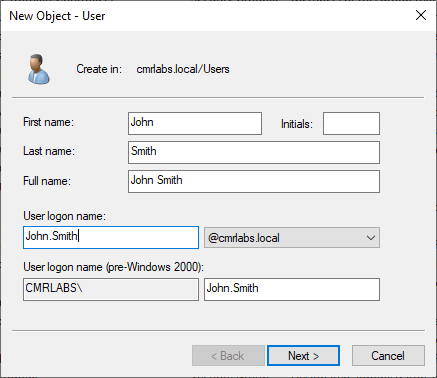
Enter a password for the account and ensure the boxes are ticked as below.
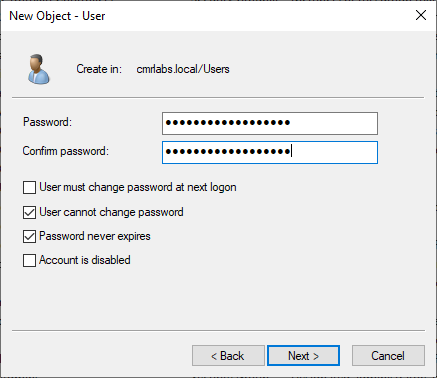
Review the page and click Finish.
You’ll now see the object created in the Users Organizational Unit.
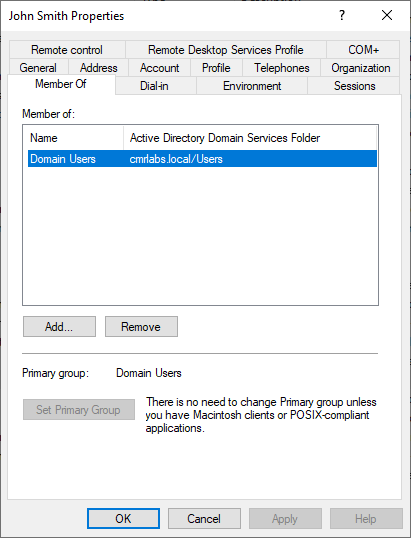
Double-click the user object to open the properties screen and choose Members Of to expand the user’s current Group Memberships.
Click Add… to add group membership to this account.
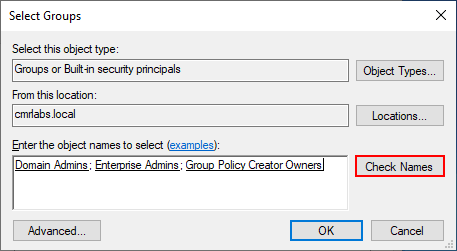
In the Select Groups pane, add the following groups:
- Domain Admins
- Enterprise Admins
- Group Policy Creator Owners
Click Check Names after typing each entry to verify it resolves correctly.
Click OK.
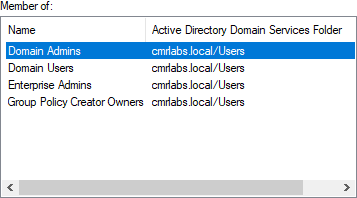
Now the groups will show under the Member Of section.
Click OK to apply all changes and close the Properties window.
Transferring Your MMC Profiles
Save a copy of your MMC Profiles to the root of C:\ so that you can copy them to your new Administrator Account after you sign in!
Disabling the Built-In Administrator
SIGN INTO THE NEWLY CREATED ADMINISTRATOR ACCOUNT BEFORE CONTINUING.
MORE INFORMATION
I didn’t go in-depth with configuring the Built-In Adminsitrator Account, however you can reference the following article to dive deeper into proper configuration of the account.
Securing Built-in Administrator Accounts in Active Directory
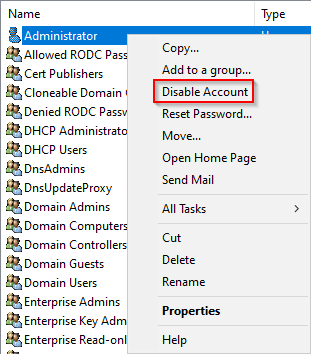
Right-click the Administrator account and choose Disable Account.
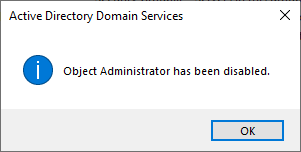
You will get a popup confirming the account has been disabled.
God Mode Enabled!
We’ve successfully configured our Administrator Accounts!
Please make your way to the next section, where we’ll be configuring the AD CS - Certificate Authority role!