Starting out!
Let’s join the Microsoft 365 Developer Program and initialize our M365 Environment.
Joining the program and creating a Microsoft account.
Once you’re on the developer page, click the Join now > button.
You will be redirected to the Microsoft sign-in page.
I will be creating an account using a new email address specifically for this lab.
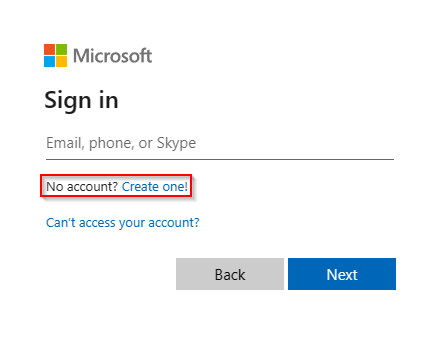
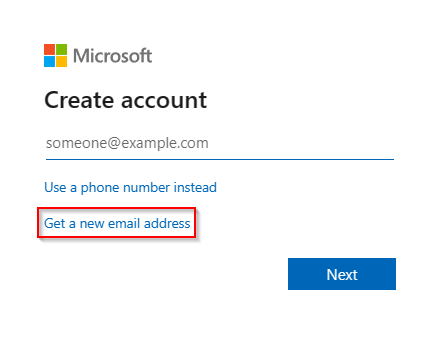
Go ahead and create an email using the @outlook.com domain. You will utilize this as an alternate/fallback email for your environment post-creation.
Now choose the Get a new email address hyperlink.
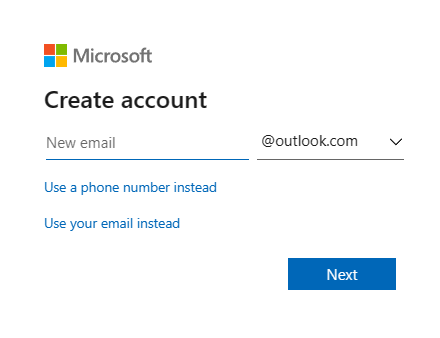
Enter the email you’d like to create and utilize for this lab environment.
Initial Dev Environment setup.
After creating our Microsoft account, we will be redirected to the Developer Program dashboard to configure the first-time setup of our environment.
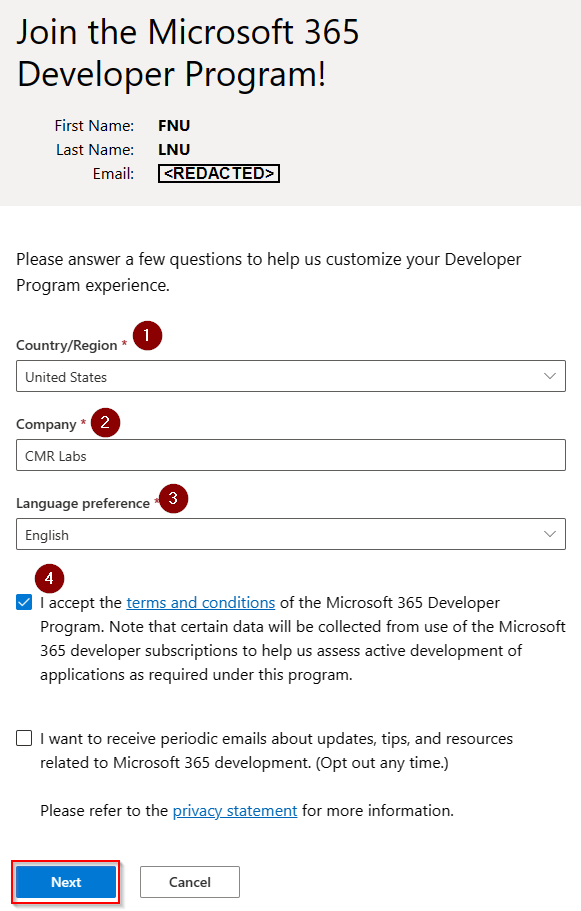
We’re initially met with a screen that will walk us through some basic setup of the environment and initialize our subscriptions.
Fill out the required sections, read the TOC and accept them if you so choose, then click Next.
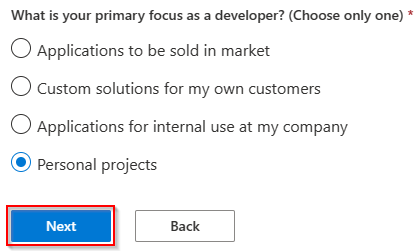
On the next screen, we will be asked how we’ll be using the Developer Program. Choose whatever you like, but I have chosen Personal Projects as that is the intent for my environment.
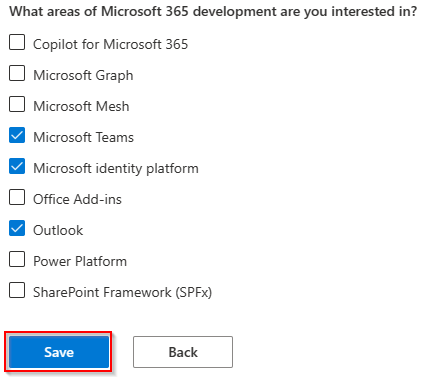
You will then be asked to select your interests within the Developer Program. Do so and click Save.
M365 E5 Sandbox initialization.
After completing the initial setup of our Dev Environment, we will now activate the included M365 E5 Sandbox. You should automatically have a popup appear to complete this portion of the setup.
If for some reason your dashboard doesn’t auto-launch the setup process you can click the Set up E5 subscription > hyperlink to continue following along. This will be on the main page of your M365 Developer Program dashboard. 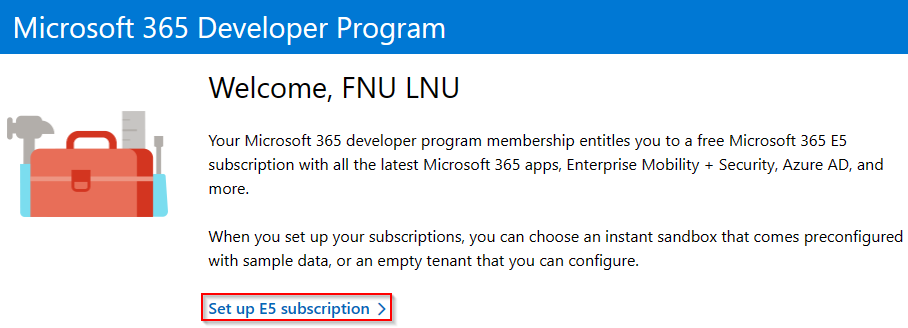
Moving on, we will be choosing the Configurable sandbox option so that we can use the custom domain we just purchased. Click Next. 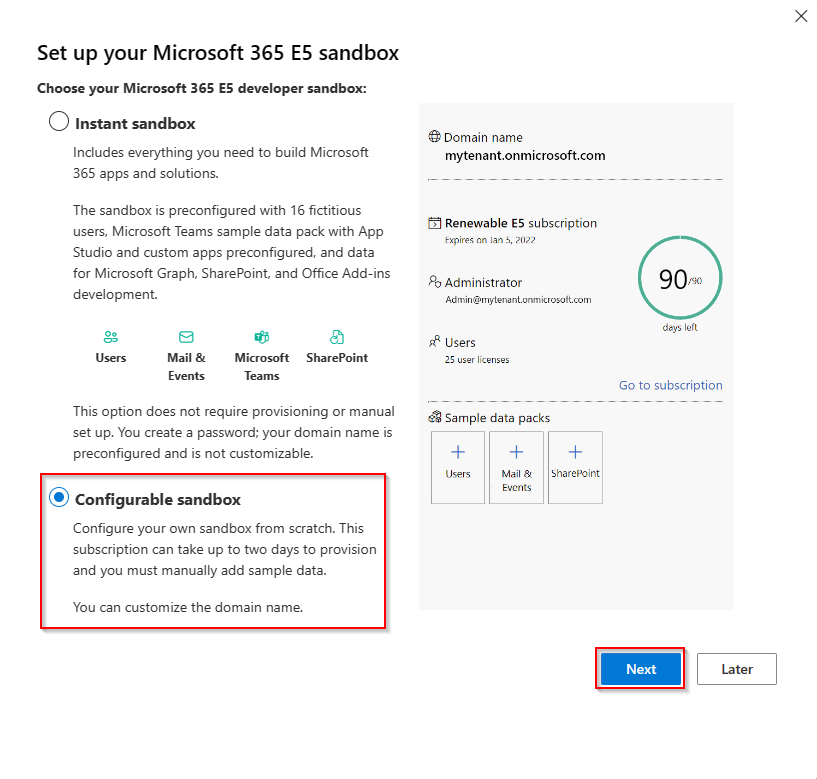
Complete the next setup page as you see fit and click Continue.
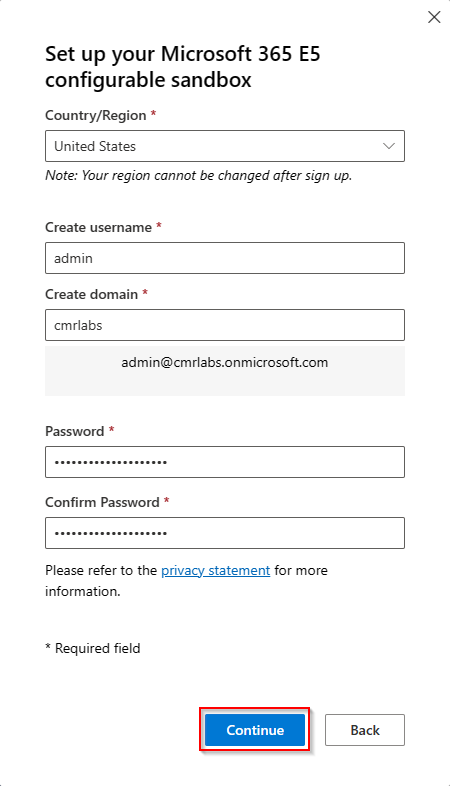
Complete the required security setup process with your information as required. You will get a code and need to enter it to finalize the setup. Sorry, I missed the SC on the second screen for this one.
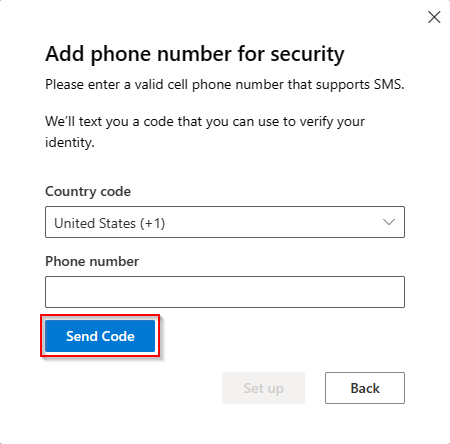
Once you’ve verified your account setup, you will see the below screen appear. 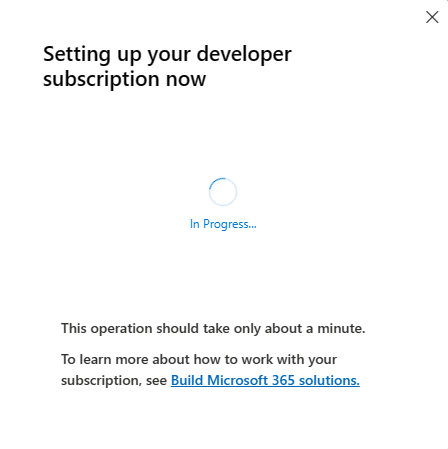
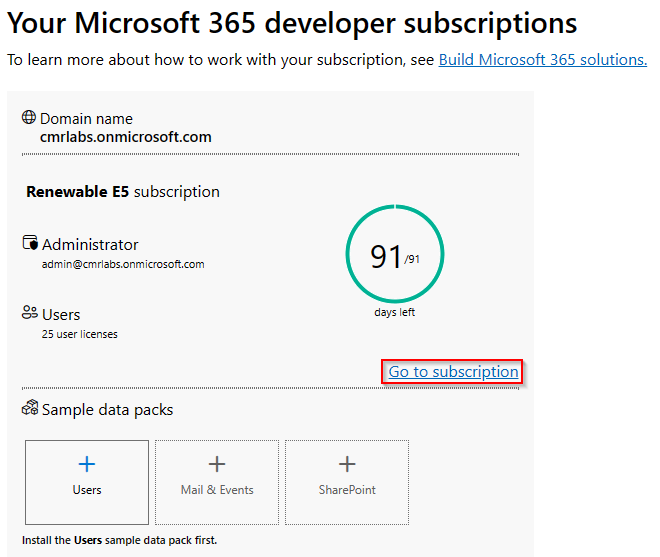
After the setup process is complete, you will be brought back to the dashboard and see that your subscription is activated. Click the Go to subscription hyperlink to navigate to your M365 Admin Dashboard.
You will be required to sign into the M365 account you just created to access the admin dashboard.
On a roll!
We’ve successfully initialized our M365 Environment!
Please make your way to the next section, where we’ll be adding our custom domain!