We’ll be using the Roles MMC Profile for this section.
Creating a Reverse Lookup Zone
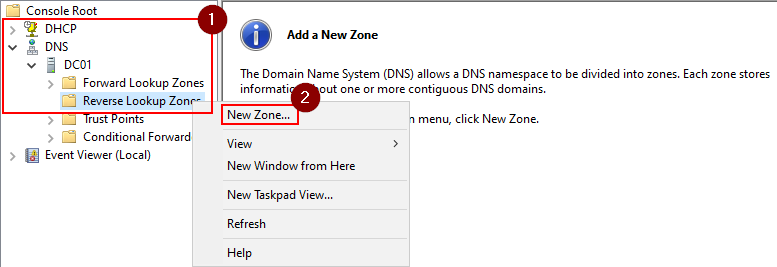
Expand the DNS tree until you can see the items within DC01.
Right-click Reverse Lookup Zones and click New Zone.
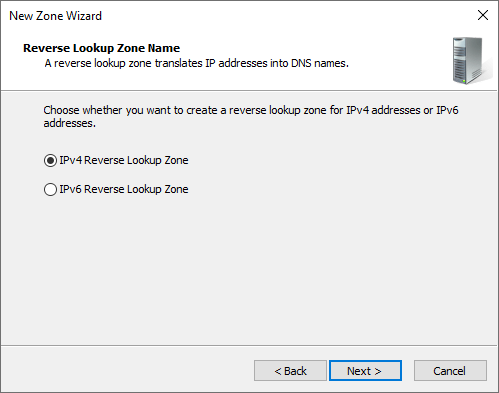
Follow the prompts throughout the New Zone Wizard as displayed below.
Click Next >
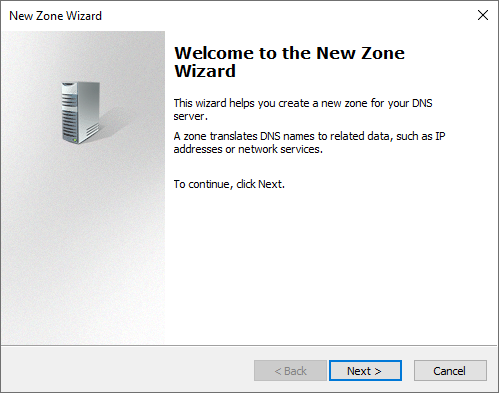
Click Next >
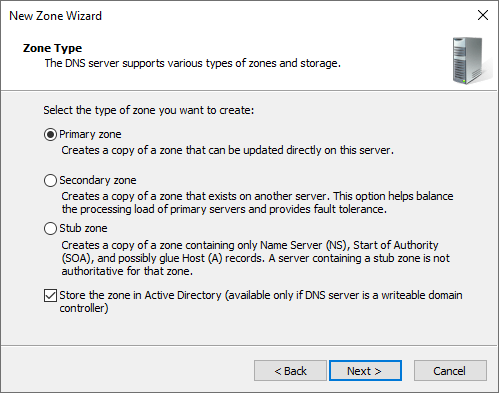
Click Next >
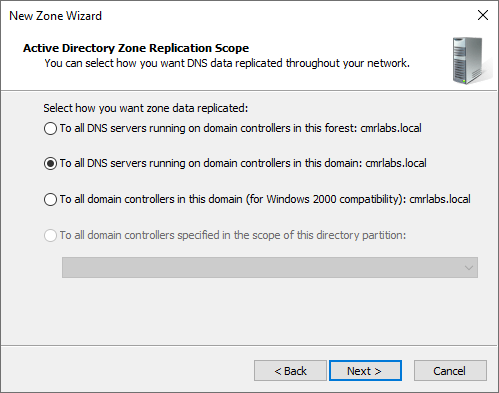
Click Next >
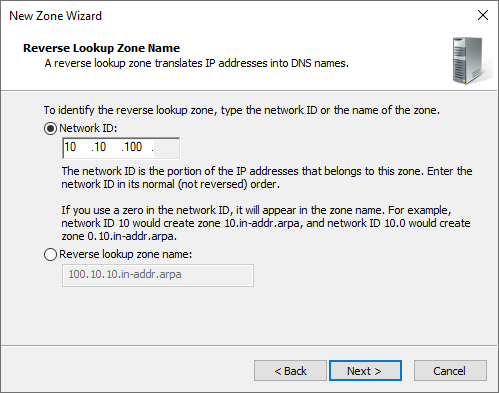
Enter the first three octets of your subnet.
In this example, I would enter 10.10.100 for the subnet of 10.10.100.0/24.
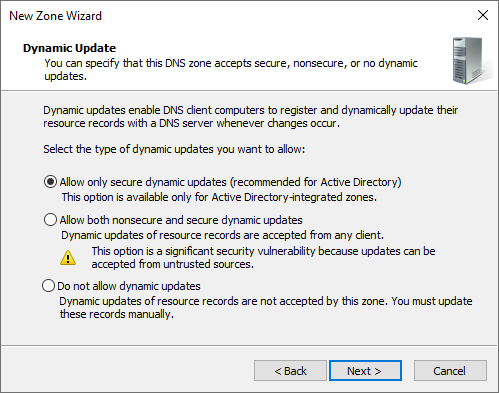
Click Next >
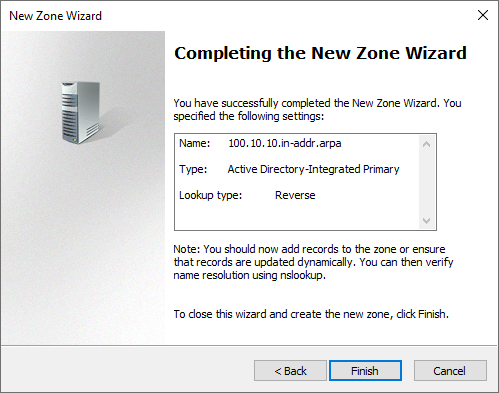
Click Finish
Once complete, you’ll see the reverse lookup zone has been generated and should have data that’s being populated.
You can click refresh if you don’t see any data.

DNS Configured!
We’ve successfully created the Reverse Lookup Zone!
Please make your way to the next section, where we’ll be configuring a File Share!