Adding User Accounts to M365
Getting There
This section is going to be quite simple. We’re just adding matching user accounts to M365 that are identical to our on-premise users and assigning licenses.
You can easily add users by navigating to the M365 Admin Portal > Active Users and clicking the Add a user as shown below or click the convenient button!

Adding Our Users
Let’s start by adding our first user, by entering their details as required below.
Verify all boxes are unchecked as below.
Be sure to create a generic, but strong, password to use for ease of use in this lab.

Accept the default location and assign the available product license to the user!

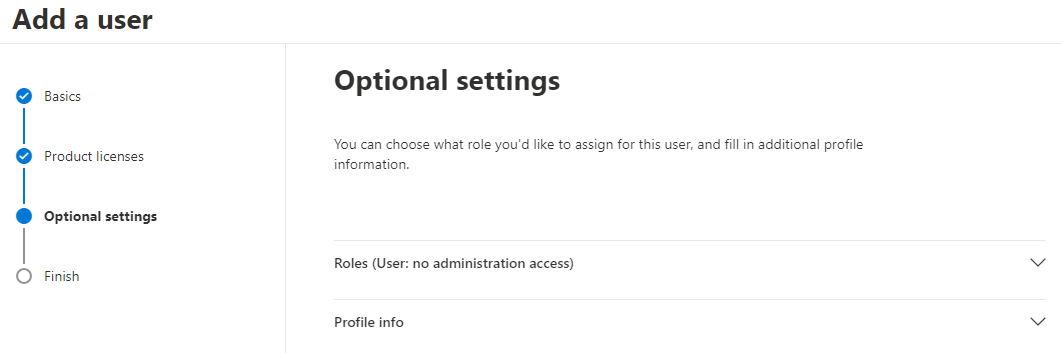
Accept the default Roles and Profile info.
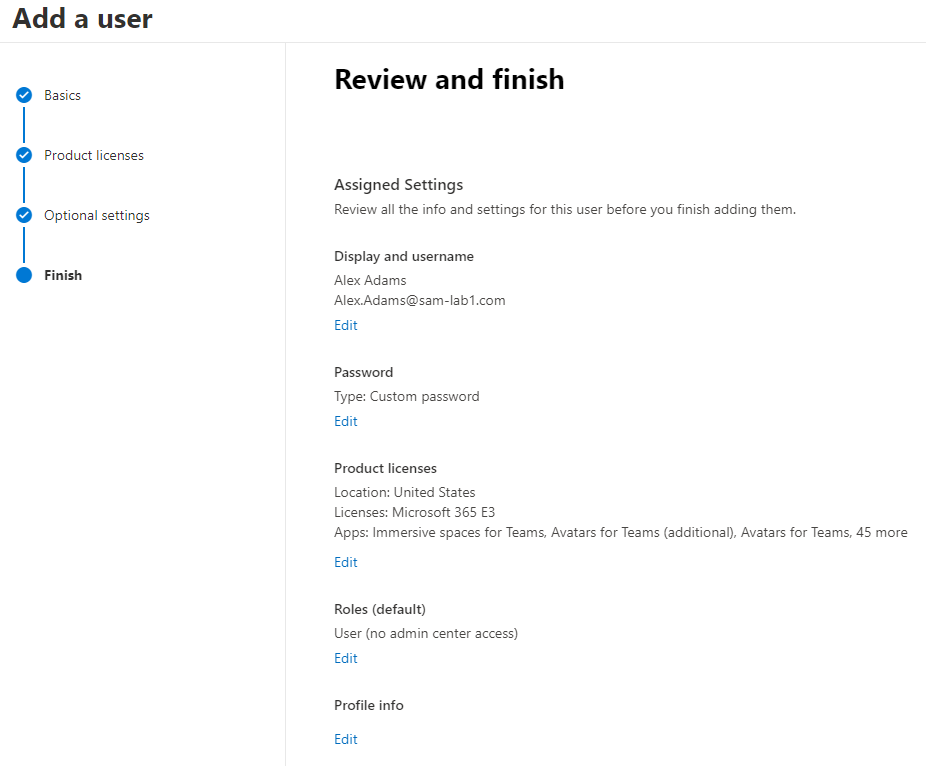
Review the user’s summary and click Finish Adding.
Creating a Template for Adding Users
Microsoft provides an easy way for us to standardize our user creation, called templates.
Let’s create one so that we can easily create users with similar settings.
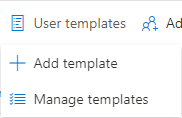
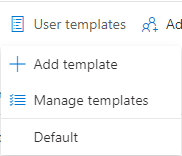
Click the User templates button and select Add template.
Name your template and add a description if you’d like.

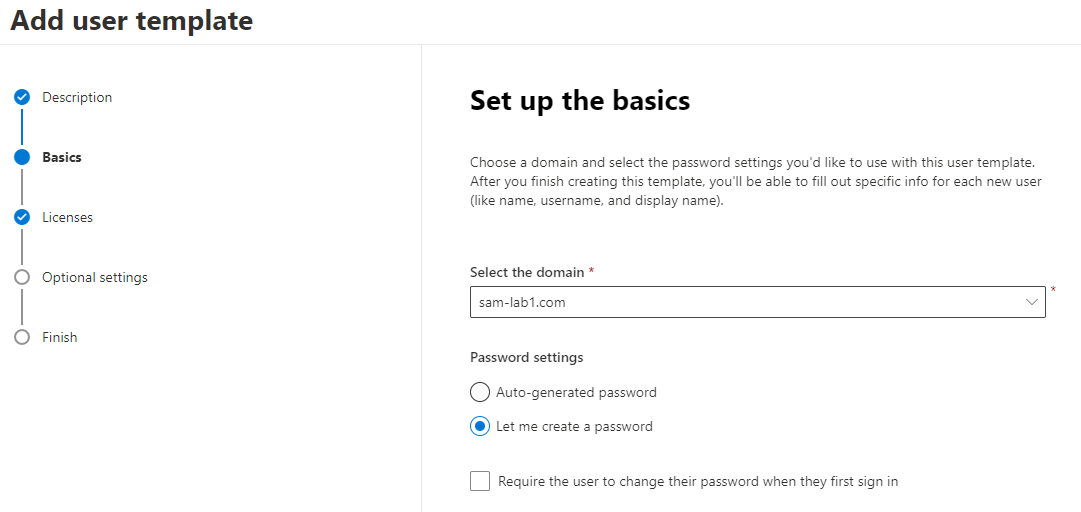
Select the domain, which should be the one you added earlier.
Choose Let me create a password and verify the box is unchecked.
Assign the licenses available to your account.

Accept the default Roles and Profile info.
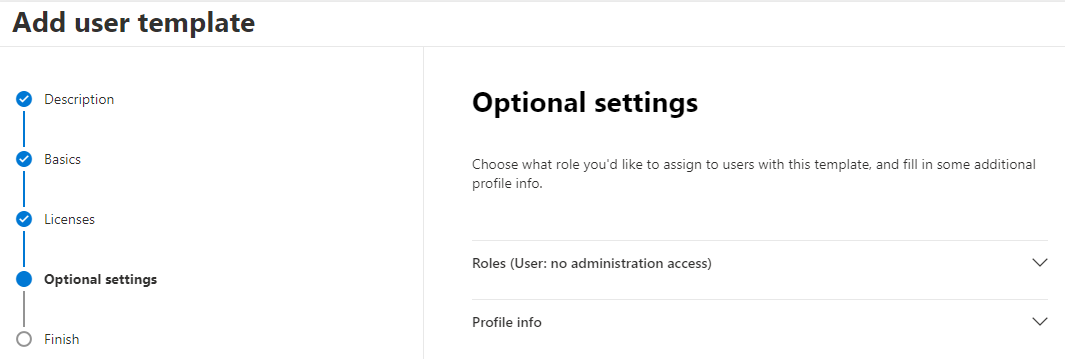
Review the template’s summary and click Finish Adding.

Adding User Accounts via Template
Click the User templates button and select the template you just created.
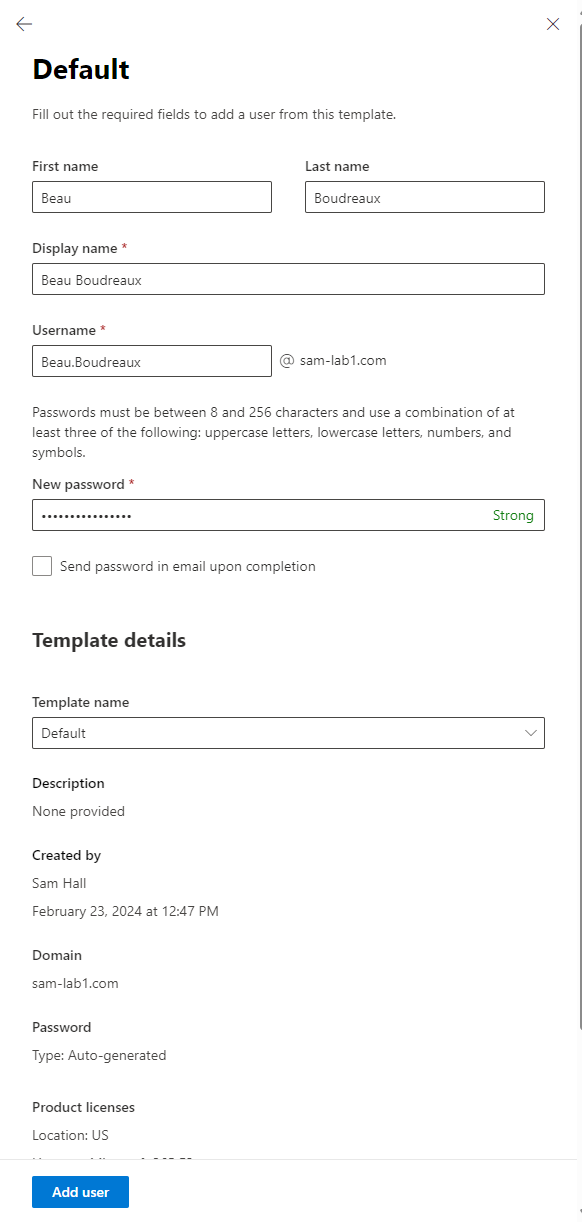
Enter the user’s information as desired and click Add user.
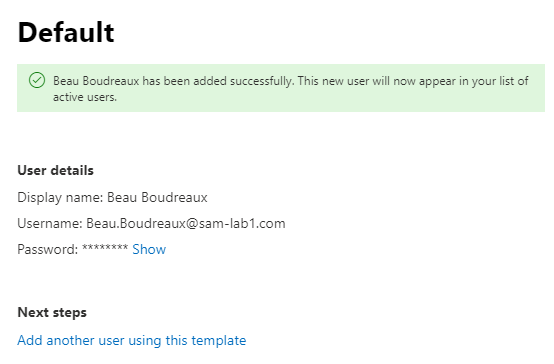
You’ll get a verification that the user was created.
Click Add another user using this template to repeat the process.
Continue creating all users that you’ve added to your on-premise environment.
User Accounts Created!
We’ve successfully created our M365 User Accounts!
Please make your way to the next section, where we’ll be proceeding with establishing the connection between our on-premise environment and M365 Entra!