OPNsense - Initialization
In this section, I will overview the initialization of the OPNsense Firewall.
OPNsense Initialization
Now that we’ve configured the Virtual Machine, we can start it and perform the first-time setup.
Once the OPNsense finishes booting up, you will see the login prompt.
Login with the following credentials.
UN: installer PW: opnsense
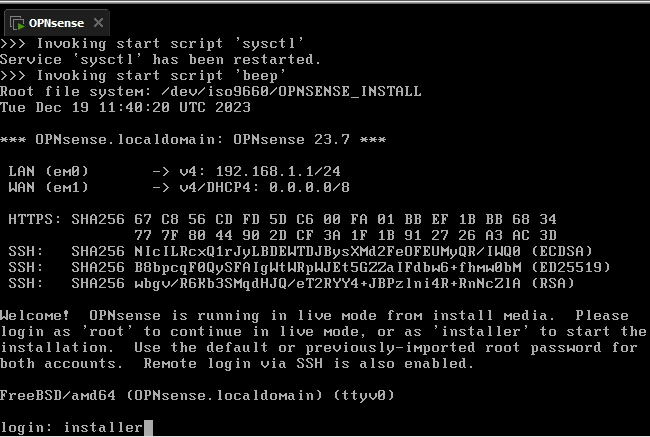
After logging in, the installation process will automatically start.
The below keyboard shortcuts are used to interact with the installer.
↑ ↓ ← → | navigation |
Spacebar | select an entry |
Enter | confirm the panel and process to the next |
Tab | toggle panel confirmation option (ie. Select or Cancel) |
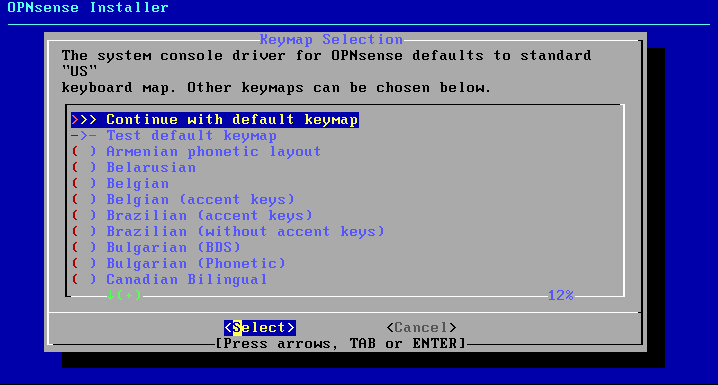
Choose a keymap that’s appropriate for your region, or simply accept the defaults. Press Enter
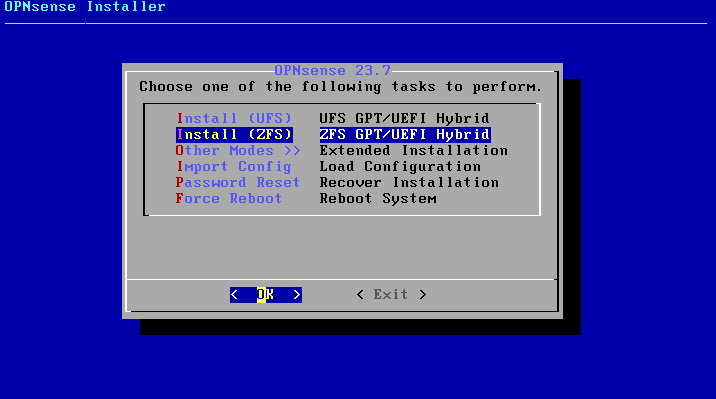
Documentation for OPNsense states the recommended format for the partition is ZFS, so navigate to the Install (ZFS) entry and press Enter.
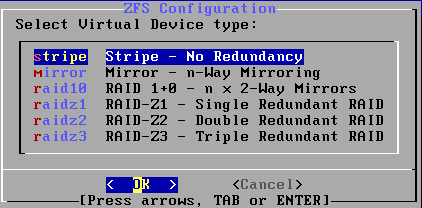
Since we only have one disk, we’ll be accepting the default stripe partitioning option for our ZFS Configuration. Press Enter
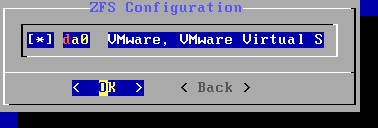
After choosing the filesystem and structure, we now must choose the partition connected to the Virtual Machine. There is only one option since we only created a single drive in our original configuration. Press Enter
This panel is just a warning to inform you that proceeding will erase all contents of the disk, da0 in our case, which is simply the virtual hard disk associated with this Virtual Machine. Press Enter 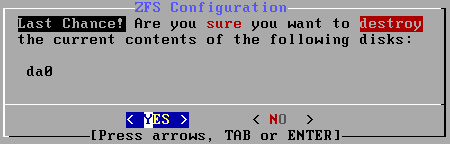
The installer will now proceed to format the disk and perform some configuration.
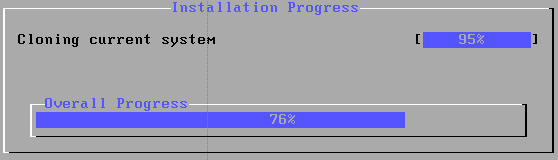
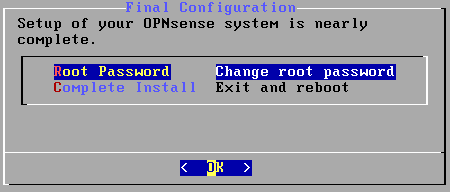
Once finished, we’re prompted to either change the root password or simply complete the installation. I strongly recommend you change the default password to something only YOU know. Press Enter to change the password, or navigate to Complete Install to finalize the installation.
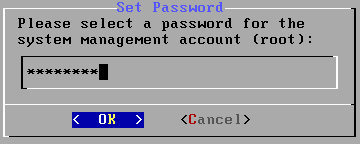
Set the password you’d like and press Enter.
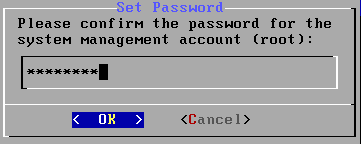
Confirm the password you entered and press Enter.
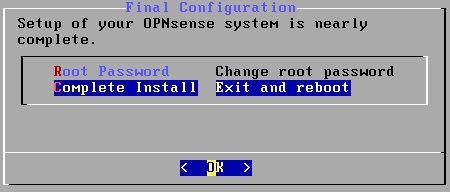
Navigate to Complete Install and press Enter.
You will see a banner message informing you that “The installation finished successfully.” and the machine will be Rebooting in 5 seconds.
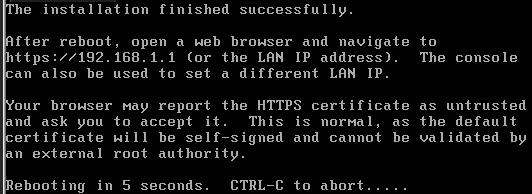
Be ready to interact with the Virtual Machine after it reboots!
OPNsense Initial Configuration
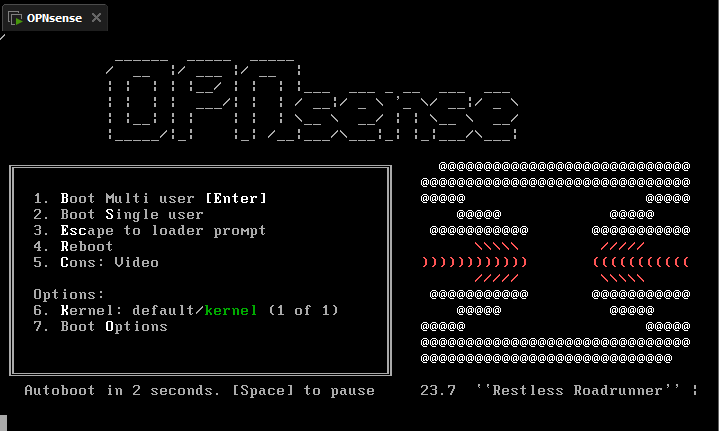
OPNsense will start and show the splash screen, stating Autoboot in 5 seconds. so simply wait 5 seconds and be prepared to interact with the virtual machine!
Shortly after the bootup process begins, you will see a prompt stating Press any key to start the manual interface assignment: with a count-down from 5 seconds. Press any key to begin the interface configuration.
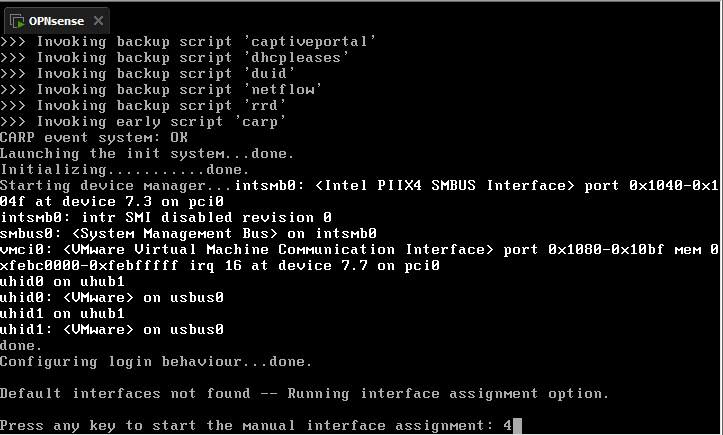
Respond to these two prompts as below with N.

The next prompt displays the valid interfaces identified as connected to your OPNsense VM.

PRO TIP
We can easily identify how each interface is being assigned within the OPNsense VM by looking at the advanced settings of our Network Adapter within the VM’s Settings Panel.
To access this, select the network adapter entry within the Settings panel, then click
Here we can see the MAC Address for the interface and verify how it’s being assigned within the OPNsense VM.
Network Adapter
Network Adapter 2

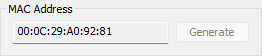
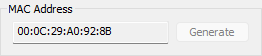
You will be requested to enter the interface you’d like to assign to the WAN. In our case, it is em0 that we previously identified as Network Adapter.

Set the LAN interface to em1, which we previously identified as Network Adapter 2.

We don’t need to configure the optional interfaces, as we’re only going to utilize the LAN and WAN. Press Enter

Confirm the interface assignment by entering y.
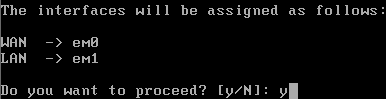
After assigning the interfaces, you will be brought back to the login page. Login to the root account.
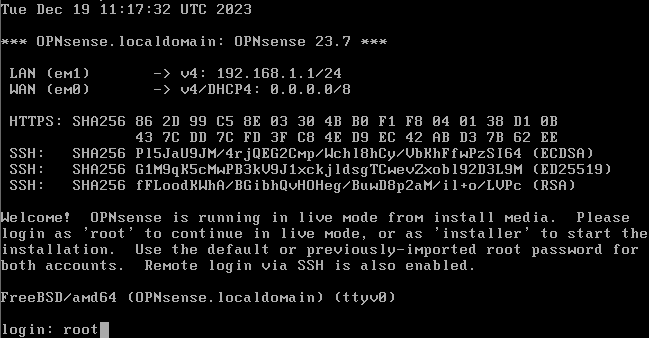
Enter option 1.
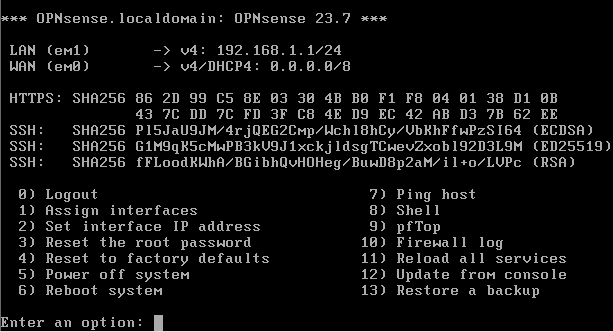
Let’s start by configuring the LAN interface by entering option 1.
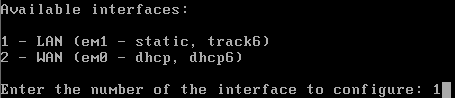
Enter the following information for the below prompts:
Configure IPv4 address LAN interface via DHCP? N
Enter the new LAN IPv4 address. Press ENTER for none: 10.10.100.1
Enter the new LAN IPv4 subnet bit count (1 to 32): 24
For a WAN/LAN: Enter
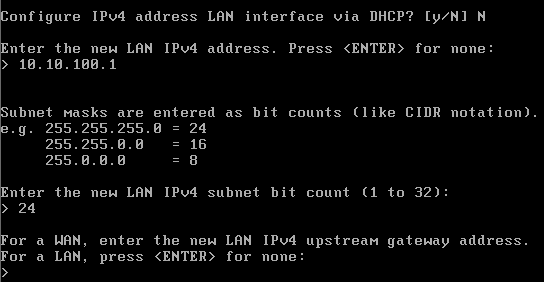
Enter the following information for the below prompts:
Configure IPv6 address LAN interface WAN tracking? N
Configure IPv6 address LAN interface via DHCP? N
Enter the new LAN IPv6 address. Press ENTER for none: Enter

Enter the following information for the below prompts:
Do you want to enable the DHCP server on LAN? N
Do you want to change the web GUI protocol from HTTPS to HTTP? N
Do you want to generate a new self-signed web GUI certificate? Y
Restore web GUI access defaults? Y

You’ll now see a banner stating that you can access the web GUI via the configured LAN IP from earlier.
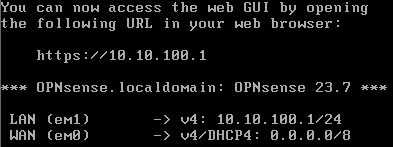
After finalizing the LAN interface configuration, we’re brought back to the main menu.
Enter option 2.
Enter the following information for the below prompts:
Enter the number of the interface to configure: 2
Configure IPv4 address WAN interface via DHCP? Y
Configure IPv6 address WAN interface via DHCP6? N
Enter the new WAN IPv6 address. Press ENTER for none: Enter
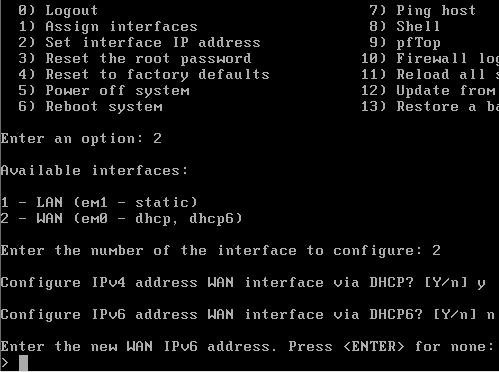
Enter the following information for the below prompts:
Do you want to change the web GUI protocol from HTTPS to HTTP? N
Do you want to generate a new self-signed web GUI certificate? Y
Restore web GUI access defaults? Y

OPNsense VM Config Cleanup
Open the settings for the Virtual Machine again and navigate to the CD/DVD (IDE) item.

Select it and then choose 
Initialtization Finished!
We’ve successfully initialized our OPNsense Firewall! Please make your way to the next section, where we’ll be configuring access to our OPNsense Firewall!