DC01 - Initialize
Time to start diving into the initialization process for DC01!
Getting Logged In!
Windows will go through its initialization process upon rebooting.
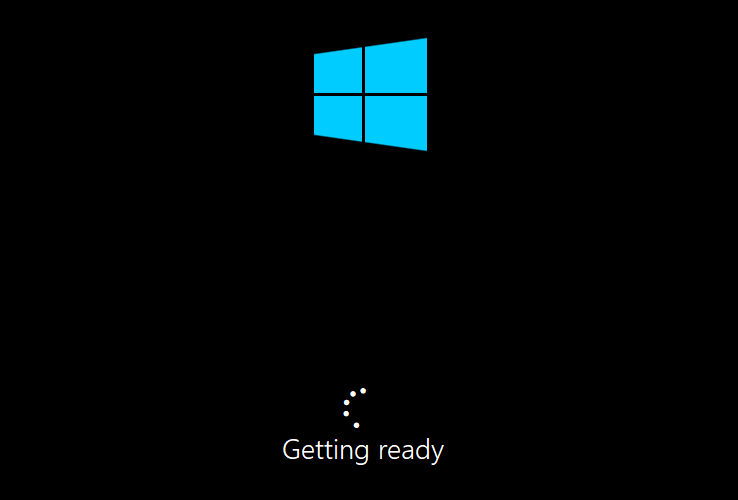
Once complete, you’ll see the Customize settings screen appear, where you configure the password for the Local Administrator account Administrator.
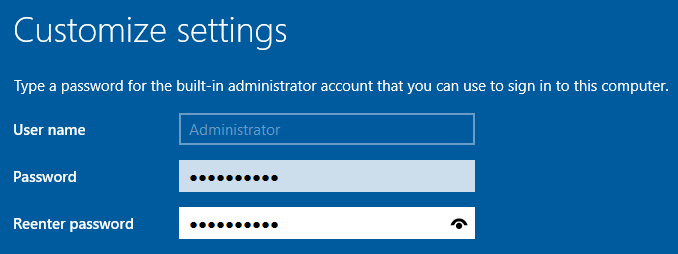
Once you’ve entered the password you desire, click 
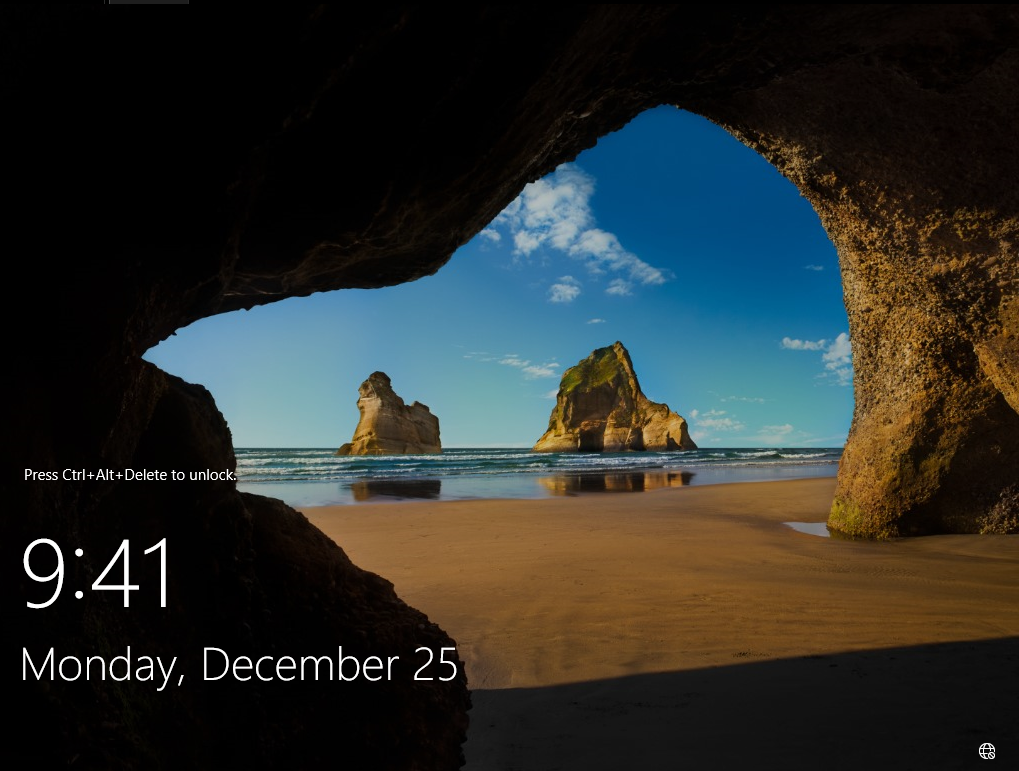
We’re now brought to the lock screen after creating the admin password.
Press CTRL + ALT + INSERT at the same time to unlock the screen.
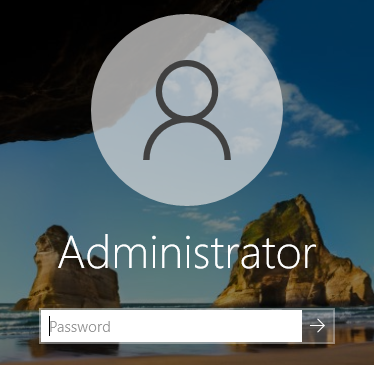
Sign in to the Administrator account.
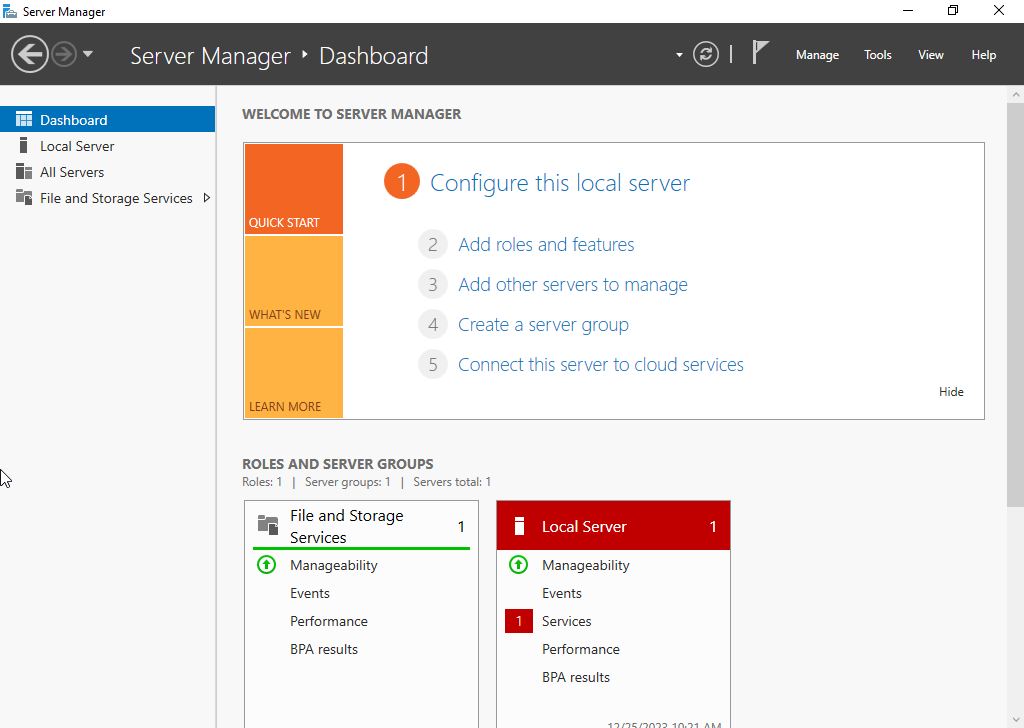
When you sign into Windows Server 2022, Server Manager automatically launches.
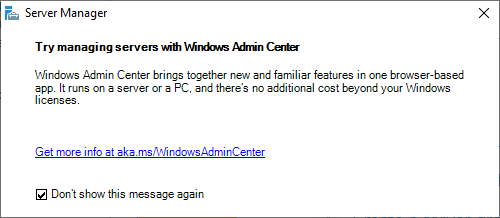
You’ll see a popup concerning Windows Admin Center which can be permanently dismissed by clicking the Don’t show this message again checkbox and closing the window.
On the sidebar, click 
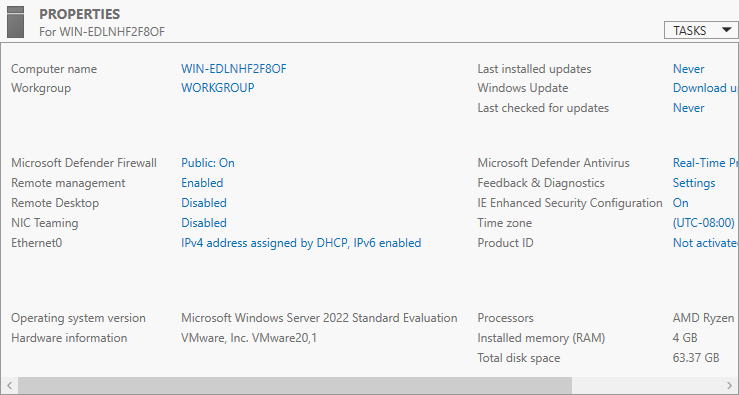
We’re brought to the server’s properties page, where we can see details like Computer Name, Ethernet info, OS Version, Time Zone and more.
Renaming the Server
Click the Computer Name, so that we can change it.
Mine has been set to WIN-EDLNHF2F8OF by default.

We’re now brought to the System Properties Panel.
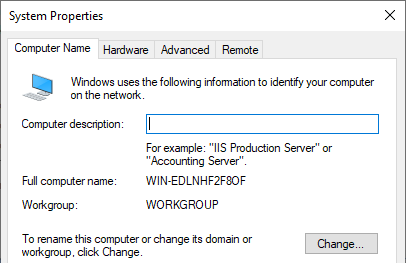
Click  to change the name.
I’ll be naming this server DC01 as it will be serving as the primary Domain Controller in this environment. Name it whatever you like, then click OK.
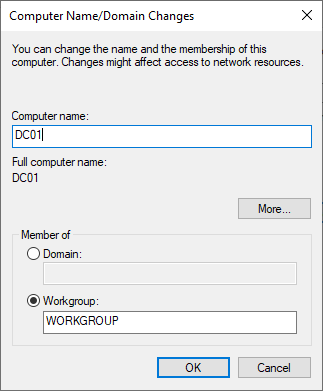
We received a message stating a restart is required for the changes to take effect.
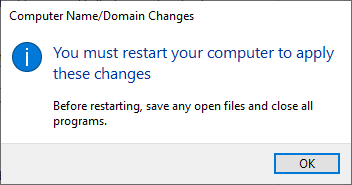
You’ll also notice a warning on the System Properties Panel.

Press OK to save the configuration.
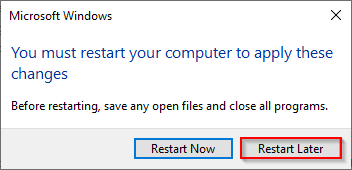
After closing the System Properties Panel, we receive another notice that a restart is required.
Choose Restart Later.
Configuring the Network Interface
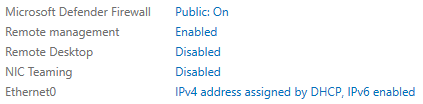
Within the below section, click on the Ethernet0 entry IPv4 address assigned by DHCP, IPv6 enabled.
This will open the Network & Sharing Center.
Double-click the network interface Ethernet0 to configure it.
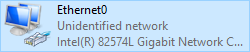
As we can see, there is no network access due to the interface being unconfigured. This is because there is no DHCP Server in our environment yet.
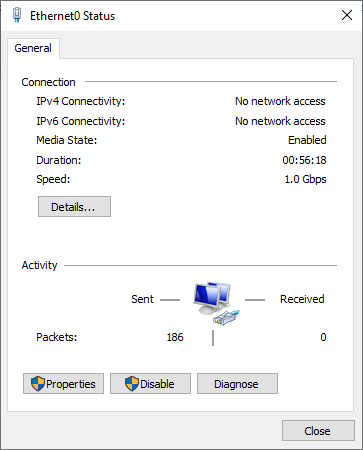
Click  to open the Properties Panel for this interface.
First, we’ll disable IPv6 by unchecking the entry displayed below.

Next, let’s configure the IPv4 settings. Select the Internet Protocol Version 4 (TCP/IPv4) entry.
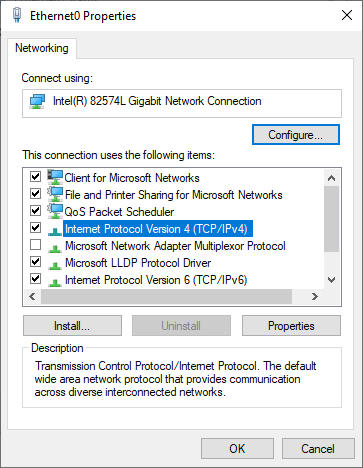
Click  to open the config page.
On the IPv4 Properties Panel, select the Use the following IP address radio button.
Enter an IPv4 address that falls within the previously configured network (10.10.100.0/24).
I’ve chosen 10.10.100.20 as an example.
For the Subnet mask field, type in the Subnet Mask associated with the previously created network, which is /24 or 255.255.255.0.
Lastly, enter the OPNsense IP address (10.10.100.1) into the Default gateway field and click OK.
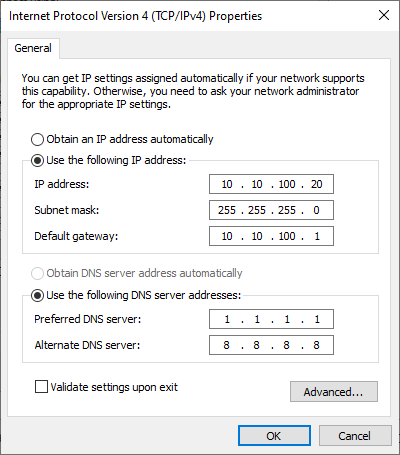
Click OK until you’ve fully closed the Ethernet0 Properties Panel.
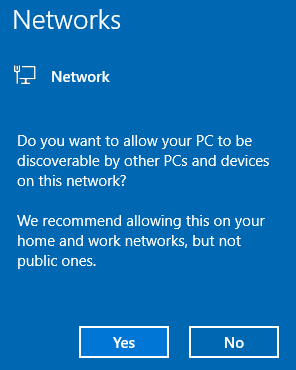
You’ll most likely see a banner like this one popup after configuring the network interface. Simply click No.
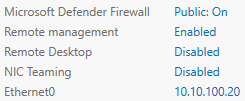
Click  in the top right of the ribbon bar to refresh the Local Server info.
We’ll now see the updated IPv4 address assigned to Ethernet0 which verified the configuration.
Verifying Connectivity
Let’s verify our connectivity to the internet.
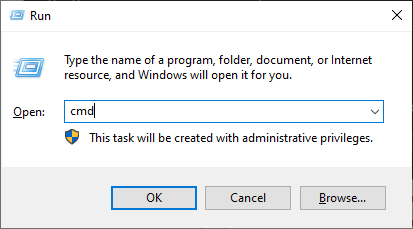
Open Run by pressing WIN + R at the same time, type in cmd and press Enter.
On the command line, enter ipconfig /all and hit Enter to display the full interface configuration.
Now, type ping 10.10.100.1 and hit Enter to verify we can reach OPNsense, our configured Default Gateway.
You should see Reply from 10.10.100.1 with some associated metrics.
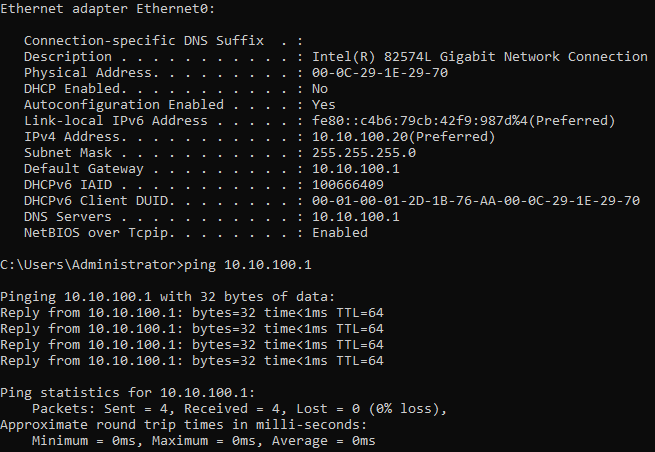
Since we can see our gateway, let’s try reaching outside our network!
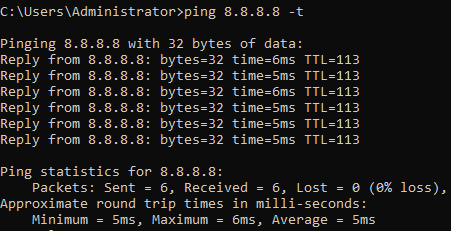
Type in ping 8.8.8.8 -t to start an endless ping to Google’s DNS Server.
You can terminate the ping by pressing CTRL + C at once.
You may have to do so a few times to interrupt the process.
Changing the Time Zone
Next up, let’s change the time zone!
Click the entry for Time zone.
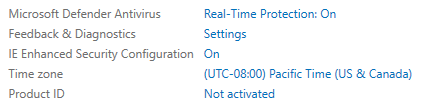
Within the Date and Time Panel, click 
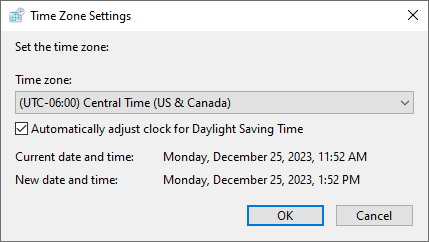
Within the Time Zone Settings Panel, select your timezone from the drop-down menu.
Mine is (UTC-06:00) Central Time (US & Canada).
Click OK.
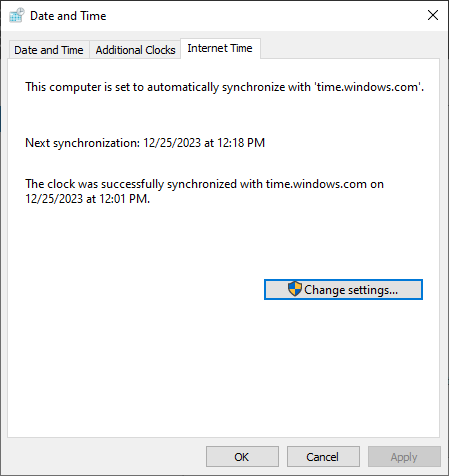
Click the Internet Time tab and click the Change Settings… button.
Here, we can update our time server to whatever we want.
I prefer to choose time.nist.gov which is already an entry in the drop-down menu.
Click Update now to update your time server and synchronize.
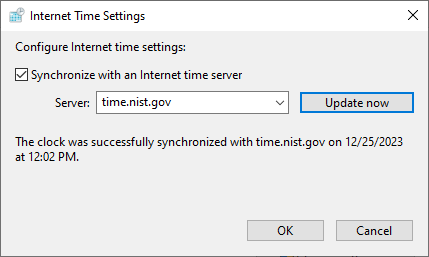
Click OK on the Internet Time Settings & Date and Time Panels to close them out and save the changes.
Performing Initial Updates
Back to the Server Manager dashboard, let’s check out some Windows Updates options.
By default, Windows Server is set to only download the updates without applying them, which is perfect for our use case and generally recommended for servers.
Let’s click the Last checked for updates entry. This will take us to the Windows Update page.

Within Windows Update, we should see updates ready to be installed. If not, simply click Check to get the latest updates downloaded.
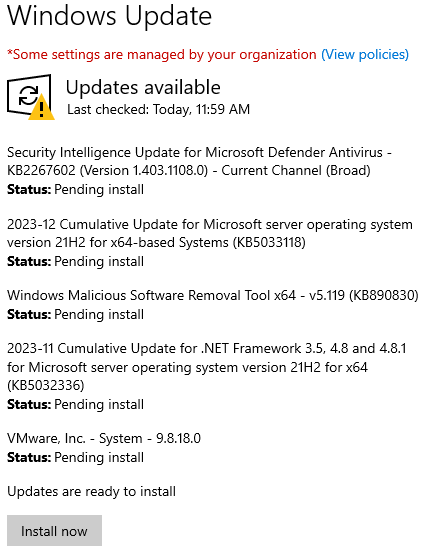
Click  to install the pending updates.
Once the installation is complete, click  to reboot the server.
Wrapping Up
After the server reboots, let’s review some of the changes we’ve made!
Navigate back to the Local Server properties by selecting it from the sidebar.
We can see below that our Computer name has changed, and there’s a new entry Azure Arc Management.
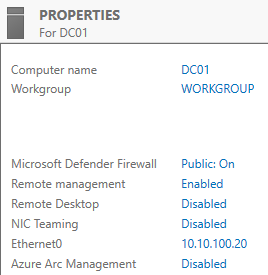
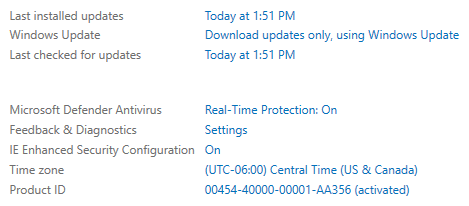
We can also see our Updates and Time Zone entries are updated and accurate.
Initialtization Finished!
We’ve successfully initialized our Windows Server! Please make your way to the next section, where we’ll be configuring Roles & Features!