Adding your domain to the M365 Developer Program environment.
Now that we’ve signed up for and initialized the M365 Environment, let’s add our purchased domain within the Domains section. This will allow us to fully utilize the domain across M365.
If you’ve just signed into your account, or accessed the account through the Go to subscription hyperlink from the last section, you can access the admin dashboard by clicking the Admin Portal button on the sidebar.
It looks like this ->  <- and will be located on the sidebar to the left.
Alternatively, simply click the button below.
M365 Admin Portal
Alright, now that we’re at the admin dashboard, expand all the settings by clicking 
Expand the Settings section and select Domains.
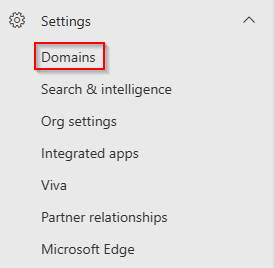
At the top of the page, click  to initiate the wizard.
Now enter the domain you’d like to connect, then click  below.
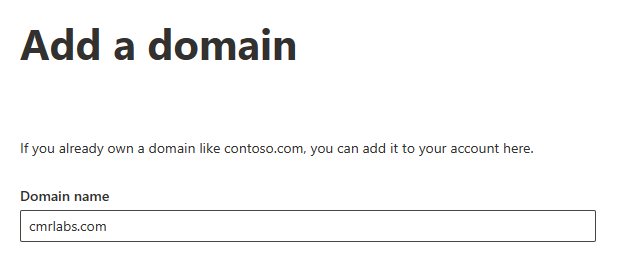
After submitting the info for the domain we want to add, we must go through the verification process. I’m using Cloudflare so I’m able to simply sign into my Cloudflare account.
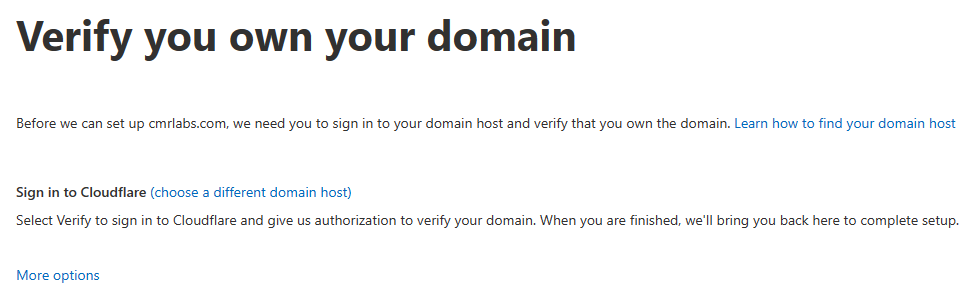
Once you’ve selected your verification option, click  to initiate the process.
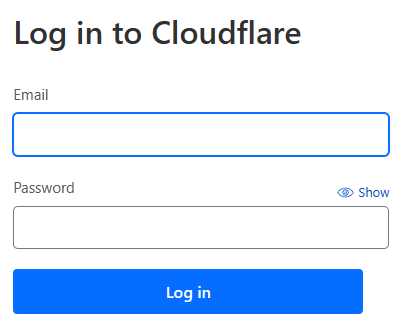
After clicking verify, I’m prompted with a login panel for Cloudflare.
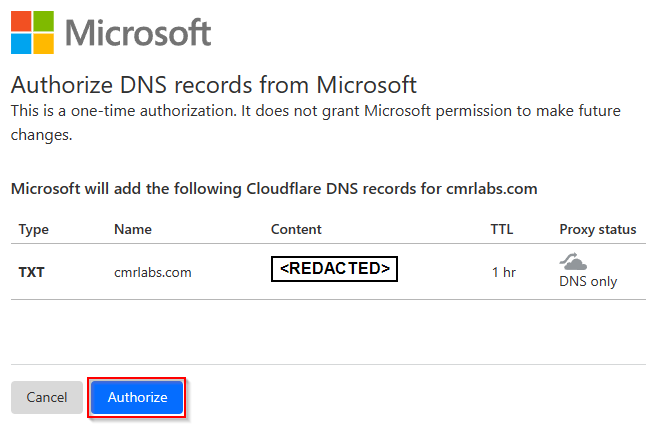
After logging in, I was presented with a screen to “Authorize DNS records from Microsoft”, which will be used by Microsoft to validate ownership of the domain.
After authorizing through whatever method you’ve chosen, you will see the following screen while Microsoft goes through the domain validation process.
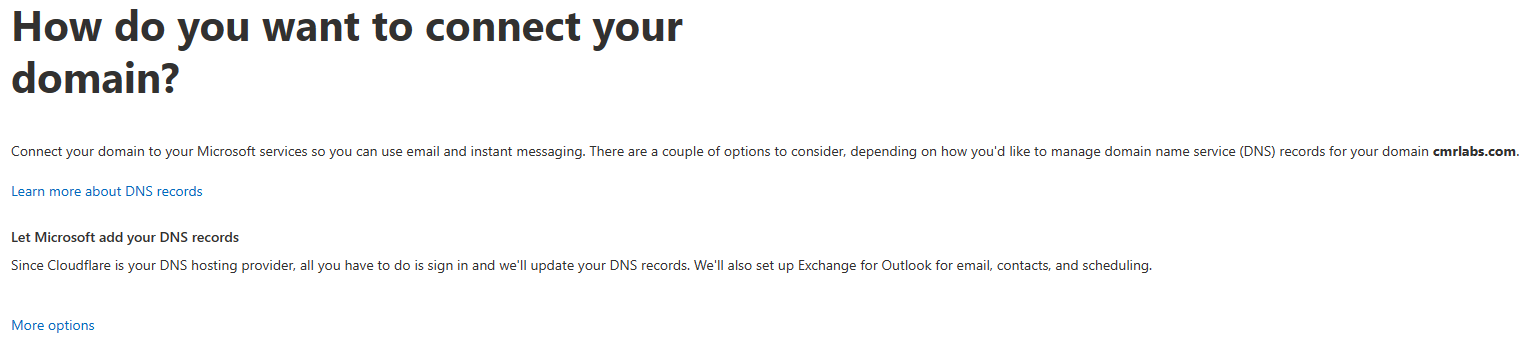
After the validation process is complete, we’re brought to the next step of setup.
We need to connect our validated domain to our M365 Environment.
Again, since I’m using Cloudflare, I can use the built-in process to append the required records. Once you’ve made your selection for how you’d like to connect your domain, click  to proceed.
Microsoft now wants us to verify whether or not it should be adding the required DNS records for Exchange services.
For this project, we will not be utilizing any on-premise Exchange Servers, so we can accept the defaults and click  to continue.
Microsoft is once again asking for authorization to append DNS records on our behalf for functionality between the domain and M365 services. Select  to continue.
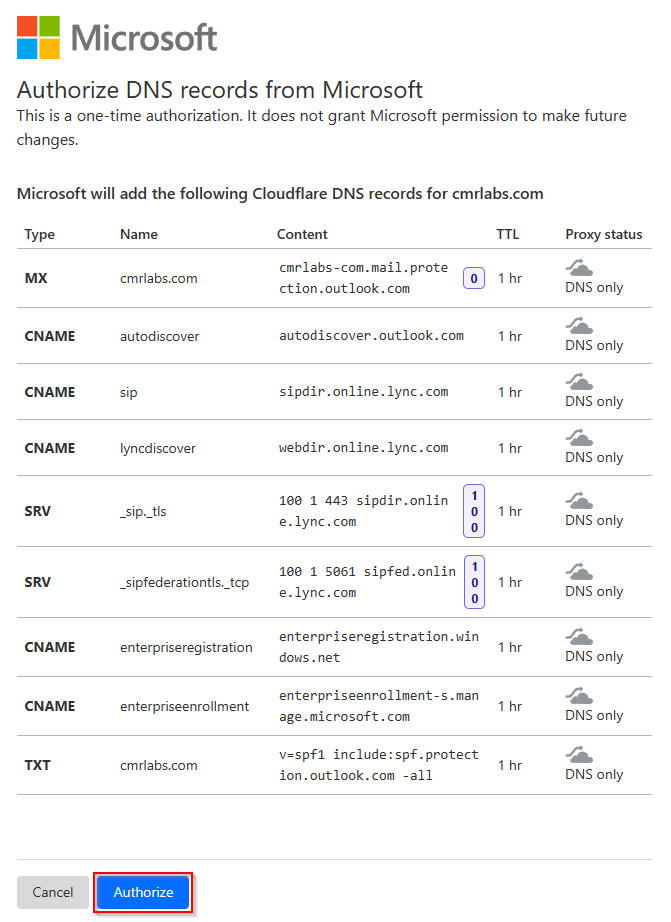
After authorization is confirmed, we’re met with another loading screen.
After some time, we’re brought back to the overview of adding our domain, where we should receive a message stating “Domain setup is complete”. Click  to exit the setup.

Congratulations!
We’ve successfully added a domain to our M365 Environment and can see it in the Domains section.

On a roll!
We’ve successfully added our custom domain to the M365 Environment!
Please make your way to the next section, where we’ll be finalizing some account details!